
AdVerse Ledger Guide
AdVerse Ledger keeps the books for churches, fellowships, schools, clubs and small organisations: every cedi that comes in or goes out, where it is held, who owes what, and the reports your committee, auditors and donors ask for.
This guide walks through every screen in the order it appears in the Ledger's sidebar. Each chapter says what the screen is for, what you see, and how to do each task step by step. Screenshots use a made-up organisation, Harvest Community Fellowship, so the names and amounts are examples only.
Words in bold are the exact labels you will see on screen. What you can do depends on your role (Owner, Admin, Treasurer, Recorder, Auditor or Viewer). When a task needs a particular role, the chapter says so; the full list is in Roles and permissions.
First-week checklist
Setting things up in this order saves corrections later. Each item links to the chapter that explains it.
- Check the organisation settings. Name, description, currency, the month your financial year starts, and an approval limit for large expenses if you want one. Settings
- Add the places you keep money. Your cash box, each bank account and each mobile money wallet, each with the balance it held on the day you start. Accounts
- Review your categories. The Ledger gives you a starting list. Rename, add or archive categories so they match how you report. Chart of Accounts
- Add funds, departments or projects if you report money separately for them (for example a Building Fund). Settings › Funds
- Enter other opening balances such as equipment you own or a loan you owe. Settings › Opening balances
- If you send invoices: fill in your organisation details, numbering, payment terms and payment instructions, and add tax rates if you charge tax. Settings › Invoice settings
- Invite your team and give each person the smallest role they need. Members
- Start recording. Record income and expenses as they happen, or import a spreadsheet of past records. Transactions
Opening the Ledger
Who can use it
AdVerse Ledger is part of the AdVerse PRO packages. What matters is the plan of the organisation's owner: everyone invited to an organisation can use it for as long as the owner's plan includes the Ledger, even if they have no plan of their own. If the owner's plan lapses, every member sees "AdVerse PRO subscription required to access this service." until it is renewed.
If your own plan does not include the Ledger, opening it shows AdVerse PRO required with a View subscription in profile button, where you can subscribe or redeem a code.
Getting there
- From the AdVerse menu, open AdVerse Ledger. It remembers the organisation you used last and opens its Overview.
- If you were invited as a guest, sign in to your Guest Workspace and open the Ledger from there.
- If the Ledger cannot load, you will see Connection error or Could not open Ledger with a Retry button. It retries by itself twice first.
Create your ledger
The first time you open the Ledger with no organisation, you see Create Your Ledger.
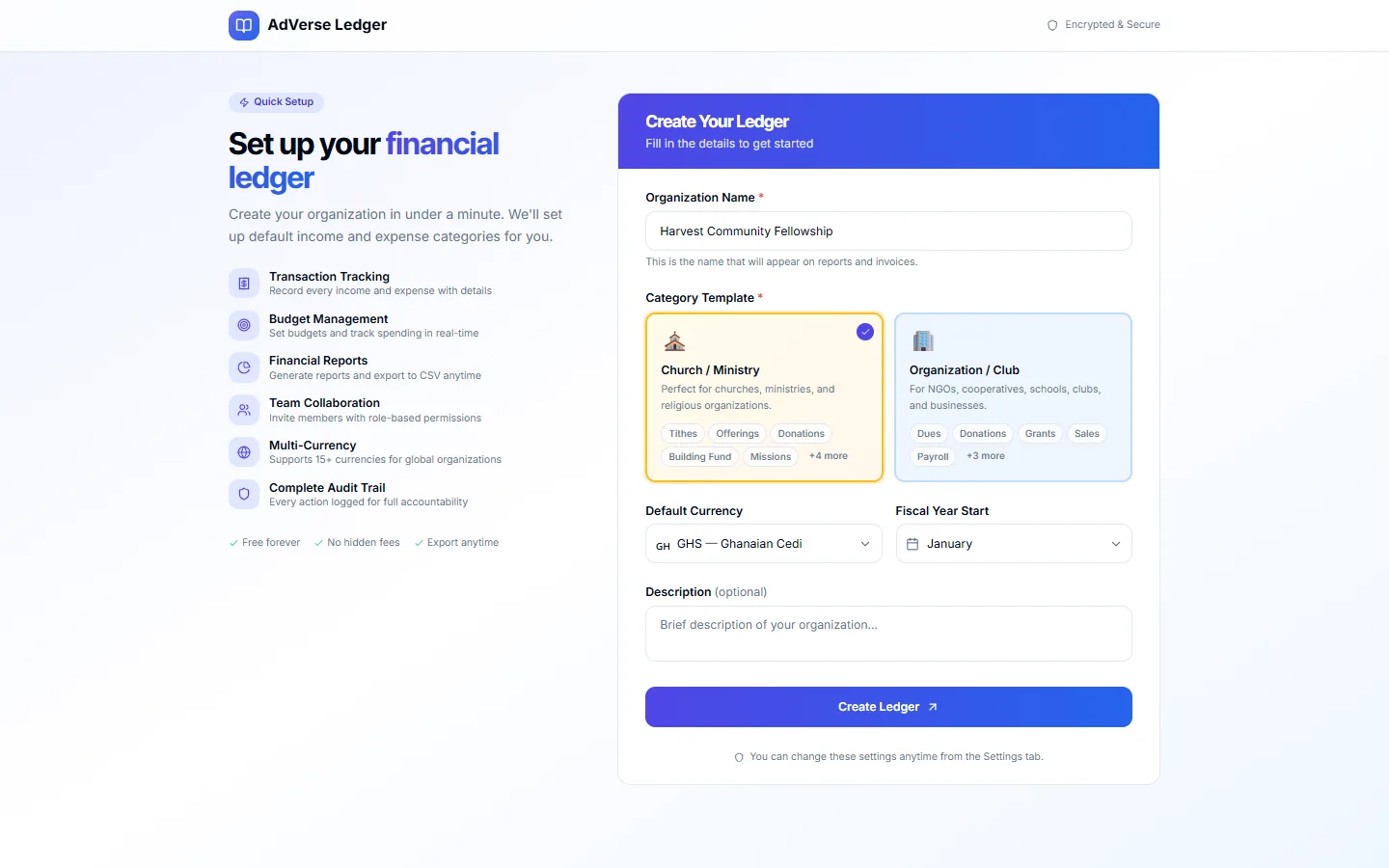
- Type the Organization Name. It appears on reports and invoices.
- Pick a Category Template: Church / Ministry or Organization / Club. This only decides your starting categories; you can change them all later.
- Choose the Default Currency. All reports are in this currency.
- Pick the month your Fiscal Year Starts and, if you like, add a short Description.
- Select Create Ledger. You become the organisation's Owner. Everything here can be changed later in Settings.
The Ledger sets up a starting chart of accounts for you. The church template, for example, includes income such as Tithes, Offerings, Building Fund, Welfare, Mission Support, Pledges and Donations, and expenses such as Utilities, Rent, Salaries & Stipends, Transport & Fuel, Events & Programs and Maintenance. It also creates a few system accounts the Ledger needs to keep its books (for example Undeposited Funds, Accounts Receivable, Accounts Payable and Opening Balance Equity). System accounts cannot be deleted.
Finding your way around
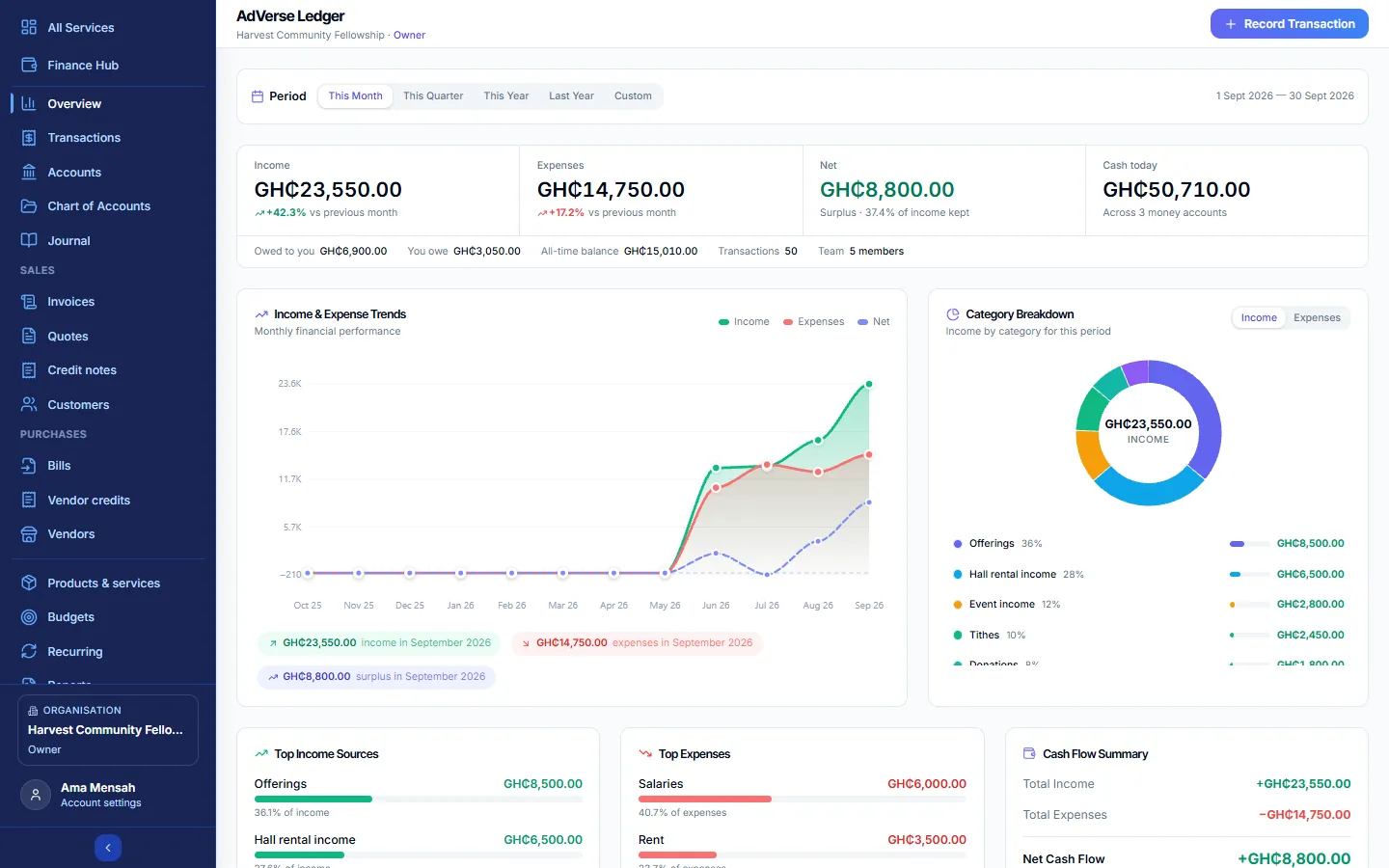
- Header. Shows AdVerse Ledger, the organisation name and your role. If you can record money, the Record Transaction button (on phones, Record) opens the recording form from any screen.
- Sidebar. The sections, in order: Overview, Transactions, Accounts, Chart of Accounts, Journal; Sales: Invoices, Quotes, Credit notes, Customers; Purchases: Bills, Vendor credits, Vendors; then Products & services, Budgets, Recurring, Reports, Members, Contacts, Audit Log and Settings. Sections your role cannot use are hidden. The arrow at the bottom collapses the sidebar.
- Top links. All Services returns to AdVerse and Finance Hub opens your other finance tools. Guests see a single Guest Workspace link instead.
- Switching organisation. If you belong to more than one, the Organisation card at the bottom of the sidebar has a Switch organisation list showing each name and your role in it.
- Forms open from the side. Every form and detail view slides in from the right. Close it with the X, the Esc key, or by clicking outside it.
- Reloading keeps the organisation but returns you to Overview.
1Overview
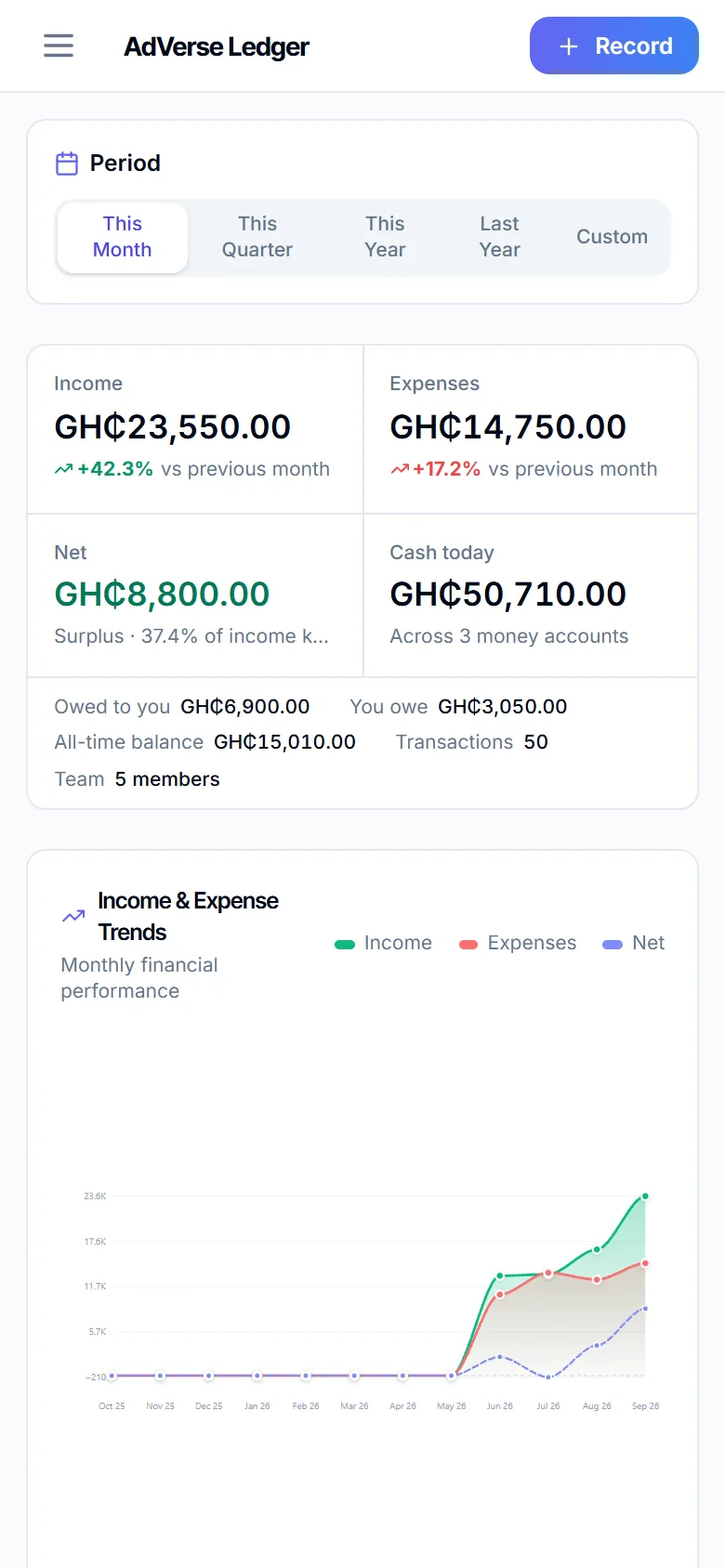
A one-page picture of how the organisation is doing: money in and out, where the money is, trends, budgets and what is coming up.
Choose a period
The Period bar at the top offers This Month (the default), This Quarter, This Year, Last Year and Custom (two dates). Everything below follows the period you pick.
The summary panel
- Income and Expenses for the period, each with the change against the previous period (for example +12.5% vs previous month). A rise in expenses shows in red.
- Net: income minus expenses, labelled Surplus (with the share of income kept), Deficit or Break-even.
- Cash today: what your cash, bank and mobile money accounts hold.
- The line underneath shows Owed to you (unpaid invoices), You owe (unpaid bills), the all-time balance, the number of transactions and your team size.
Charts and widgets
| Widget | What it shows |
|---|---|
| Income & Expense Trends | Income, expenses and net for the 12 months ending in your period. Hover a point for the amount. |
| Category Breakdown | A ring chart of income or expenses by category (switch between them). The seven largest are named; the rest are grouped as "Other". |
| Top Income Sources / Top Expenses | The five largest categories with their share. |
| Cash Flow Summary | Total income, total expenses, net cash flow and the income-to-expense ratio. |
| Recent Transactions | The last eight records. |
| Financial Health Score | A 0–100 indicator built from how much income you keep, how many income sources you have and how well expenses are controlled. It is a guide, not an accounting figure. |
| Period Comparison | This period against the previous one for income, expenses and net. |
| Budget Health | How many budgets are on track, near the limit or over. |
| Top Contributors | The largest recent payers. It only looks at the latest records; use Reports › Contributions for full totals. |
| Upcoming Recurring | The next scheduled recurring entries. |
2Transactions
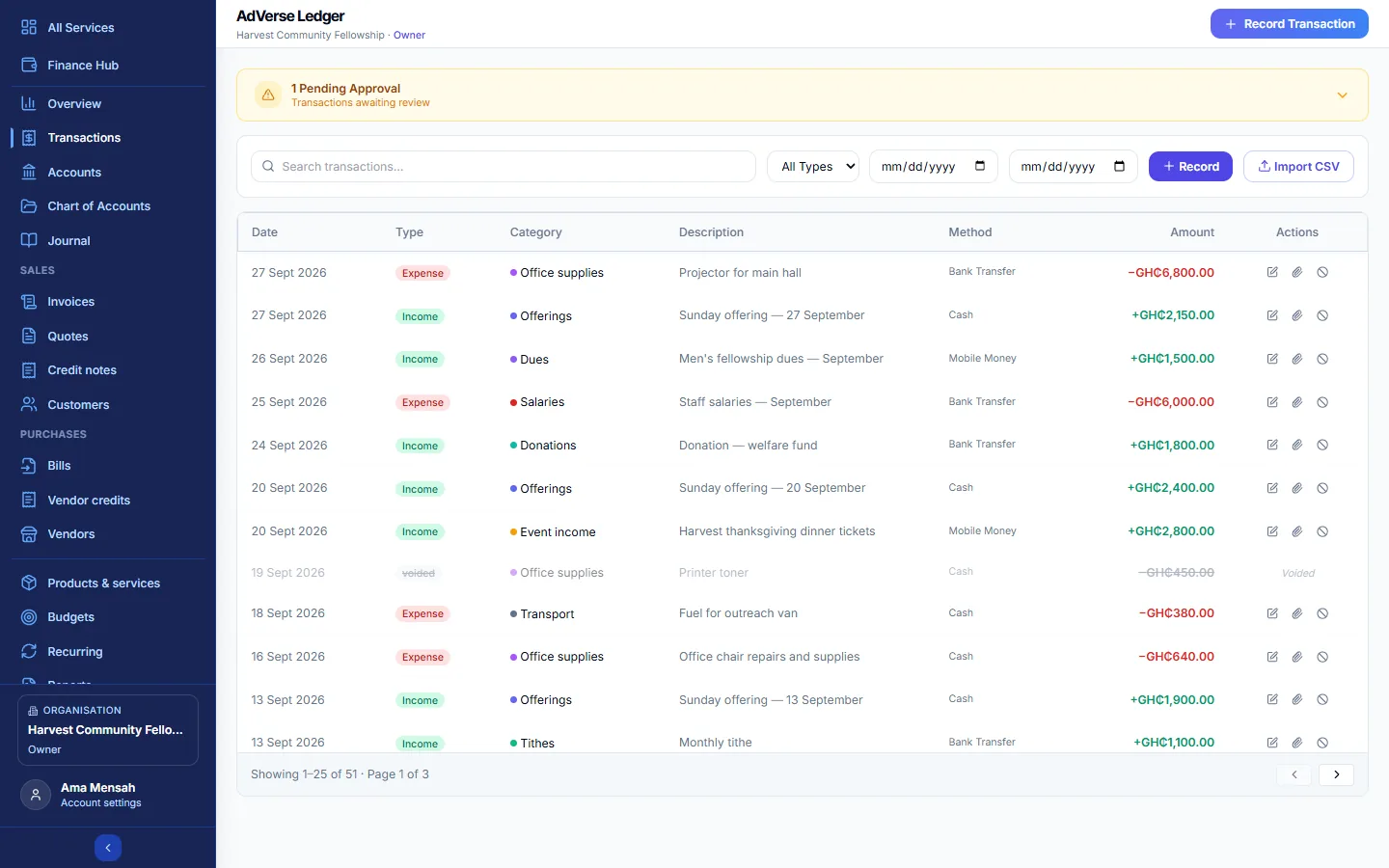
The day-to-day register of money in and out. Here you record, find, correct, void, attach receipts to, import and approve transactions.
Find a transaction
Use Search transactions..., the All Types / Income / Expense filter and the From and To dates. The list shows 25 rows per page. Voided rows are faded and marked Voided. When a category is an asset, loan or fund rather than income or expense, the type reads Money in or Money out and the row notes it is not counted as income or expense.
Record income or an expense
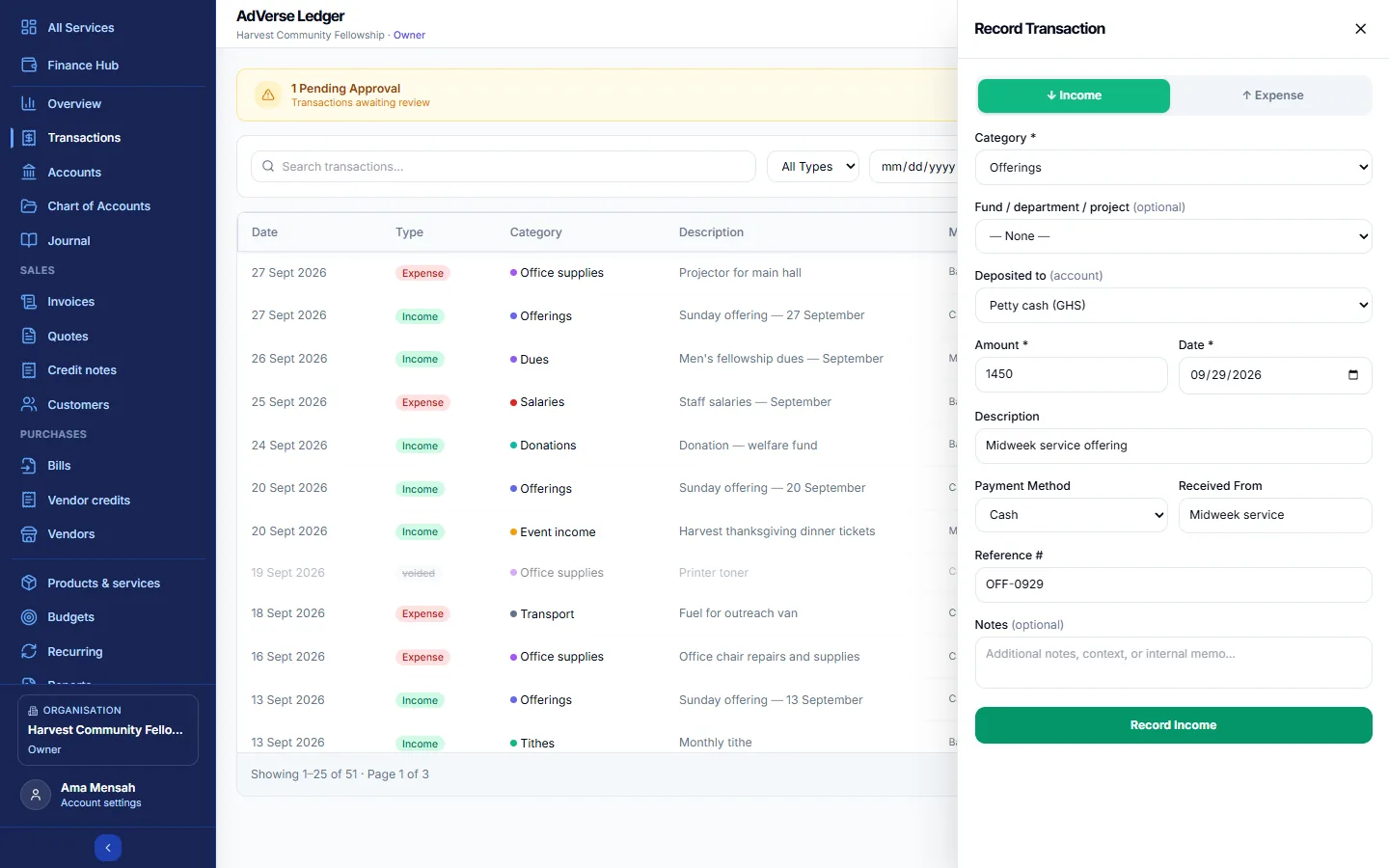
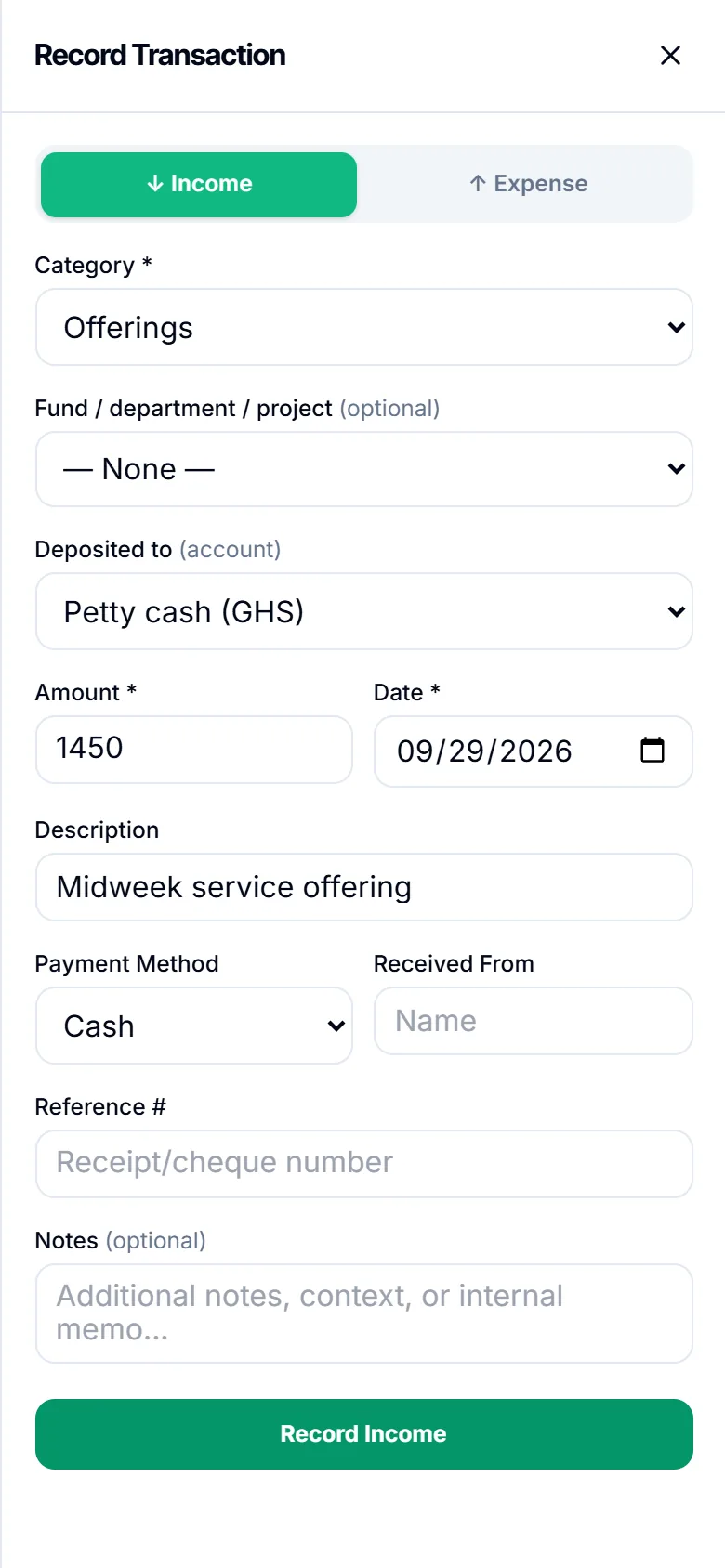
- Select Record Transaction in the header (or + Record on Transactions or Overview).
- Choose ↓ Income or ↑ Expense.
- Pick the Category. Under Other accounts you will also find assets, loans and funds, each with a hint such as "Money in — e.g. loan received". Those are recorded against that account and are not counted as income or expense.
- If you use funds or departments, choose the Fund / department / project.
- Choose where the money went: Deposited to for income or Paid from for an expense. Pick the real cash box, bank or wallet so its balance stays right. — Not tracked — leaves it out of every account balance.
- Enter the Amount and Date.
- Add a Description, the Payment Method (Cash, Mobile Money, Bank Transfer, Cheque, Online Payment, Card or Other), who it was Received From or Paid To, a Reference # (receipt or cheque number) and any Notes.
- Select Record Income or Record Expense.
The name you type there feeds the Contributions report, which you can use for giving statements.
If a record with the same category, amount and date already exists, the Ledger warns you with Possible duplicate. Choose Cancel or Save Anyway.
Correct a transaction
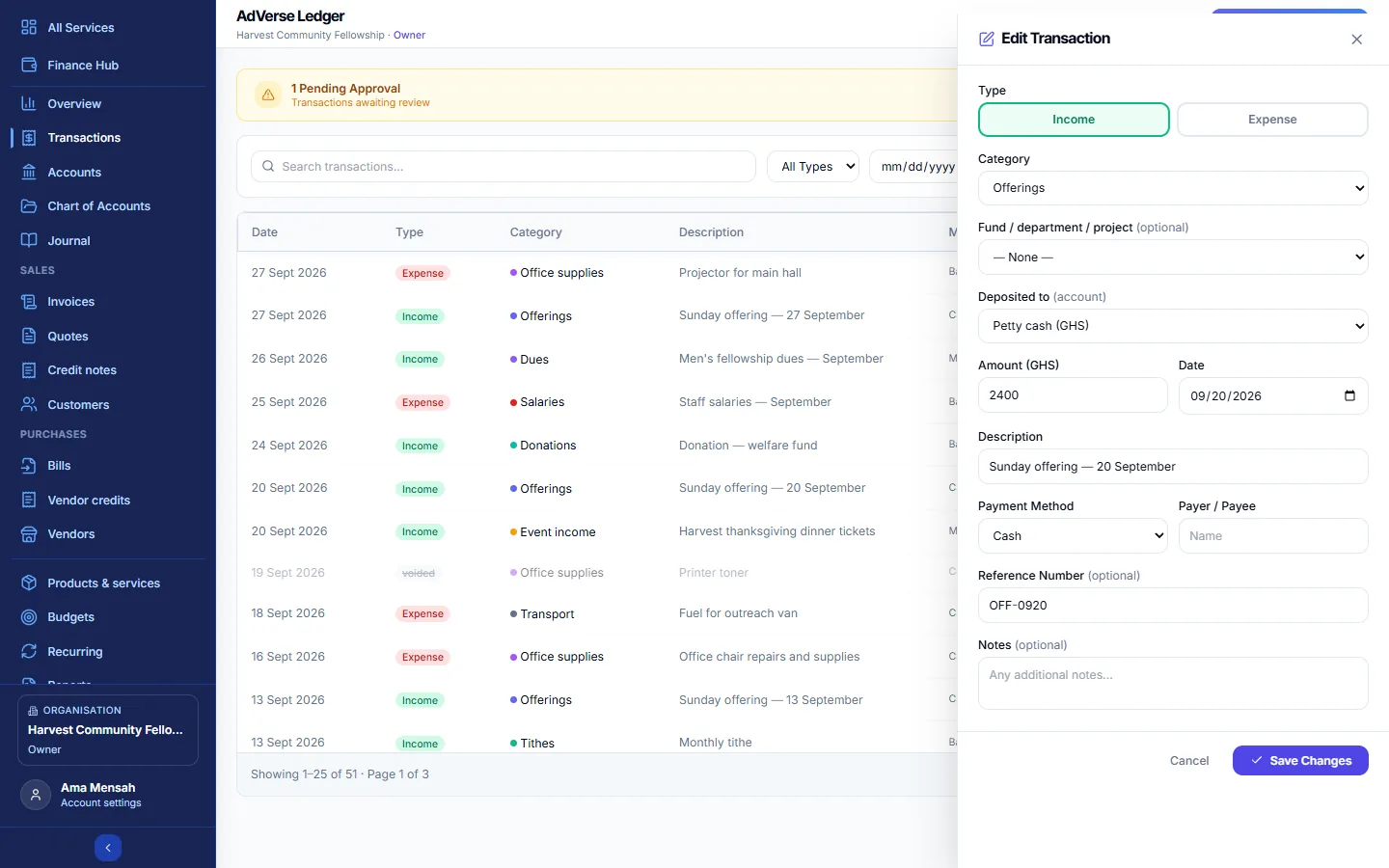
Owner, Admin or Treasurer. Select the pencil (Edit transaction) on the row, change what is wrong and select Save Changes.
- A voided transaction cannot be edited.
- If the transaction is ticked in a reconciliation, you can still change the description, notes and payer, but not the amount, date, type, category or account until it is unticked.
- A transaction created by an invoice or bill payment is changed from that document instead.
- Raising an expense to or above the approval limit sends it for approval again.
Void a transaction
Owner or Admin. Voiding keeps the record but removes its effect from every balance and report. Select the ban icon (Void transaction), optionally give a Reason for voiding, then select Void Transaction.
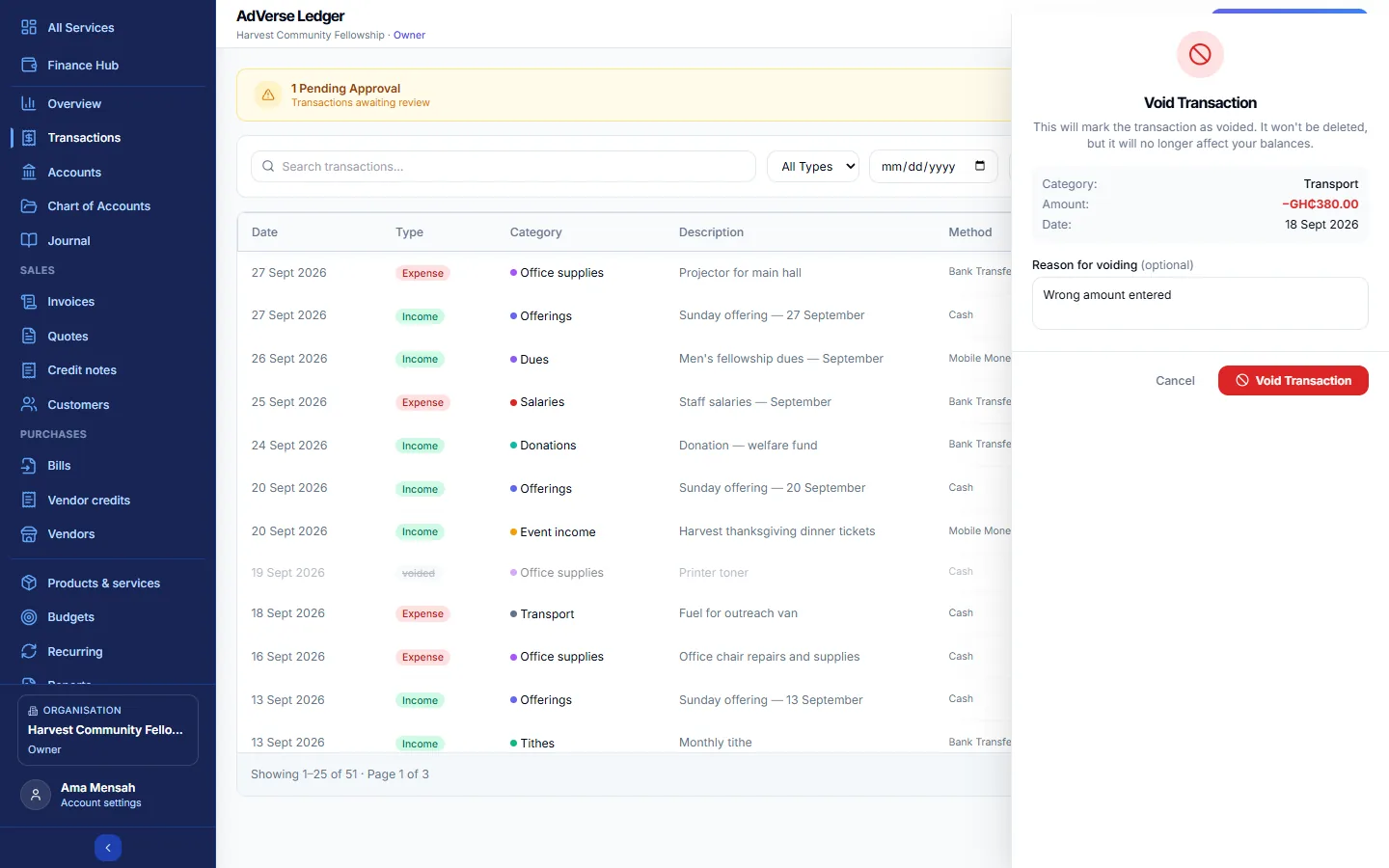
If you void by mistake, record the transaction again. If the transaction was the money side of an invoice or bill payment, voiding also removes that payment, and the invoice is owed again.
Attach receipts and documents
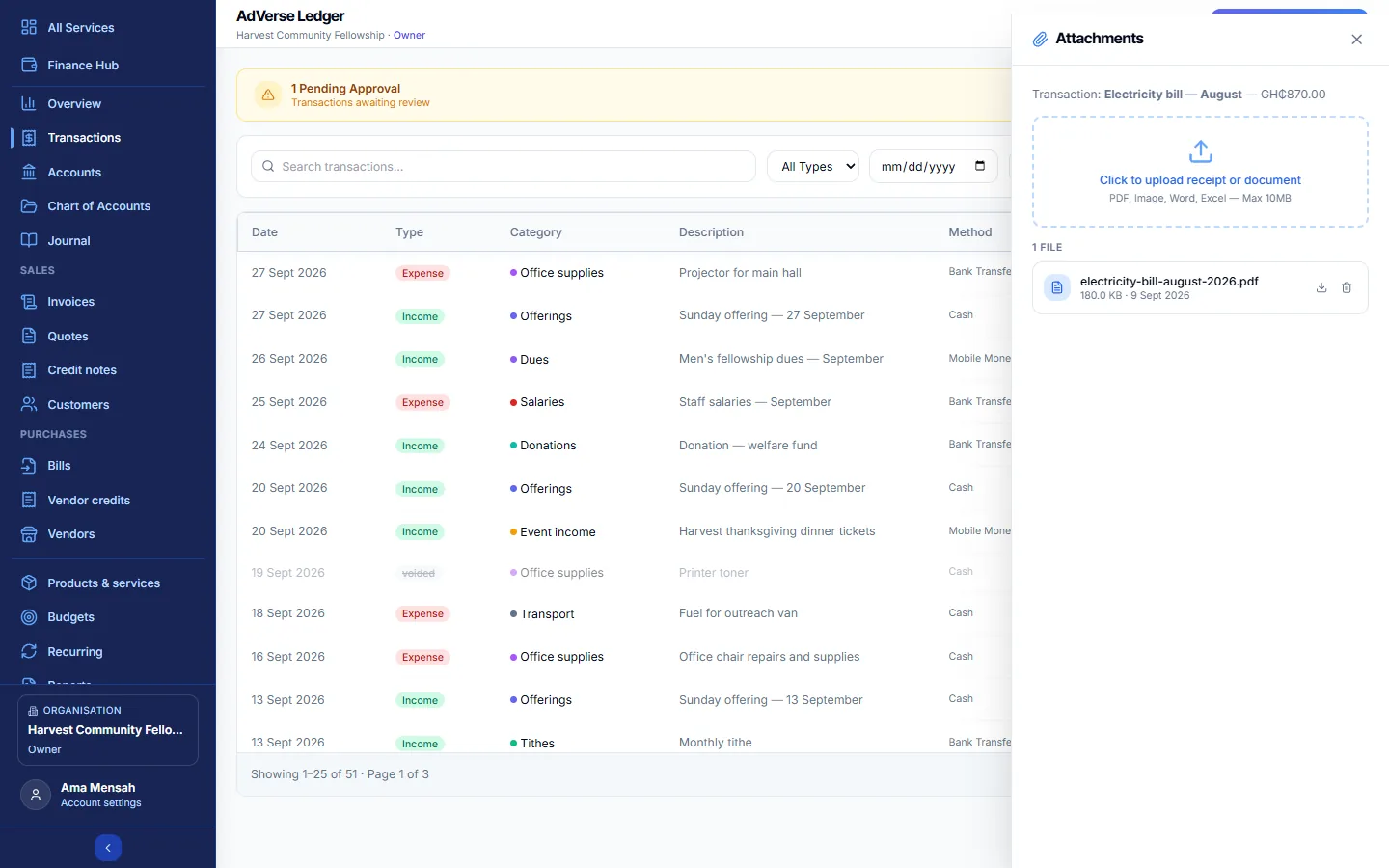
Select the paperclip (Attachments) on a row, then Click to upload receipt or document. PDF, pictures, Word, Excel, CSV and text files up to 10 MB are accepted, one at a time. Click a file name to open it. Deleting an attachment is permanent (Owner, Admin or Treasurer).
Approve large expenses
If an Owner or Admin sets an Approval Threshold in Settings, any expense at or above it is held for approval. This applies to expenses recorded by hand, imported, posted by a recurring template, or edited up to the limit. Income is never held.
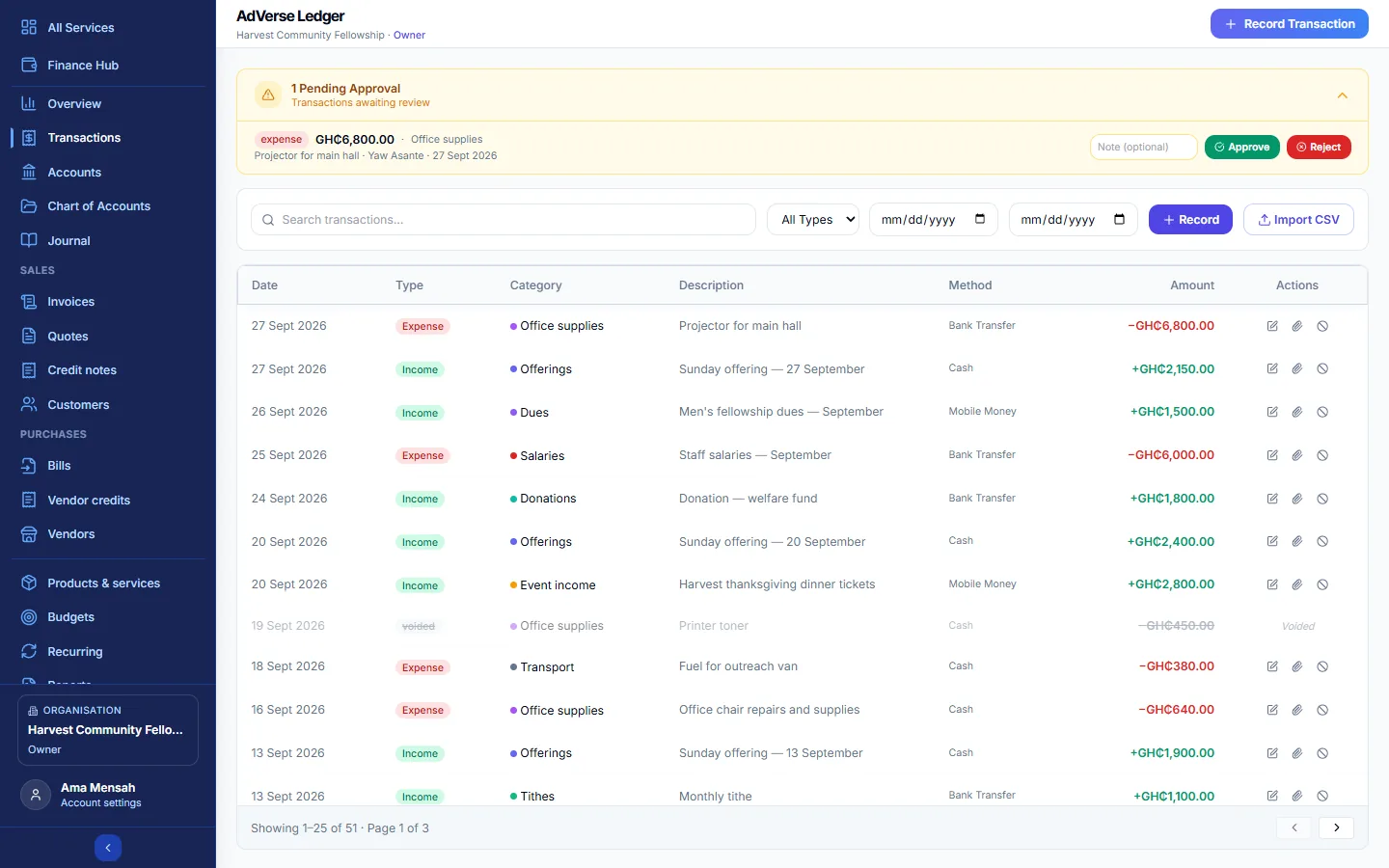
- On Transactions, open the Pending Approval banner.
- Read each request: amount, category, description, who asked and when.
- Optionally type a Note, then select Approve or Reject.
- You cannot approve your own request; someone else must.
- A held expense appears in the list but does not count in any total, balance or report until it is approved. A rejected one never counts.
- In the list, a held expense is marked Awaiting approval and a rejected one Rejected.
- To send a rejected expense for approval again (after correcting it if needed), select the send icon, Send for approval again, on its row.
Import from a spreadsheet
Owner, Admin, Treasurer or Recorder. Bring in many records at once from a CSV file.
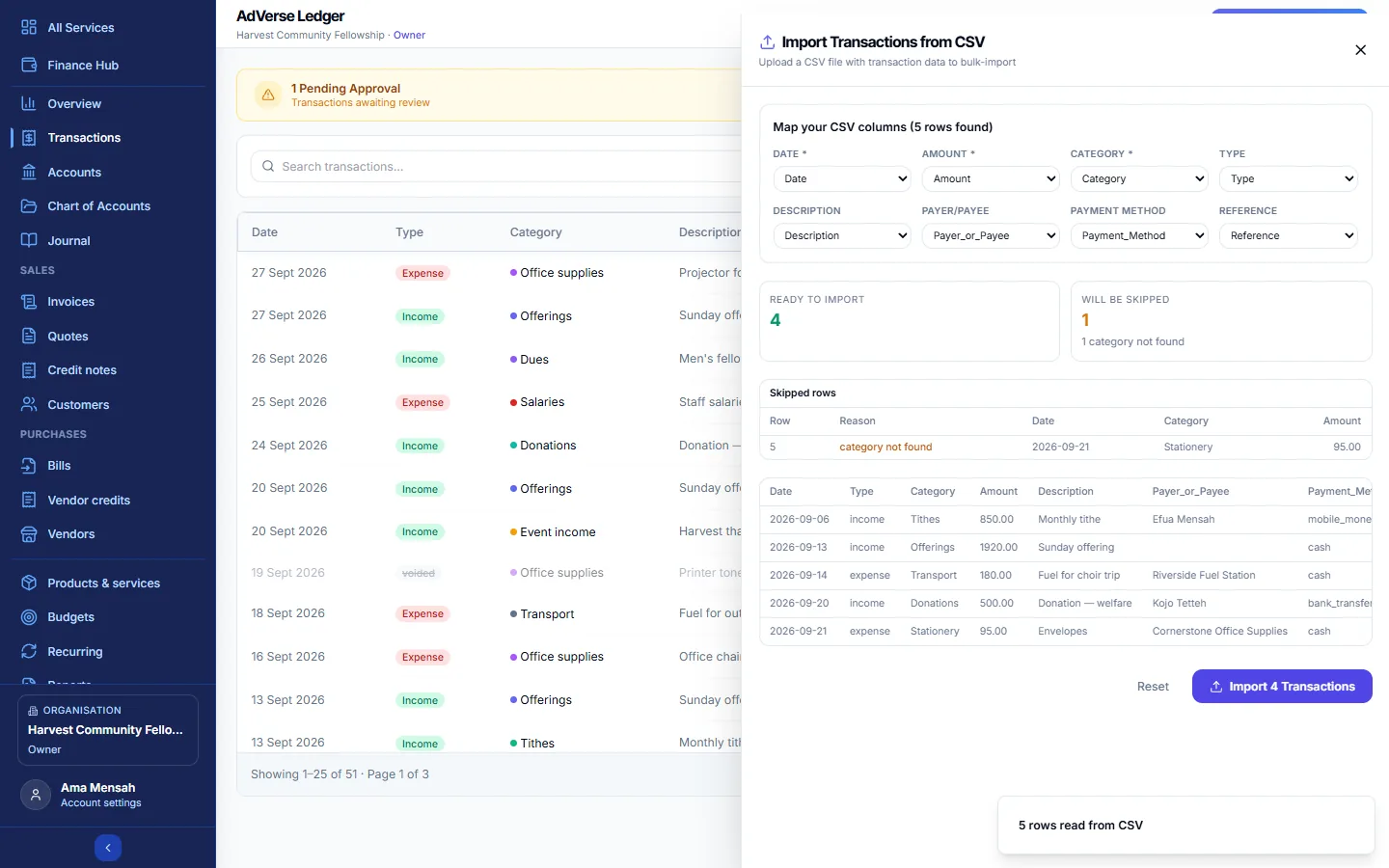
- On Transactions, select Import CSV. Use Download sample CSV to see the expected layout.
- Drop your file on the box or click to choose it.
- Check Map your CSV columns. Date, Amount and Category are required; Type, Description, Payer/Payee, Payment Method and Reference are optional.
- Read Ready to import and Will be skipped. The Skipped rows table gives the reason for each (missing date, invalid amount, category not found and so on). Fix those in your file if you want them in.
- Select Import N Transactions and wait for the progress bar, then Done.
| Column | What the Ledger accepts |
|---|---|
| Header row | Date,Type,Category,Amount,Description,Payer_or_Payee,Payment_Method,Reference (other names are detected where possible) |
| Date | 2026-09-15, 2026/09/15, 15/09/2026, 15-09-2026 or 15.09.2026 (day first). Two-digit years mean 20YY. |
| Amount | 1,250.50, GH₵ 1,250.50, (300) or -45. Zero is rejected. |
| Type | income, credit, in, received… or expense, debit, out, paid…. With no Type column, negative amounts are expenses. |
| Category | Must match an existing category name (capitals and extra spaces ignored). Unknown categories are skipped, never guessed. |
| Payment method | cash, mobile_money, bank_transfer, cheque, online, card or other. Anything else becomes "other". |
Imported records follow every normal rule (locked periods, the approval limit) and are not linked to a money account.
3Accounts
Where your money is physically held: the cash box, bank accounts, mobile money wallets and cards. Here you see each balance, move money between them and check them against statements.
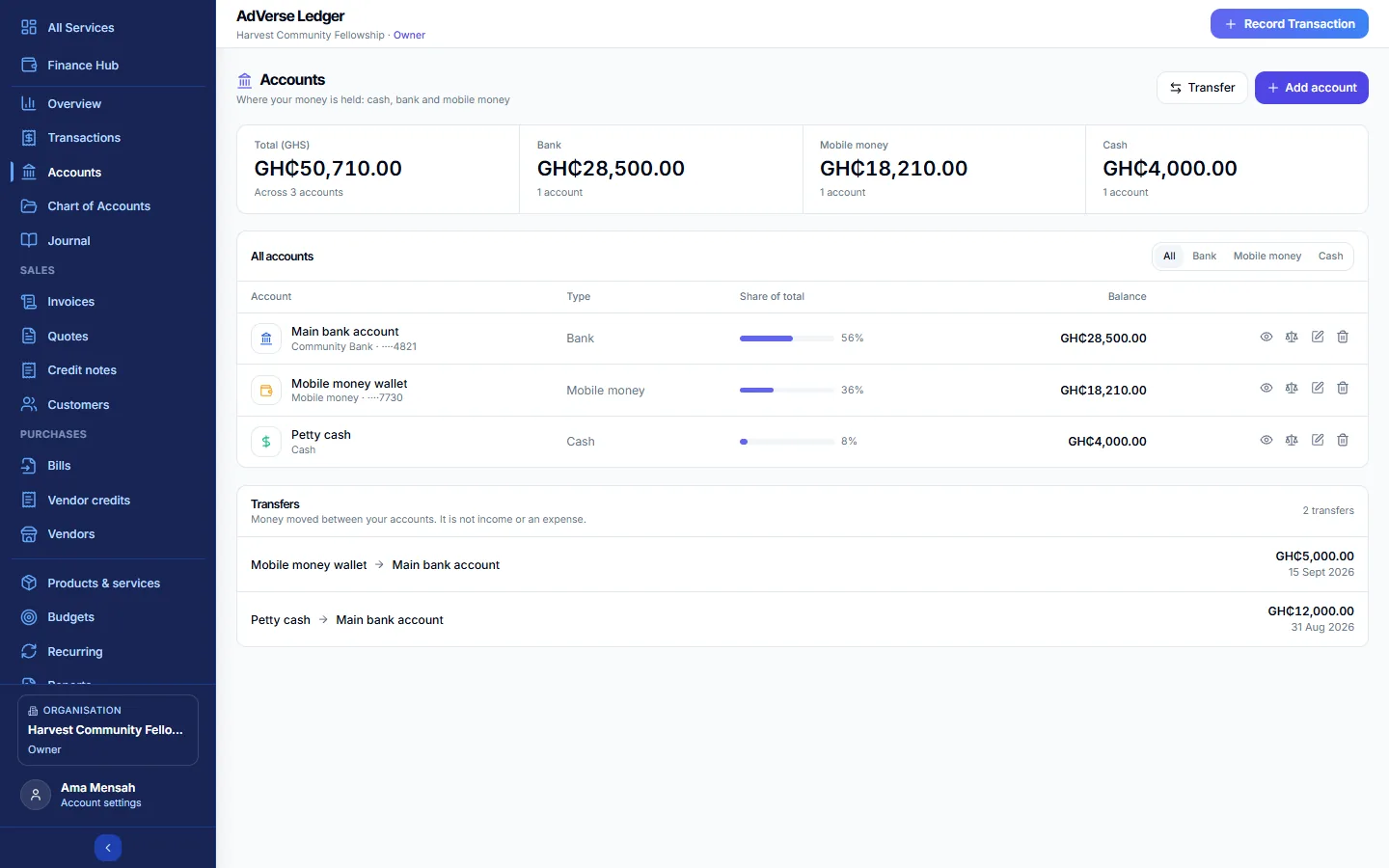
An account's balance is its opening balance, plus income deposited to it, minus expenses paid from it, plus transfers in, minus transfers out, plus or minus invoice and bill payments.
- The panel shows the Total and totals for Bank, Mobile money and Cash.
- All accounts lists each account with its institution and the last four digits of its number, its type, its Share of total and balance. Filter by type with the chips.
- Row actions: View activity, Reconcile with a statement, Edit and Delete. On a phone they are in the ⋯ menu.
Add a money account
Owner, Admin or Treasurer.
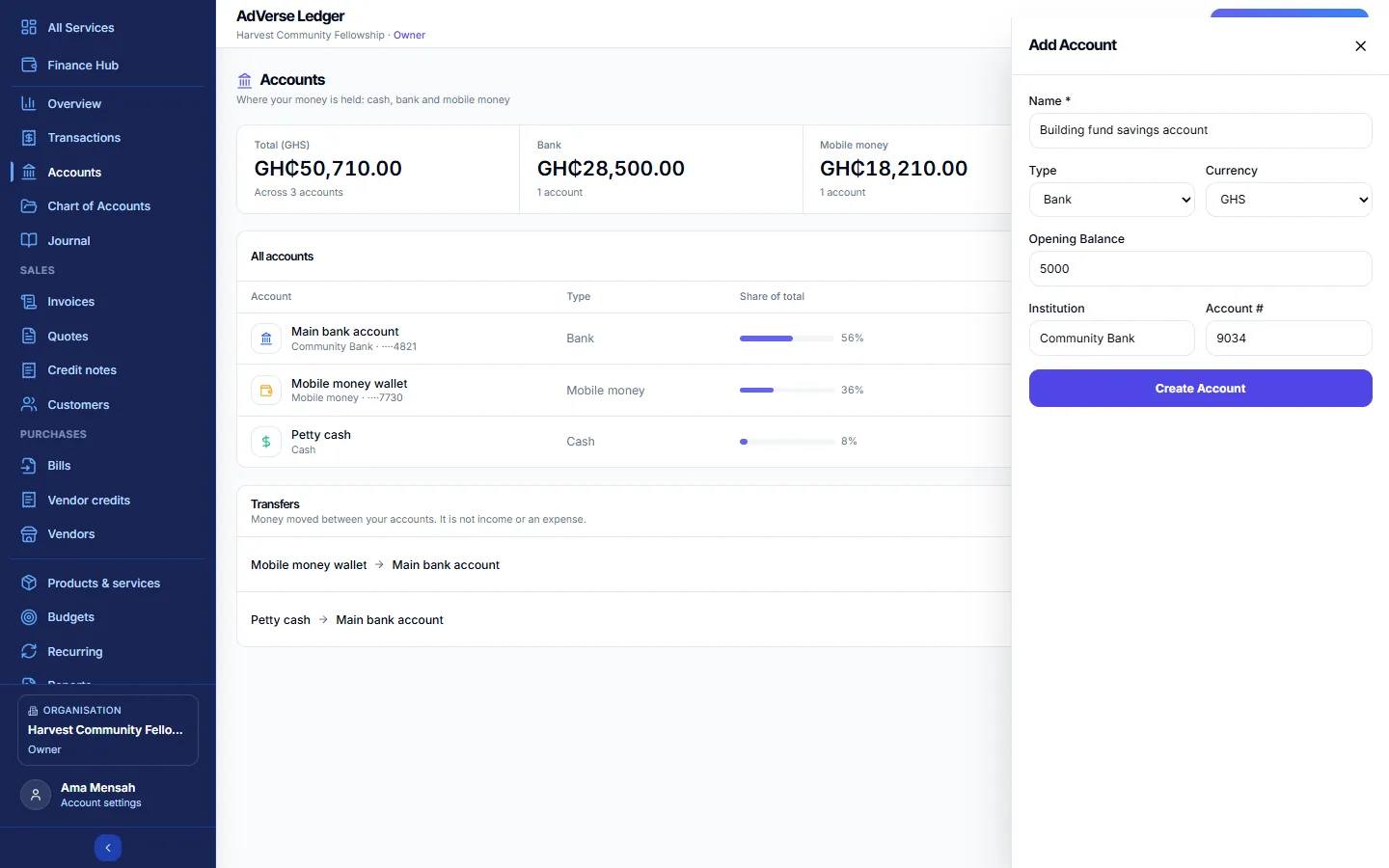
- Select + Add account.
- Enter the Name (for example "Main bank account") and choose the Type: Cash, Bank, Mobile Money, Card or Other.
- Choose the Currency. It cannot be changed afterwards.
- Enter the Opening Balance, and optionally the Institution and the last four digits in Account #.
- Select Create Account.
Deleting an account that has any history archives it instead, so its records stay intact. Deleting is for Owners and Admins.
Move money between accounts
A transfer (for example banking the Sunday cash, or moving money to the mobile money wallet) is not income or an expense; it only changes where the money sits.
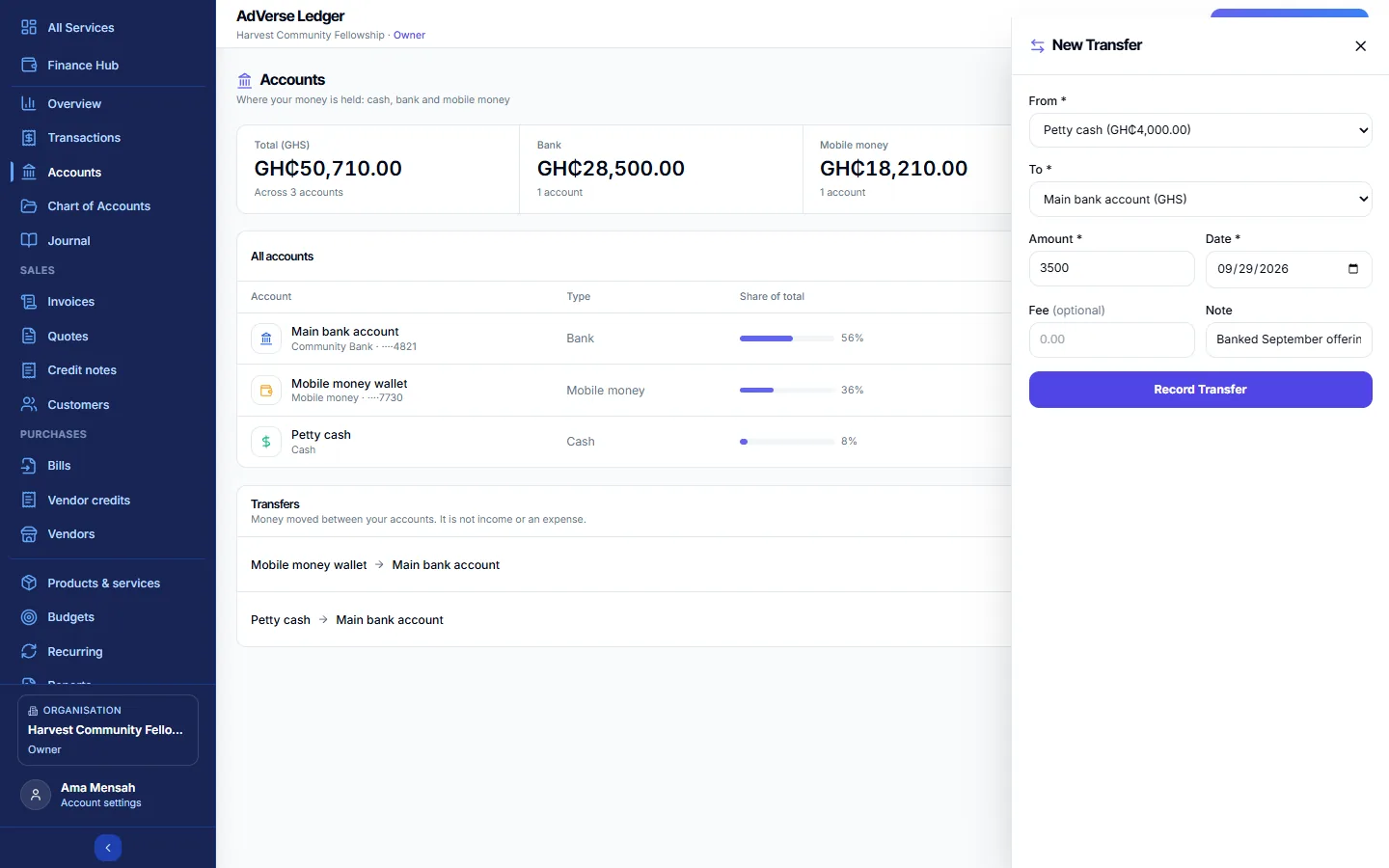
- Select Transfer (you need at least two accounts).
- Choose From and To, the Amount and Date.
- If the accounts use different currencies, enter the Exchange rate; the form shows what the recipient gets.
- Enter any Fee. It is recorded as a bank and mobile money charge, taken from the From account.
- Select Record Transfer.
Reconcile an account with a statement
Reconciling proves that the Ledger agrees with your bank or mobile money statement.
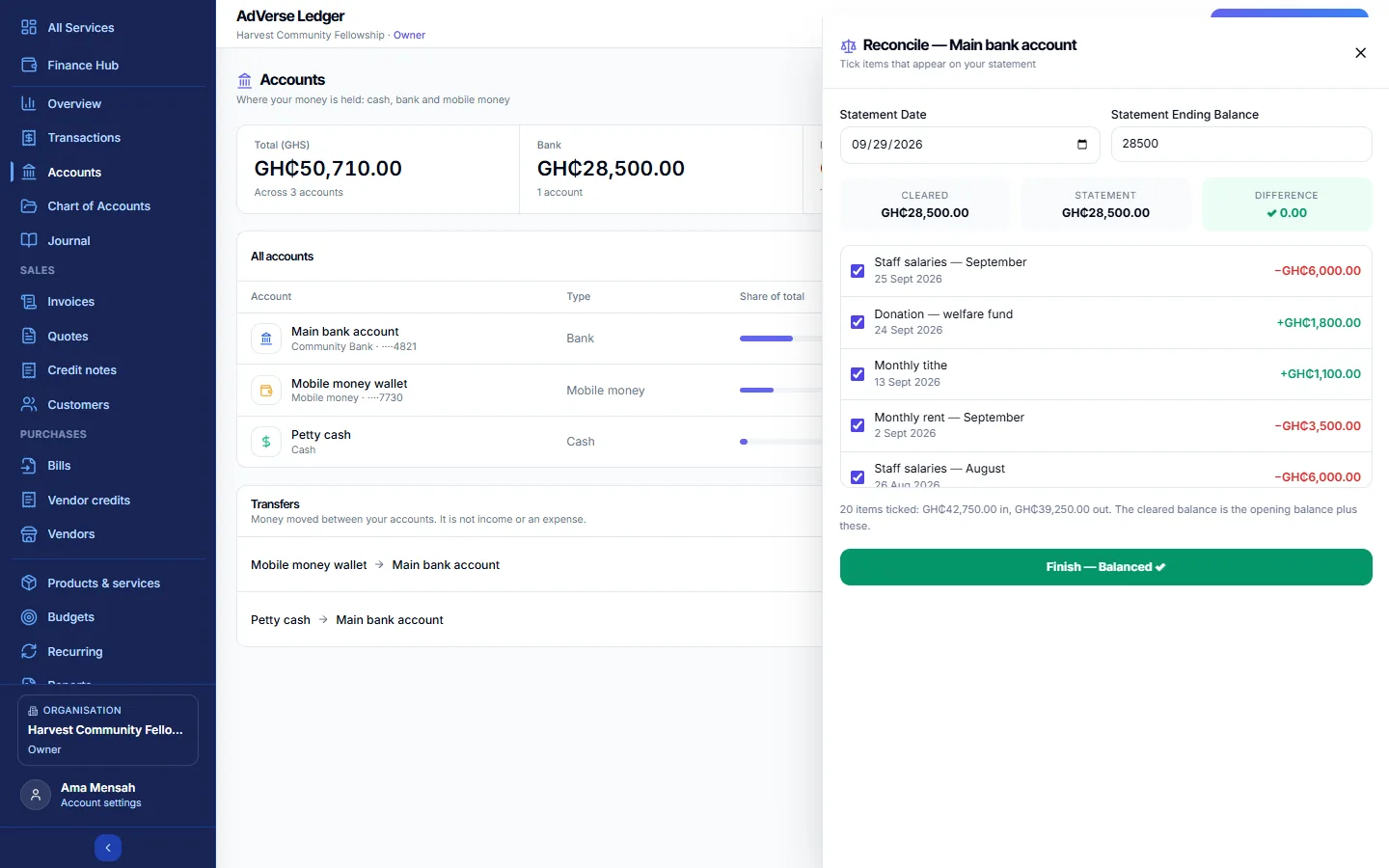
- On the account's row, select Reconcile with a statement.
- Enter the Statement Date and Statement Ending Balance.
- Tick every transaction, transfer and payment that appears on the statement. Cleared, Statement and Difference update as you go.
- When the difference is zero, select Finish — Balanced ✓. If it is not zero, Save Reconciliation saves your progress with the difference noted.
Once reconciled, an item's amount, date, type, category and account cannot be changed and it cannot be voided. Untick it in a later reconciliation first.
See an account's activity
Click an account row, or select View activity, to open its register: every movement in date order with a running balance.
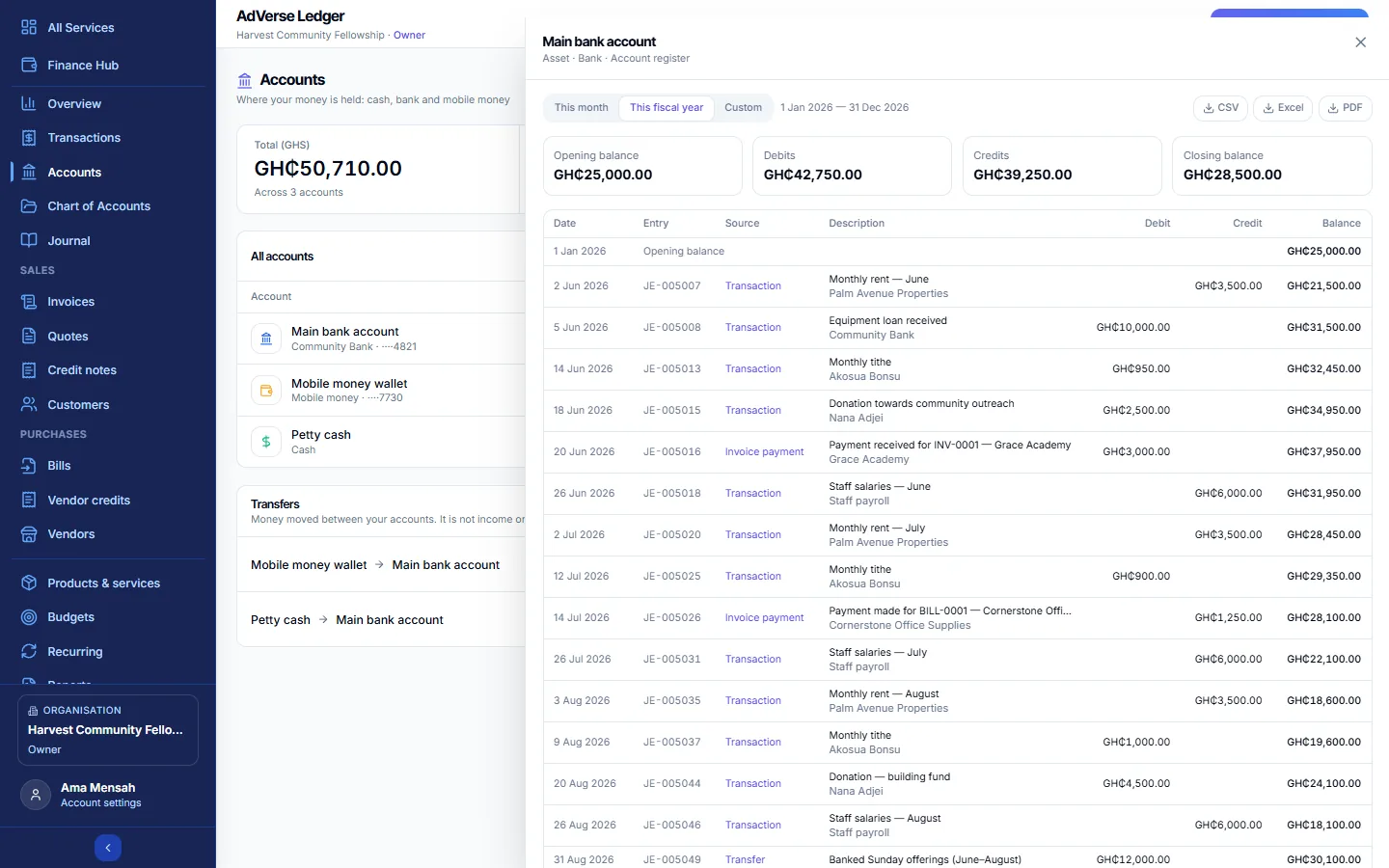
Choose This month, This fiscal year or Custom, and export as CSV, Excel or PDF. Click an item in the Source column to open the record behind that line.
4Chart of Accounts
The full list of accounts: your income and expense categories, plus what the organisation owns (assets), owes (liabilities) and holds as funds (equity).
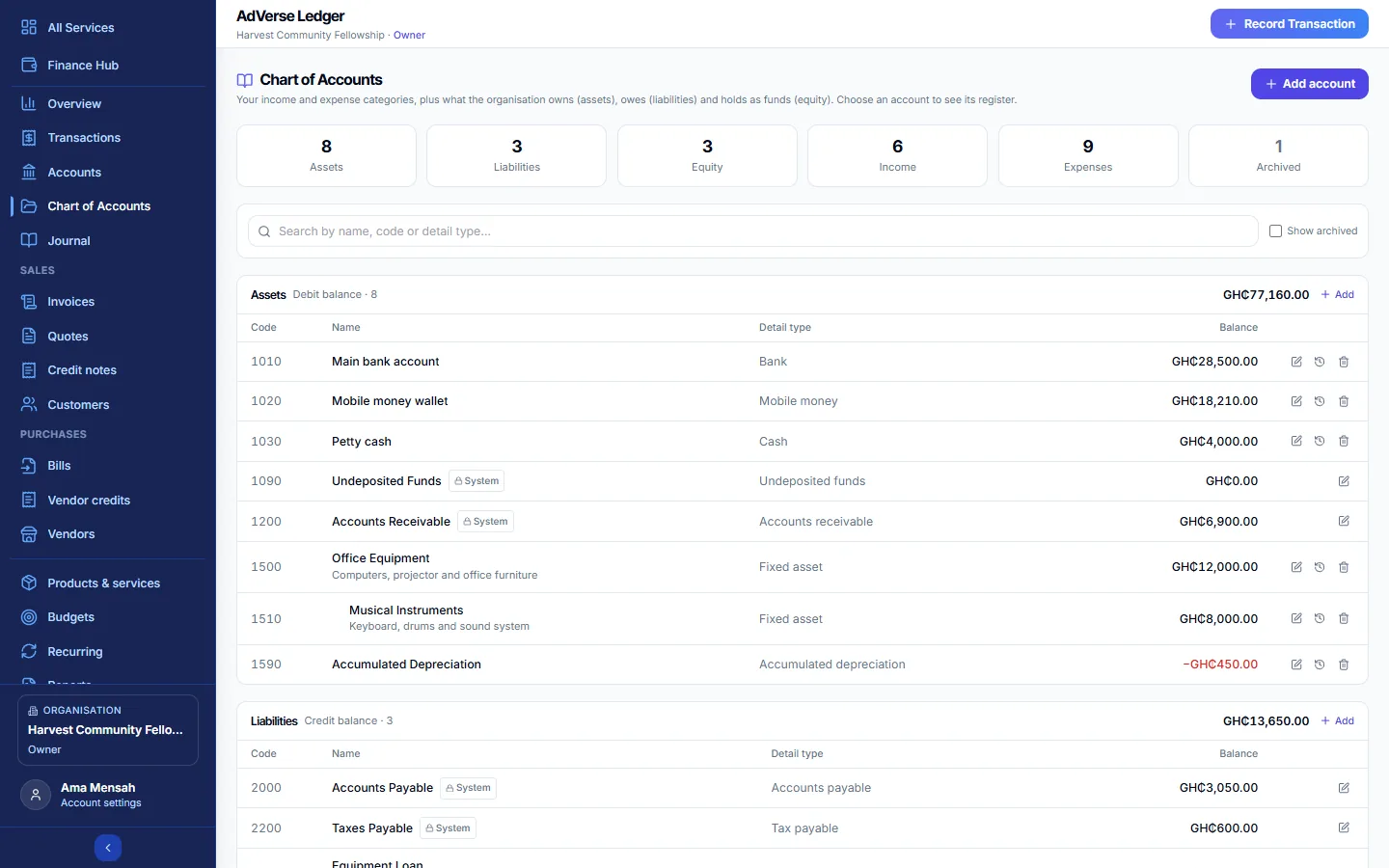
- The tiles count Assets, Liabilities, Equity, Income, Expenses and Archived.
- Search by name, code or detail type. Tick Show archived to see archived accounts.
- Sub-accounts are indented under their parent. System accounts are created and used by the Ledger itself and cannot be deleted.
- Click any row to open its register.
Add or change an account
Owner, Admin or Treasurer.
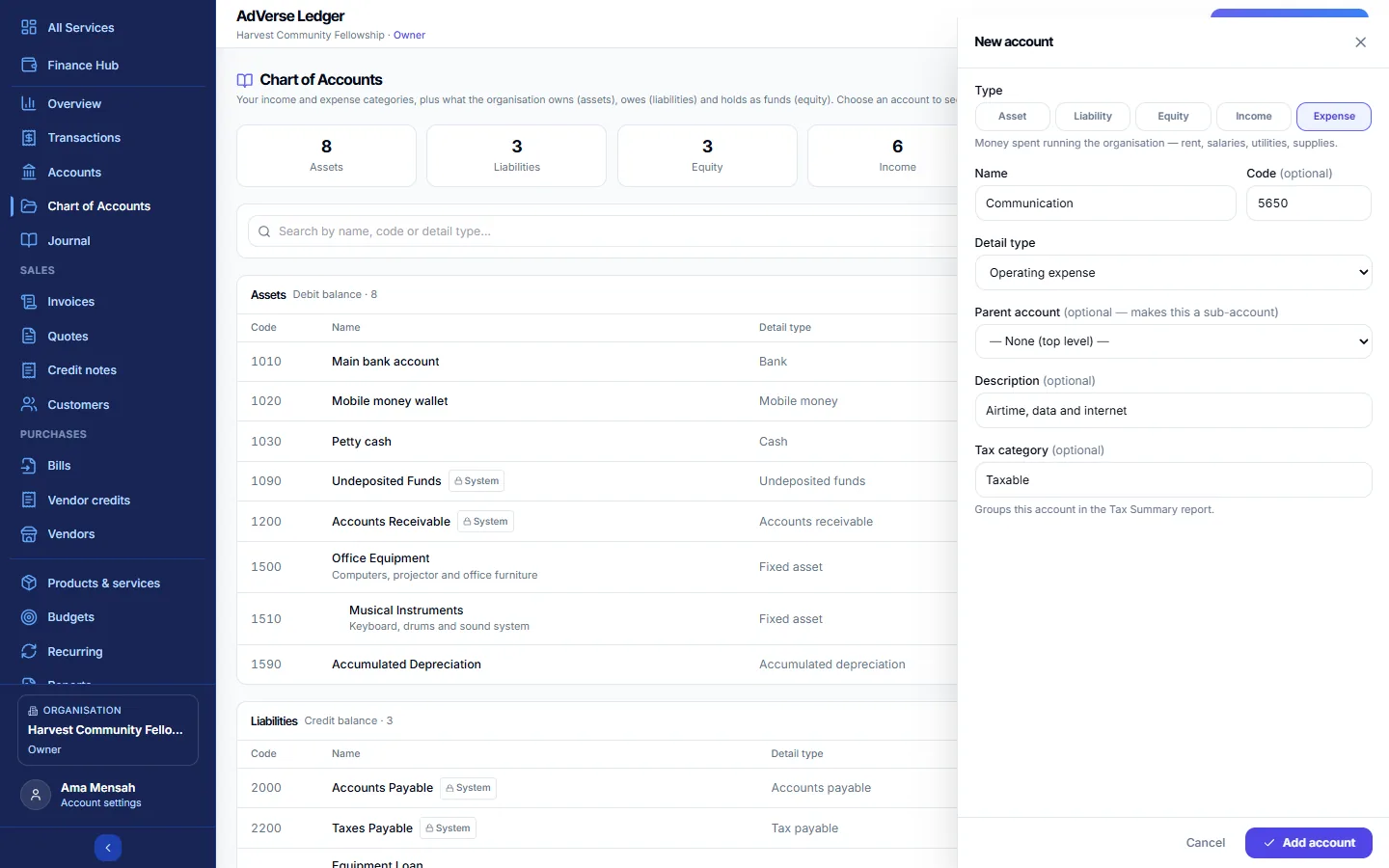
- Select + Add account, or + Add on a group.
- Choose the Type: Asset, Liability, Equity, Income or Expense. It cannot be changed once the account is used.
- Enter the Name, and optionally a Code (up to 20 characters, for example 4100).
- Pick the Detail type (for example Operating expense, Fixed asset, Loan, Restricted funds).
- To make it a sub-account, choose a Parent account. Add a Description and a Tax category if you use the Tax Summary report.
- Select Add account.
Cash, bank and mobile money accounts are added under Accounts; their chart entry is created and renamed for you.
Archive or delete
Archive hides an account from pickers and keeps its history; Restore brings it back. Delete is only possible for an account that has never been used, and only for Owners and Admins. Otherwise the Ledger offers to archive it.
5Journal
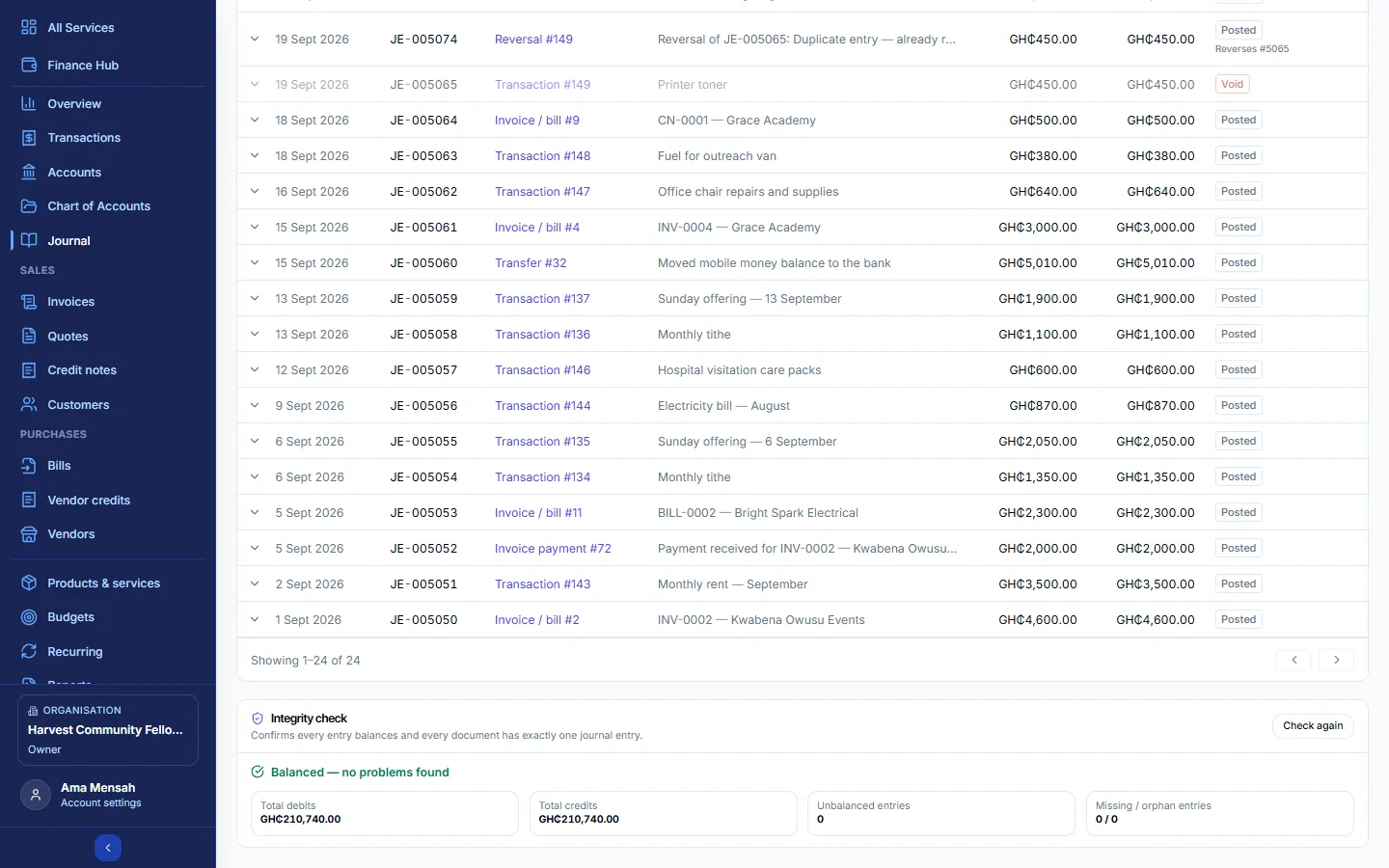
Owner, Admin, Treasurer; Auditors can view. The book of record. Every transaction, transfer, invoice, bill, payment and opening balance automatically posts one balanced entry of debits and credits here. You only need to add entries yourself for adjustments the other screens do not cover, such as depreciation or a correction between accounts.
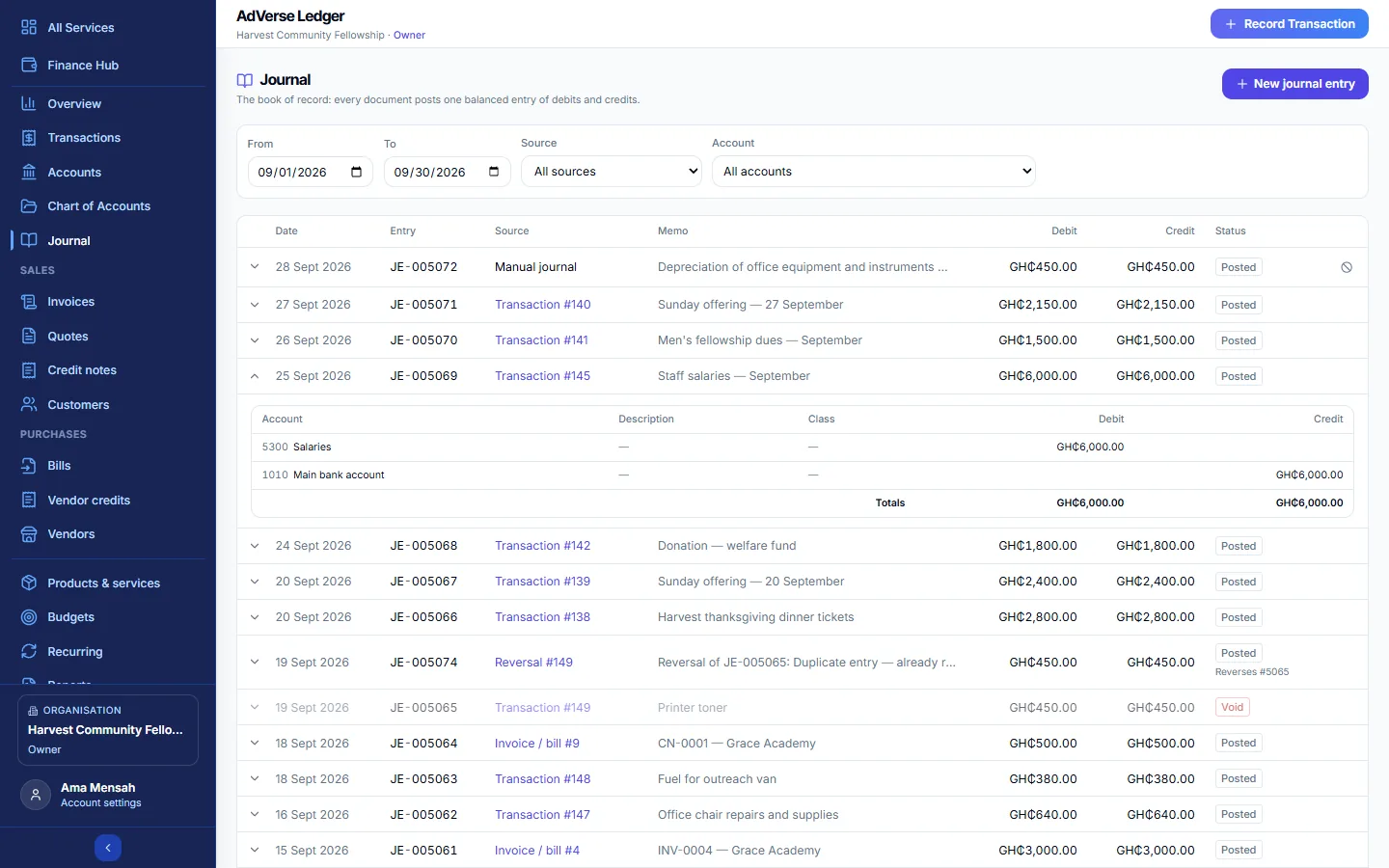
Filter by From, To, Source (Transaction, Transfer, Invoice / bill, Invoice payment, Opening balance, Manual journal, Reversal and more) and Account. Each entry shows its date, number, source, memo, debit and credit, and status (Posted or Void). Click the source to open the document behind it.
Post a manual journal entry
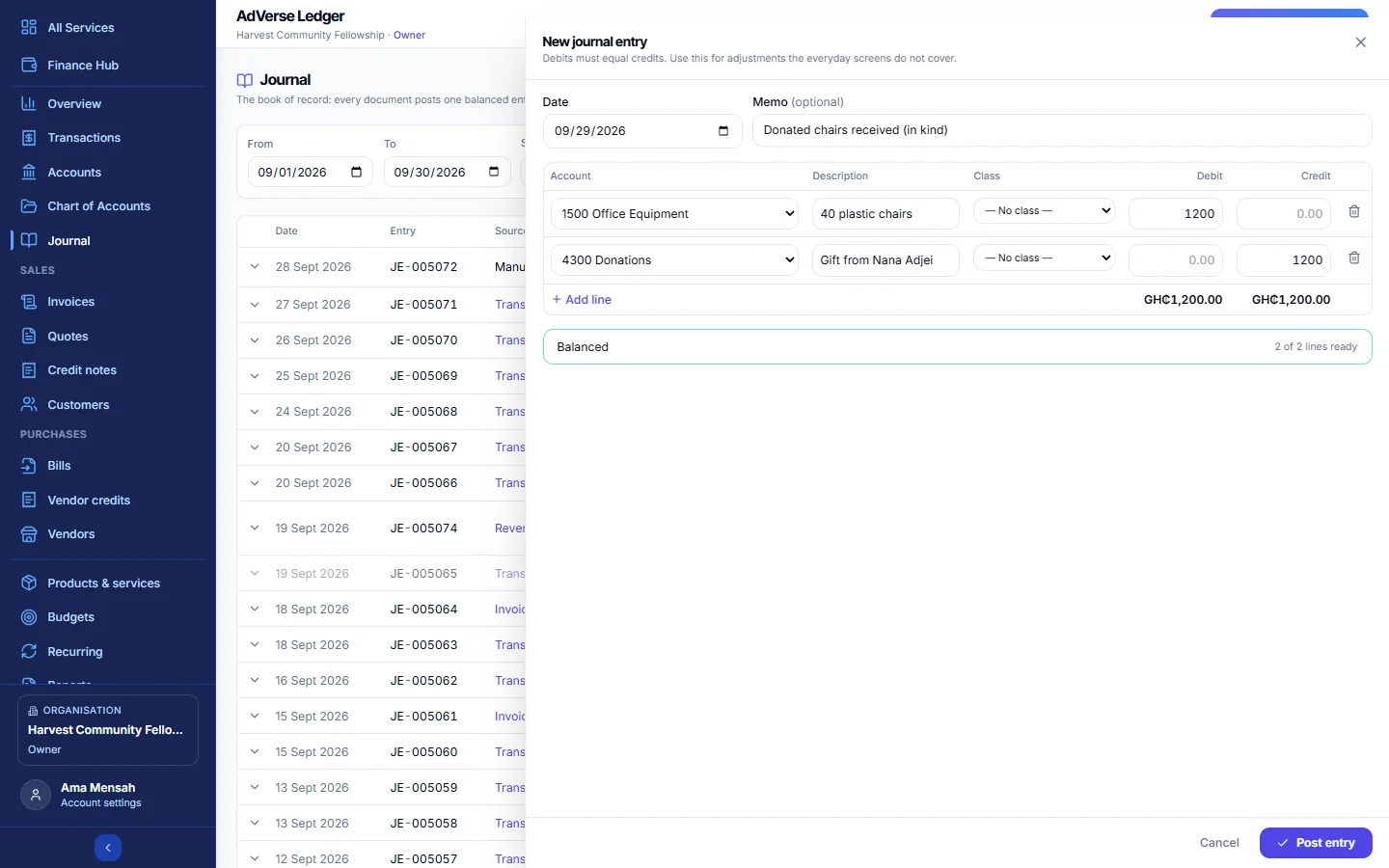
- Select + New journal entry.
- Set the Date and a Memo (for example "Depreciation of equipment for 2026").
- On each line choose the Account and enter a Debit or a Credit (not both). Add lines with + Add line. Balance here fills the difference on an empty line.
- When the strip reads Balanced, select Post entry.
Accounts the Ledger keeps for itself (Accounts Receivable, Accounts Payable, Undeposited Funds and Retained Earnings) are shown as "(posted automatically)" and cannot take manual lines.
Void a manual entry
Only manual entries can be voided here; every other entry is voided through its own document. Select the void icon, give a Reason and select Void entry. A reversing entry is posted and the original stays on record marked void.
Check the books balance
Owner, Admin or Auditor. The integrity check (Run check) confirms that every entry balances and every document has exactly one journal entry. A clean result reads "Balanced — no problems found". If it finds problems that persist, contact AdVerse support.
6Invoices, quotes, credit notes, bills and vendor credits
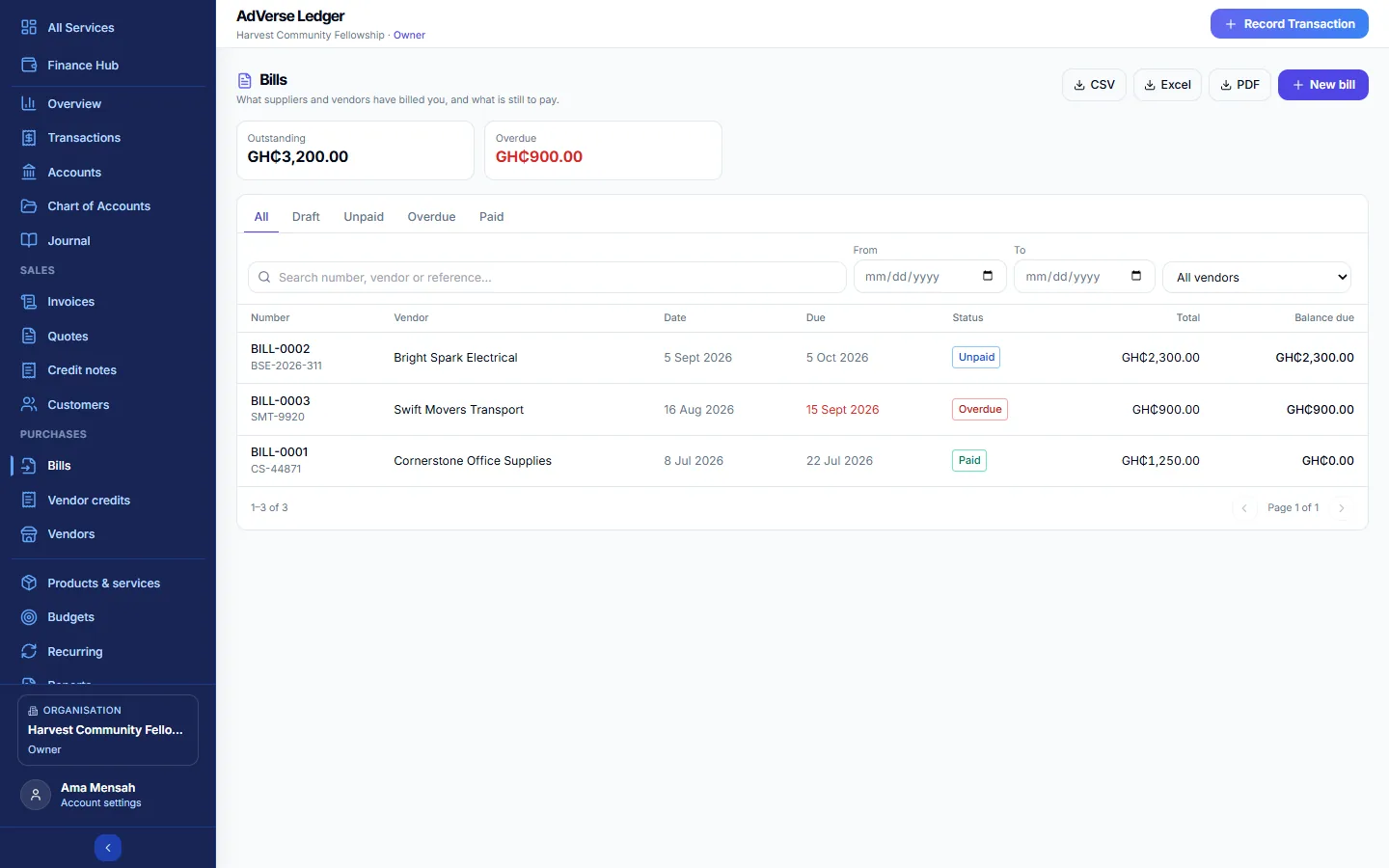
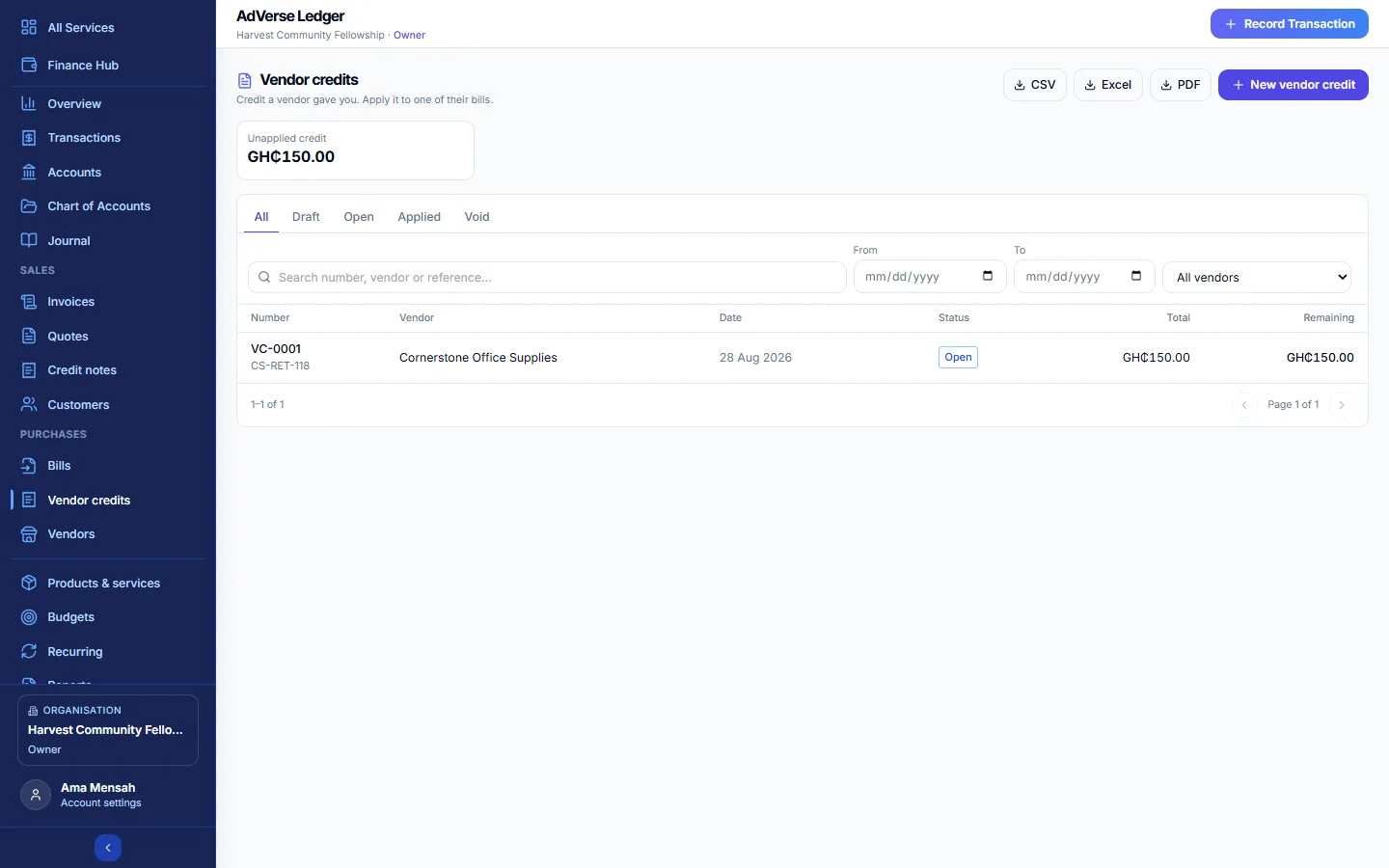
These five sections work the same way. Sales documents go to your customers; purchase documents record what suppliers bill you.
| Section | Use it for | Number looks like |
|---|---|---|
| Invoices | Bills you send to customers, members and donors, and what they still owe. | INV-0001 |
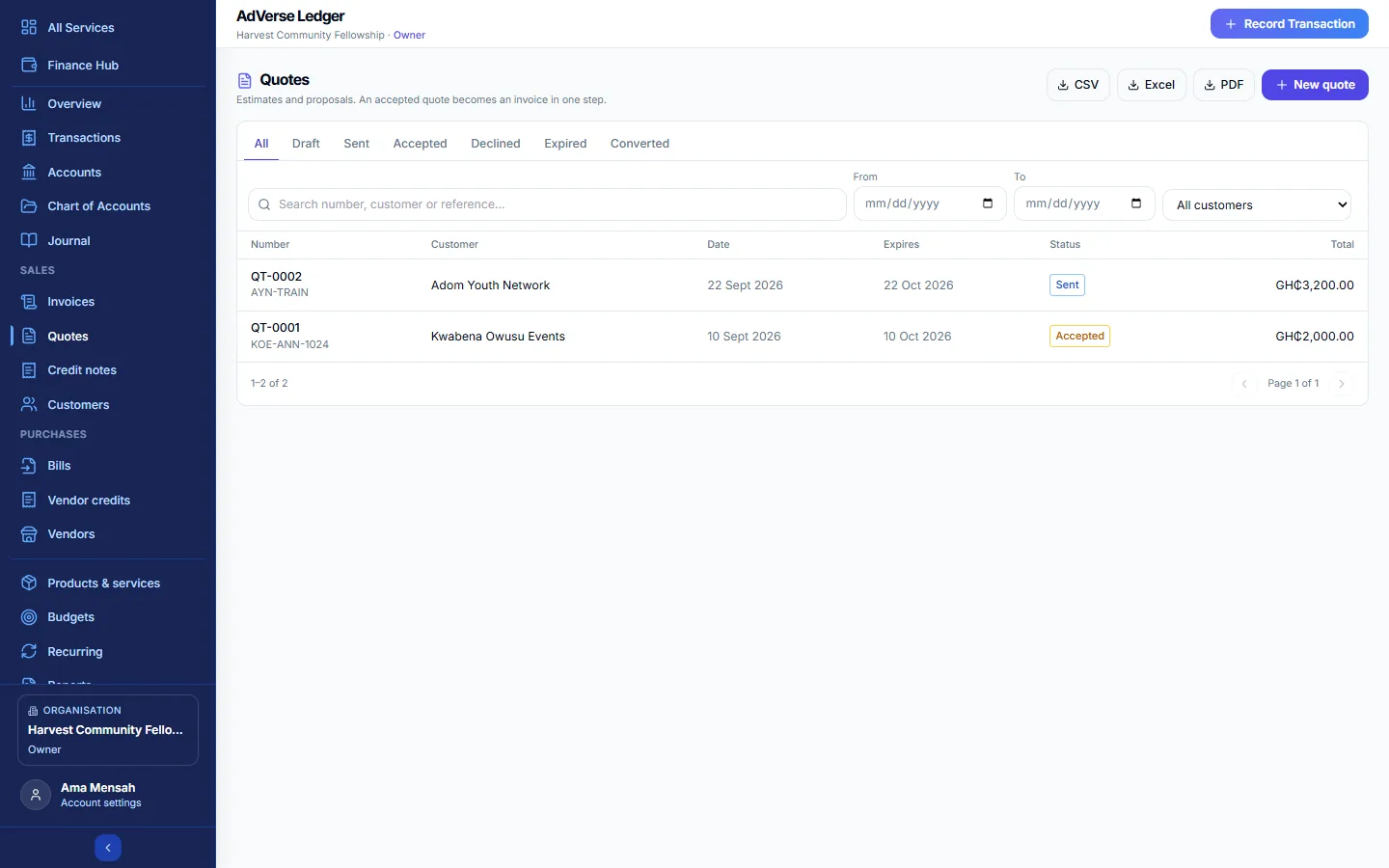
| Quotes | Estimates and proposals. An accepted quote becomes an invoice in one step. | QT-0001 |
| Credit notes | Money you owe back to a customer. Apply it to an invoice or keep it as credit. | CN-0001 |
| Bills | What suppliers and vendors have billed you, and what is still to pay. | BILL-0001 |
| Vendor credits | Credit a vendor gave you. Apply it to one of their bills. | VC-0001 |
The list
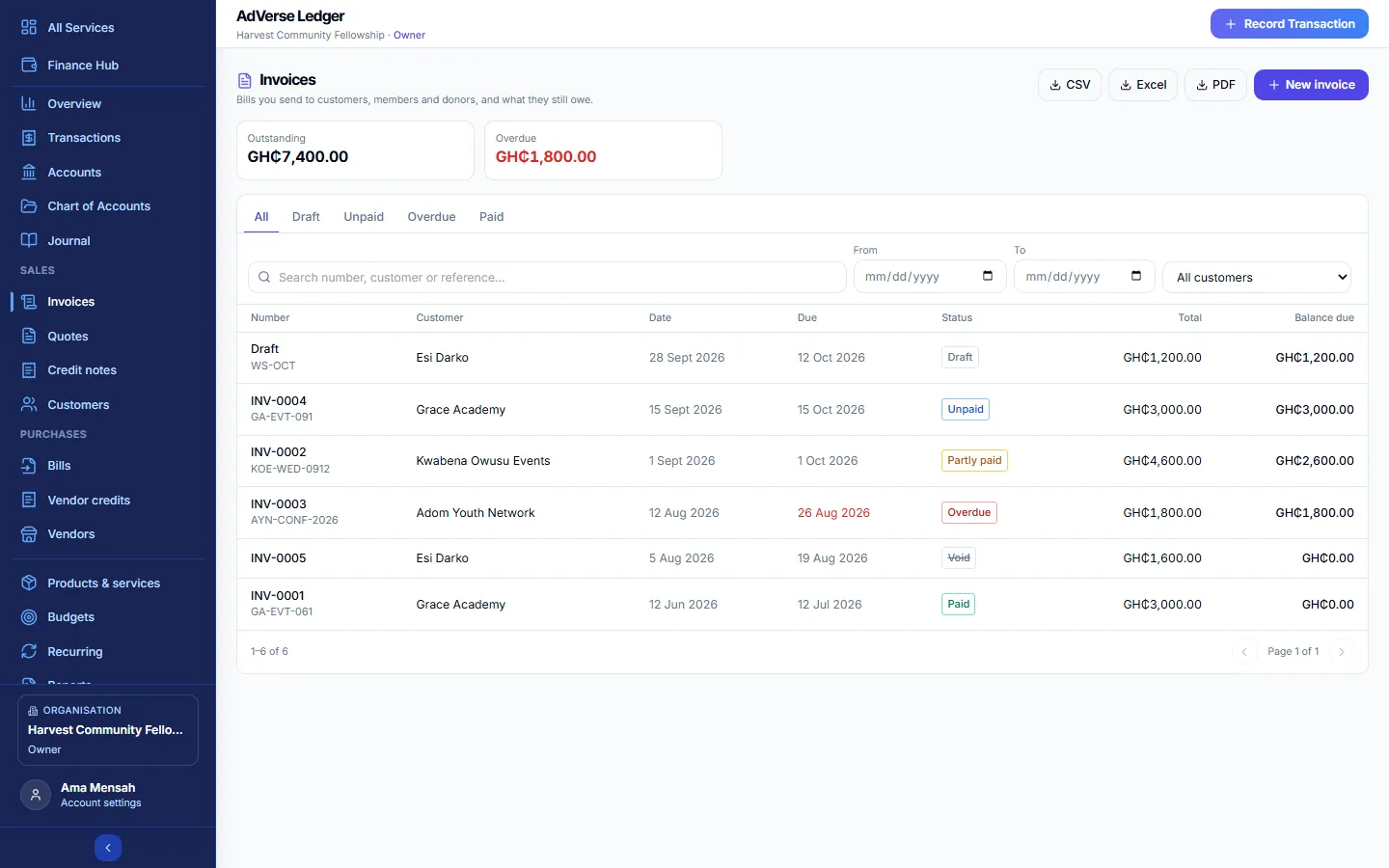
- Outstanding and Overdue totals (credit sections show Unapplied credit).
- Status tabs: invoices and bills have All, Draft, Unpaid, Overdue, Paid; quotes have All, Draft, Sent, Accepted, Declined, Expired, Converted; credits have All, Draft, Open, Applied, Void.
- Search by number, customer or reference, filter by date or contact, and export with CSV, Excel or PDF (up to 2,000 rows).
What each status means
| Status | Meaning |
|---|---|
| Draft | Not issued yet. It has no number and nothing is in the books. |
| Unpaid | Issued: it has a number and is in the books, but nothing is paid. |
| Sent | A quote issued to the customer. |
| Partly paid | Some has been paid or credited. |
| Paid | Fully settled. This follows automatically from payments and credits. |
| Overdue | Unpaid or partly paid after the due date. Set automatically. |
| Accepted / Declined | The customer's answer to a quote, set by you. |
| Expired | A sent quote past its expiry date. |
| Converted | A quote that has been turned into an invoice. |
| Open / Applied | A credit with some left to use, or fully used. |
| Void | Cancelled. It stays on record but no longer counts. |
Create an invoice
Owner, Admin or Treasurer. Quotes, credit notes, bills and vendor credits are created the same way.
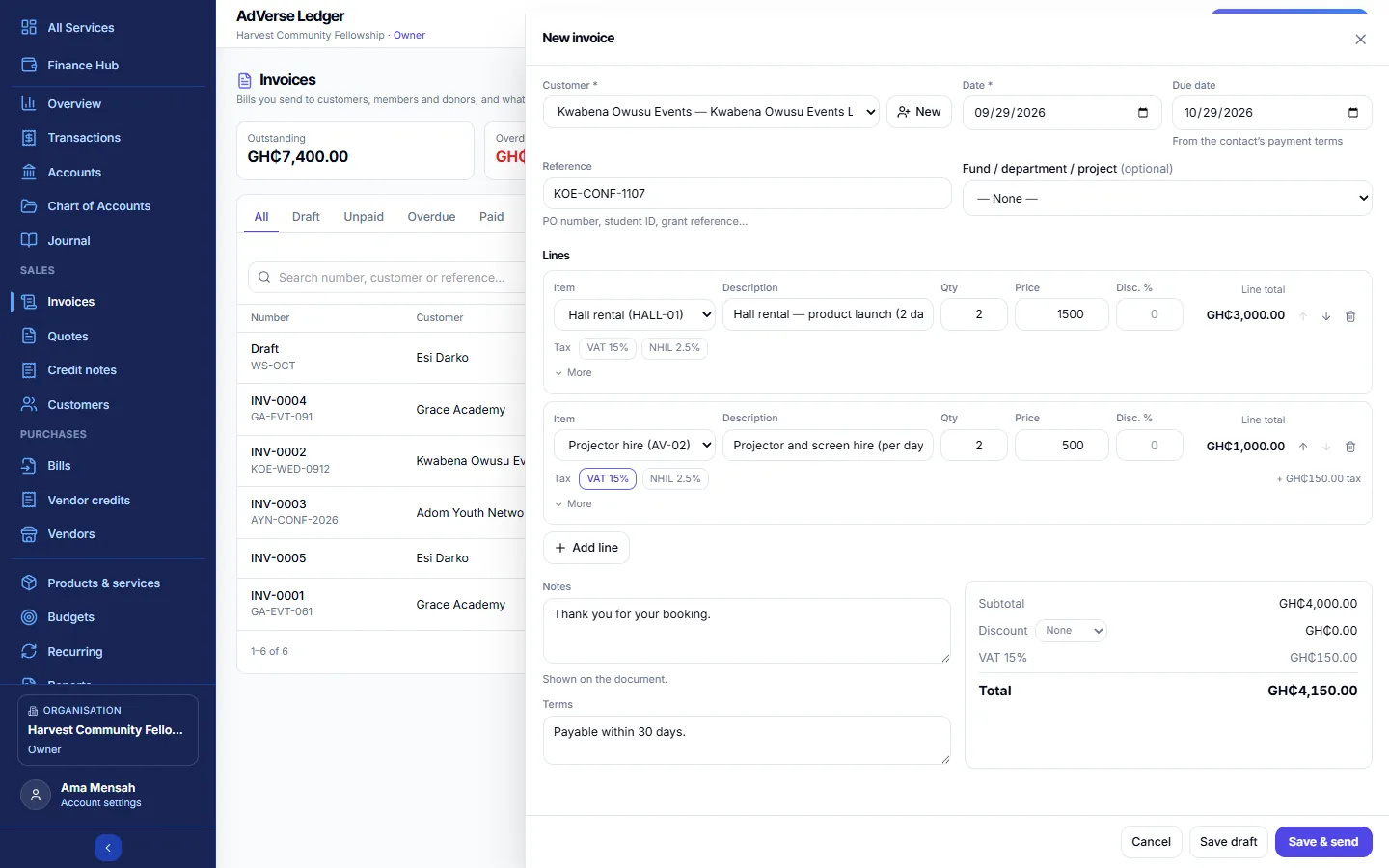
- Select + New invoice.
- Choose the Customer, or add one on the spot with New.
- Check the Date and Due date. The due date fills in from the customer's payment terms or your default terms. (Quotes have Expires on instead.)
- Add a Reference if useful (a PO number, student ID or grant reference; for bills, the vendor's bill number).
- Add lines. Pick an Item to fill in the description, price and tax, or type a Description, Qty and Price. Add a Disc. % and tax if needed. Under More you can choose a different income (or expense) account for the line.
- Add Notes and Terms to print on the document, and an overall Discount if you give one.
- Select Save draft to finish later, or Save & send to issue it now. (Credits use Save & open; bills use Save & approve.)
A document gets its number, and its income or expense is counted, when it leaves draft. Invoices count as income when issued, not when paid. The Profit & Loss report can show either view.
Work with an issued document
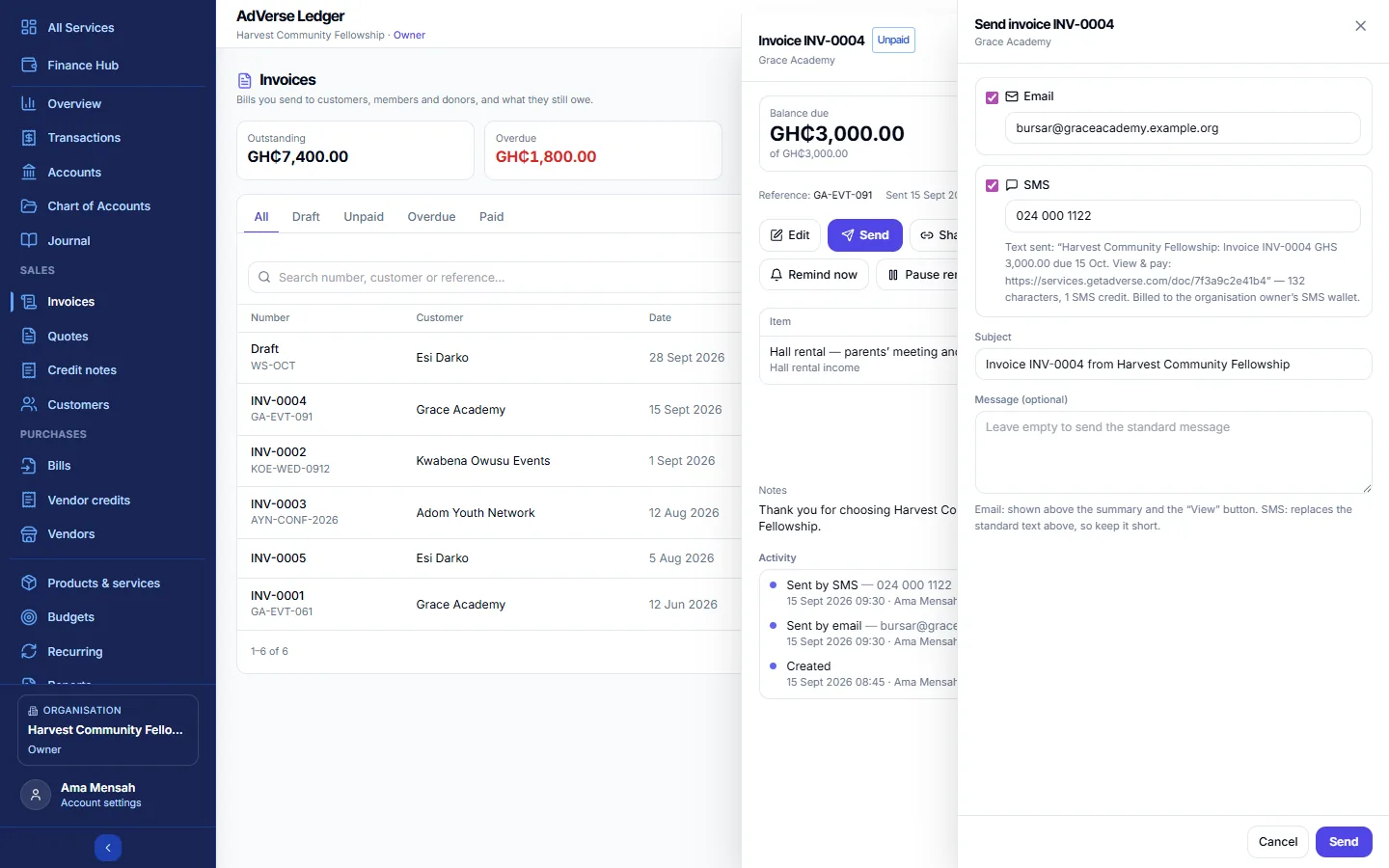
Click any document to open its details: balance due, dates, lines, totals, payments, credits applied, notes and an Activity timeline showing when it was created, sent, viewed, reminded and paid.
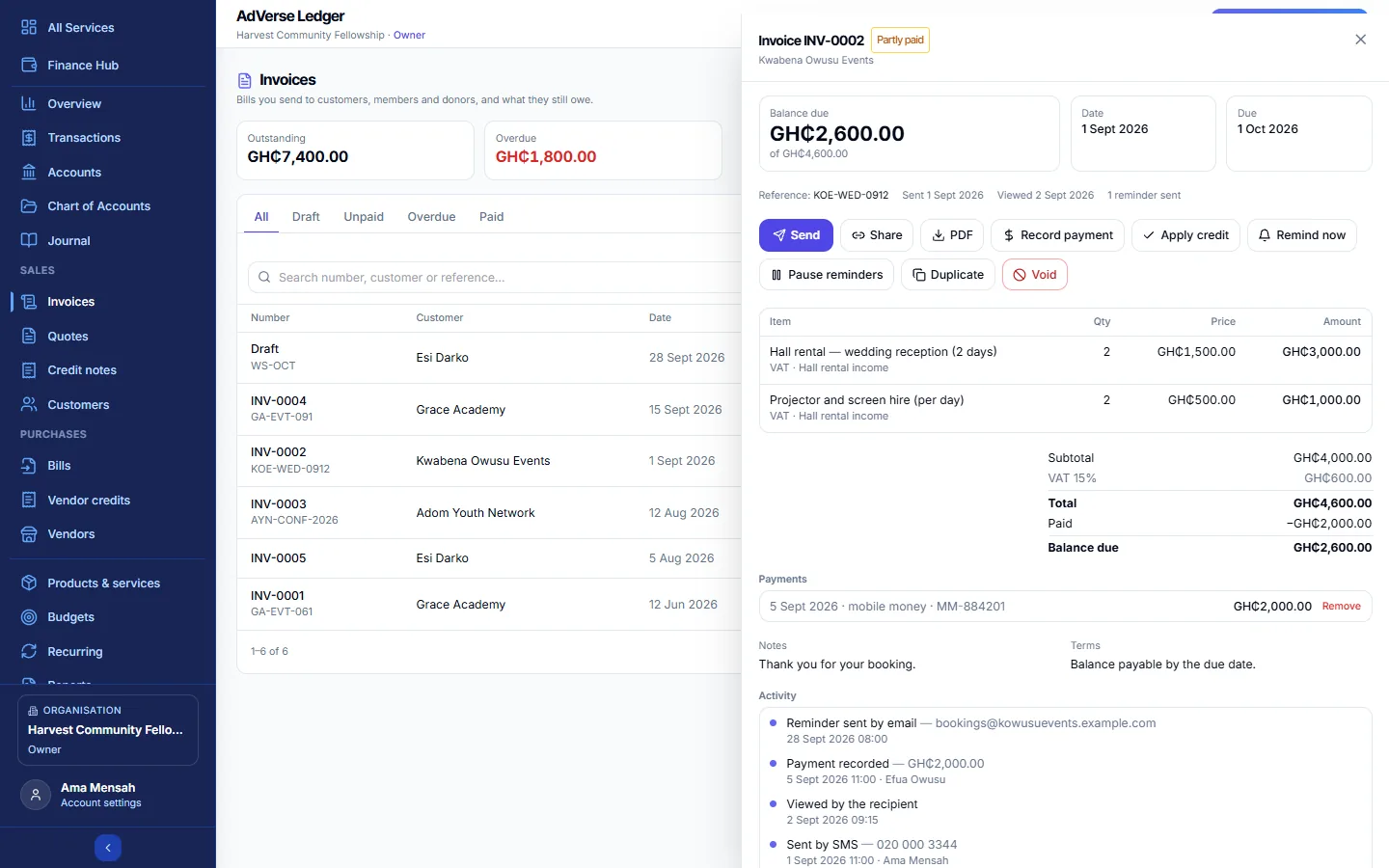
| Action | What it does |
|---|---|
| Send | Sends the document by email, SMS or both. Sending a draft issues it. |
| Share | Gives you a public link. Anyone with it can view the document and, if online payment is set up, pay it. Copy it, send it with Share by message, or open the page. New link stops the old link working straight away. |
| Downloads the document as a PDF. Everyone can do this. | |
| Record payment | Records money received for an invoice or paid for a bill. |
| Apply credit | Uses a credit note or vendor credit against this document. |
| Remind now | Sends a reminder for an unpaid invoice. Pause reminders stops automatic reminders for this invoice only. |
| Mark sent / Mark open / Approve | Issues a draft without sending it. |
| Accept / Decline | Records the customer's answer to a quote. |
| Convert to invoice | Turns a quote into a new invoice, which opens straight away. |
| Duplicate | Makes a draft copy. |
| Edit | Available for drafts, and for issued documents with nothing paid or credited. |
| Void | Cancels an issued document. Remove its payments and credits first. |
| Delete draft | Deletes a draft permanently (Owner or Admin). |
Record a payment
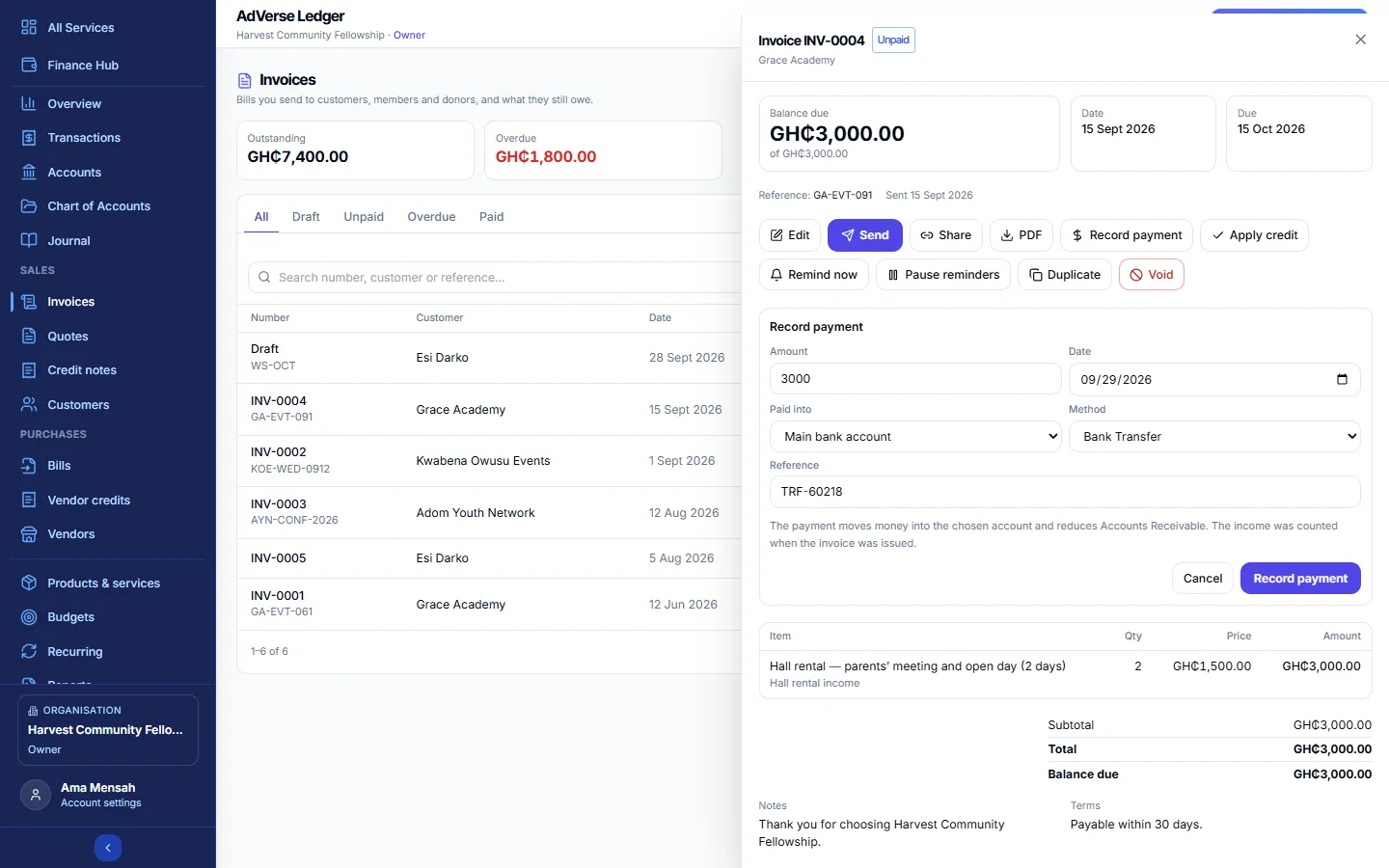
- Open the invoice (or bill) and select Record payment.
- Check the Amount (it starts at the balance due) and Date.
- Under Paid into (bills: Paid from) choose the real cash, bank or mobile money account.
- Choose the Method, add a Reference, and select Record payment.
A payment left on Undeposited funds counts in "Cash today" but in no bank, cash or mobile money balance. When you know where the money went, open the document and select Move to account on that payment, choose the account and select Move. The payment keeps its date; only the account it counts in changes.
The status changes to Partly paid or Paid automatically. A payment entered in error can be taken off with Remove (Owner or Admin), unless it is reconciled or in a locked period.
Apply a credit
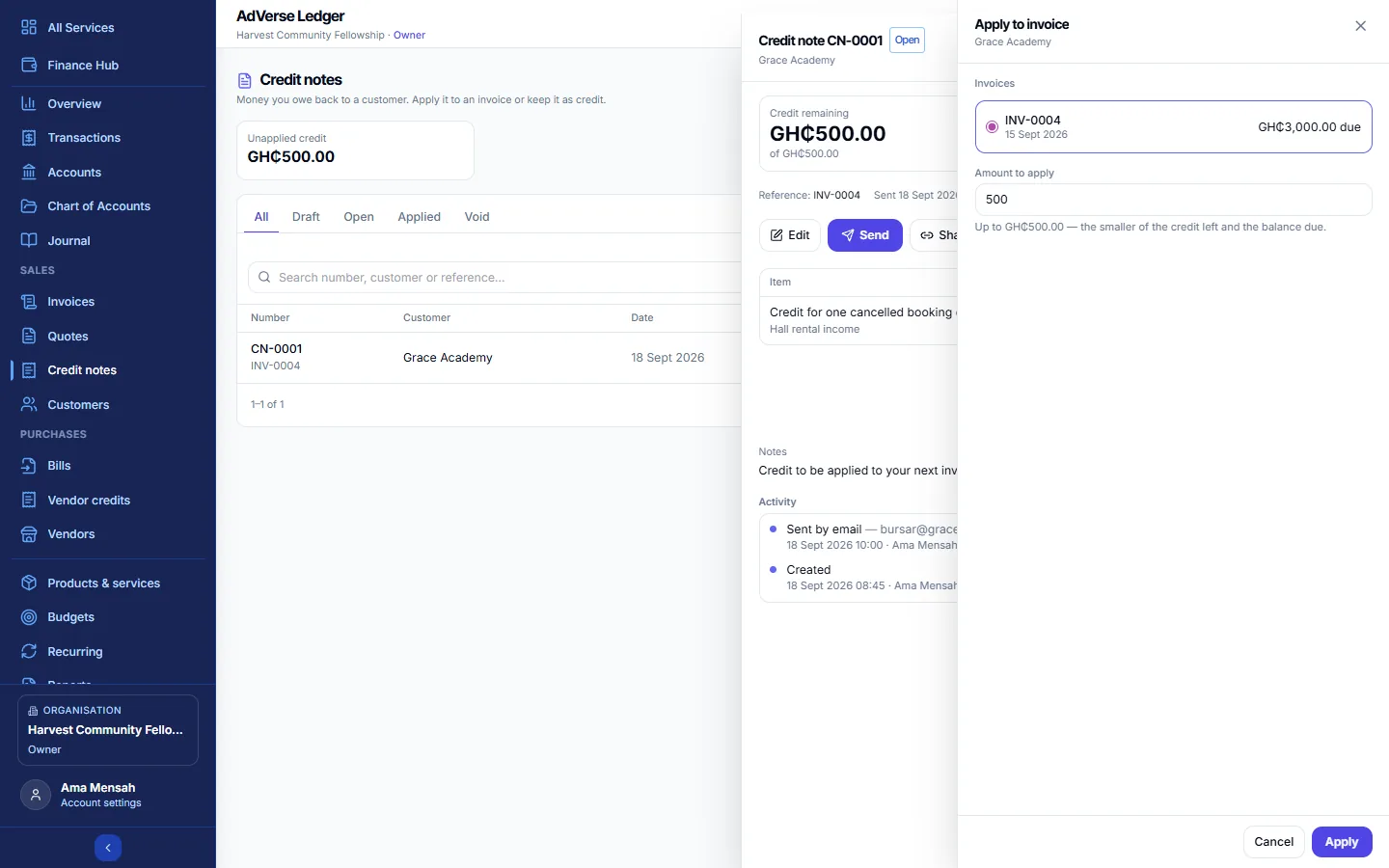
From an invoice or bill, select Apply credit, pick one of the contact's open credits and enter the Amount to apply (up to the smaller of the credit left and the balance due). From a credit note, use Apply to invoice (vendor credits: Apply to bill).
The lifecycles at a glance
- Quote: Draft → Sent → Accepted → Convert to invoice (the quote becomes Converted).
- Invoice: Draft → Send or Mark sent (Unpaid) → payments and credits (Partly paid) → Paid. Overdue appears on its own after the due date.
- Credit note: Draft → Open → Apply to invoice → Applied.
- Bill: Draft → Approve (Unpaid) → Record payment → Paid.
- Vendor credit: Draft → Open → Apply to bill → Applied.
What your customer sees
A shared or sent link opens a public page with your organisation's name, logo and contact details, the document's lines and totals, the balance due, your notes, terms and payment instructions, and Download PDF. If the organisation owner has connected their own online payment account, an unpaid invoice also shows Pay online; the money settles in that account. Opening the link adds "Viewed by the recipient" to the document's activity.
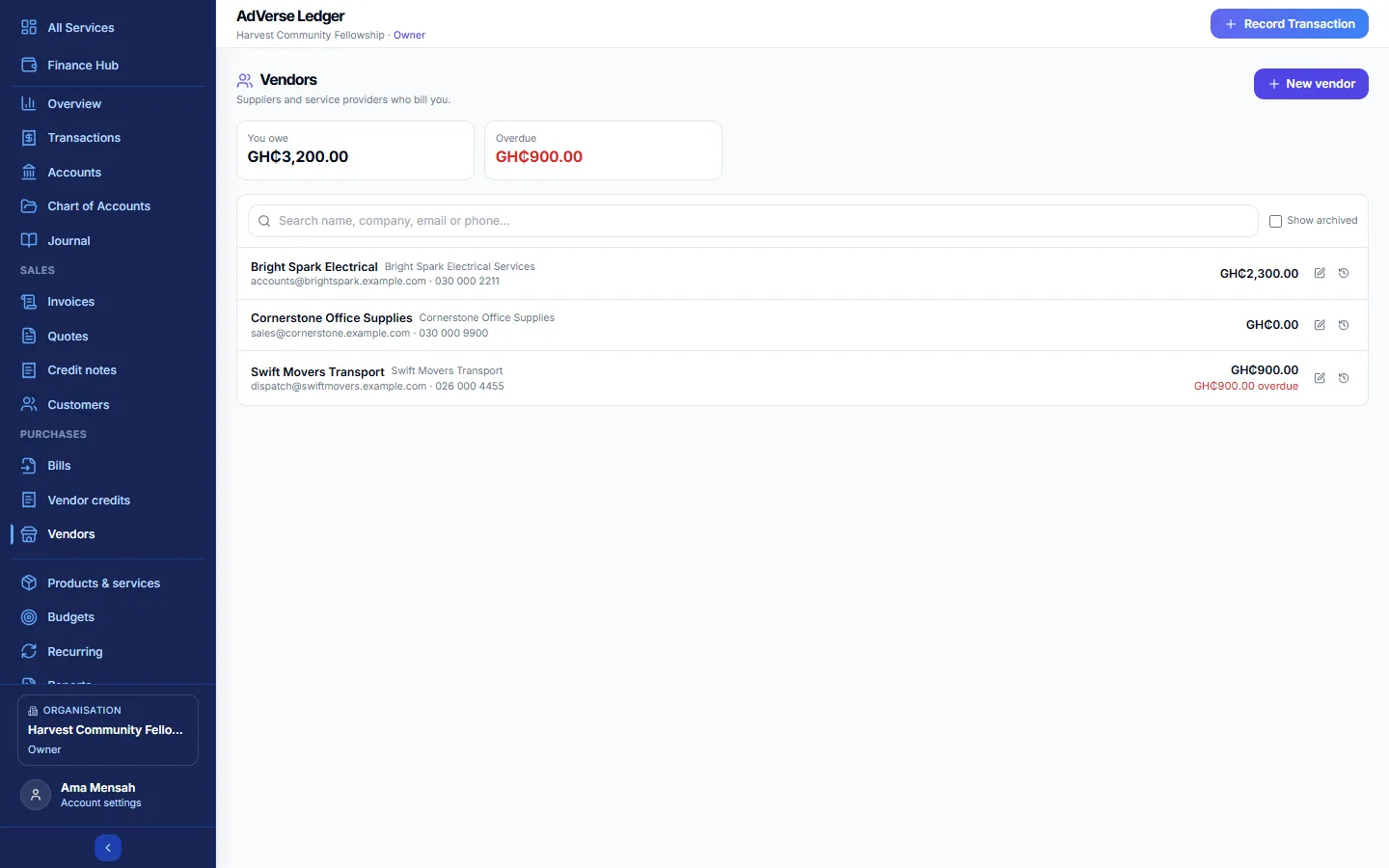
7Customers and vendors
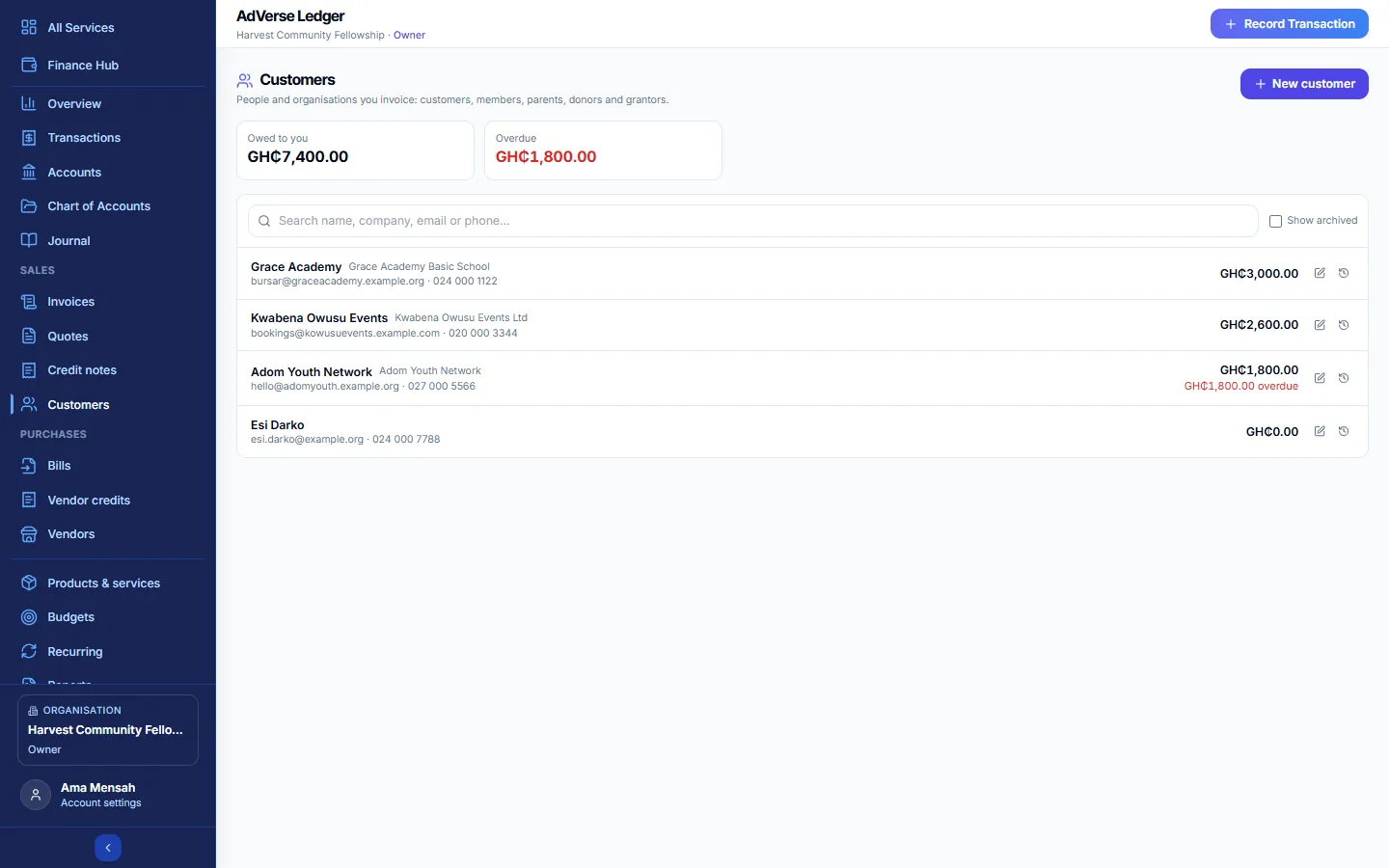
The people and organisations you invoice (customers: members, parents, donors, grantors) and those who bill you (vendors: suppliers and service providers), each with what they owe or are owed.
Add a customer or vendor
Owner, Admin, Treasurer or Recorder. Select + New customer (or + New vendor). Enter the Name and, as needed, Company / organisation, TIN or Ghana Card number, Email, Phone, Address, City / town, Payment terms (days) and Notes. Tick Also a vendor (or Also a customer) if they are both. Select Save.
An email address or phone number is needed to send documents and reminders to them.
Statements
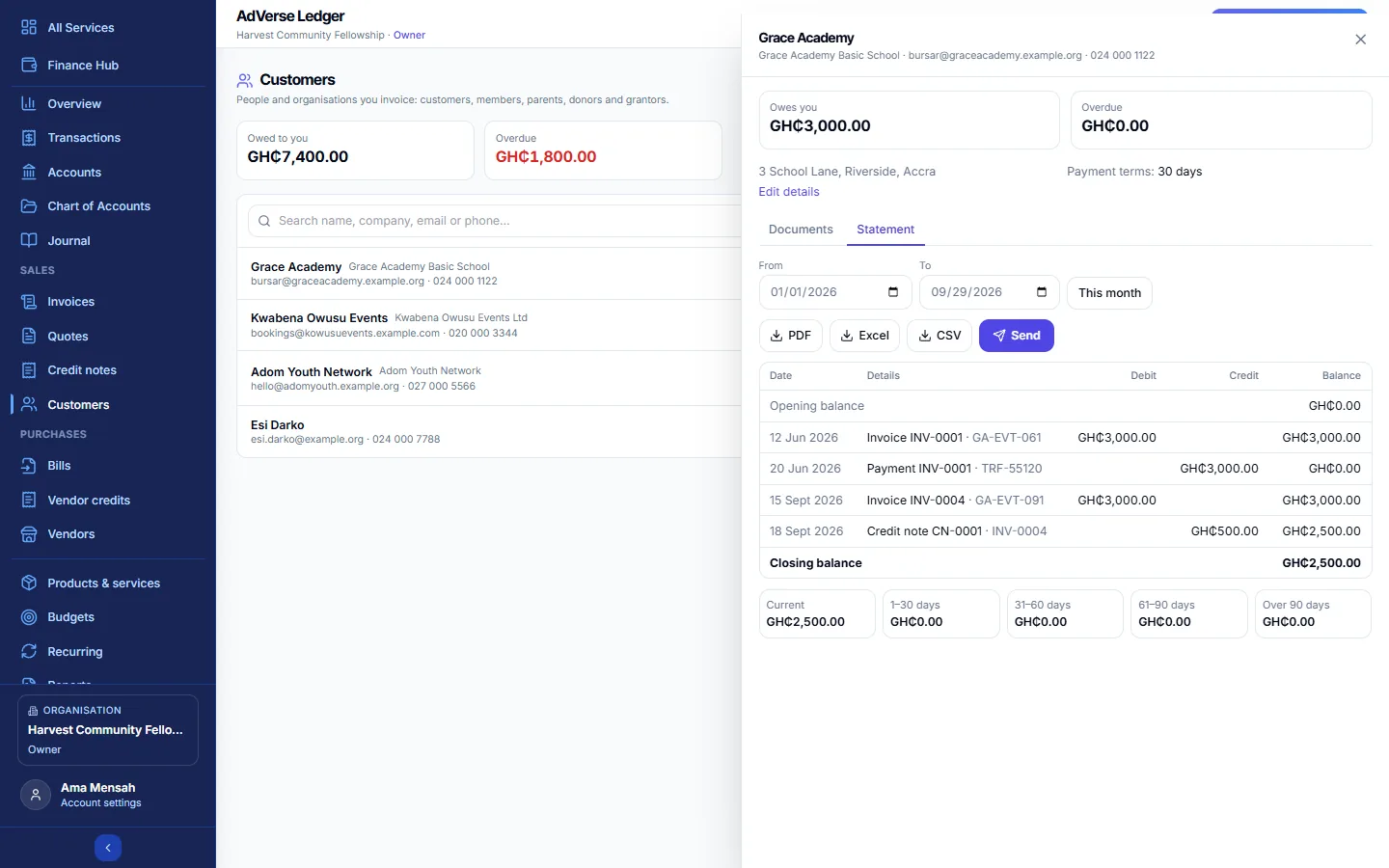
Click a contact to see their Documents and Statement. The statement lists invoices, credits and payments between two dates with a running balance and aging (current, 1–30, 31–60, 61–90 and over 90 days). Download it as PDF, Excel or CSV, or Send it to a customer by email (with the PDF attached) or SMS.
Archive (Owner or Admin) hides a contact from pickers while keeping their documents; a contact who was never used is deleted instead.
8Products & services
Things you sell or buy regularly, such as school fees, services, goods or pledges, each with a default price, account and tax, so invoice and bill lines fill themselves in.
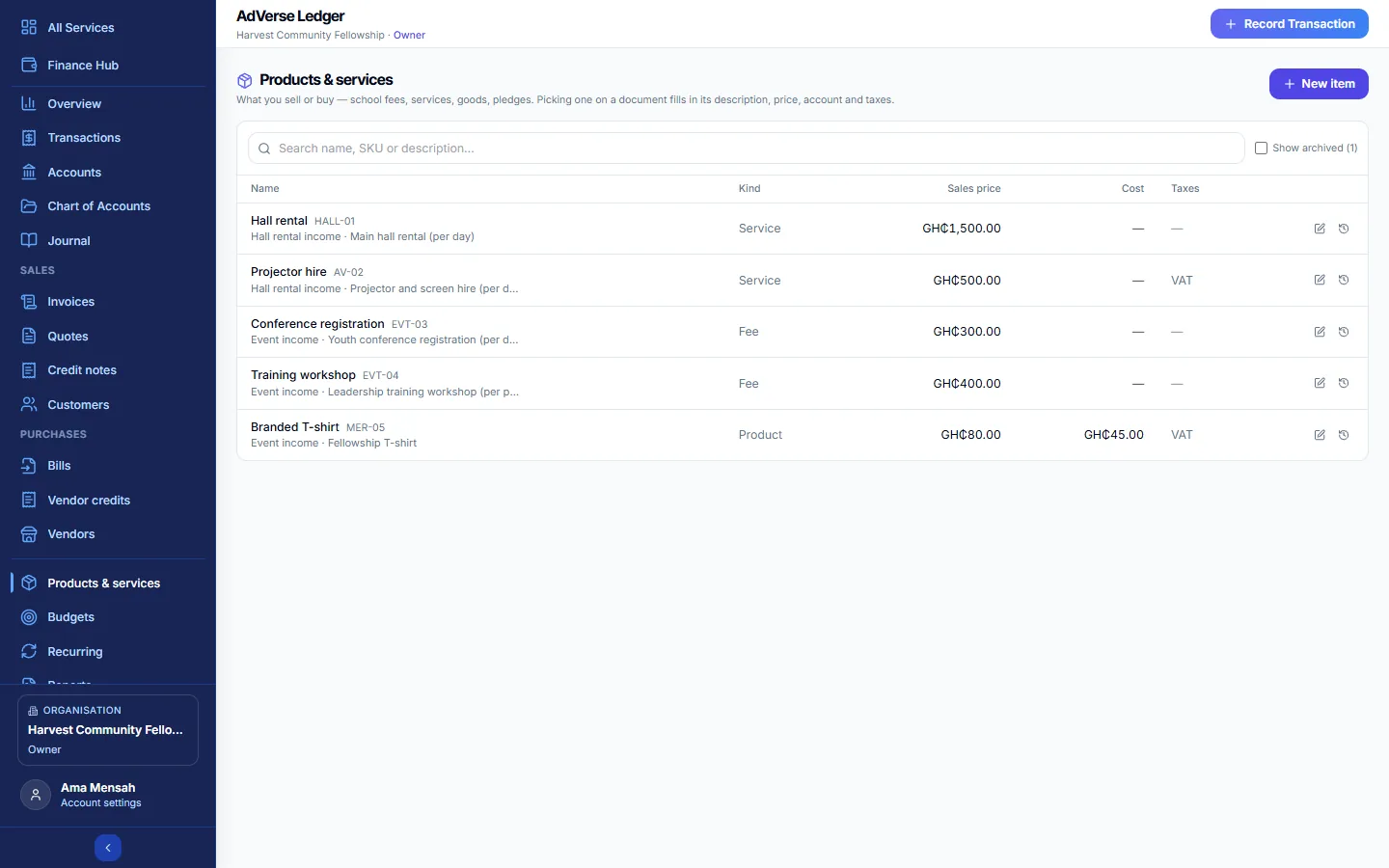
- Select + New item (Owner, Admin or Treasurer).
- Enter the Name, choose the Kind (Service, Product, Fee, Donation or Other), and optionally an SKU / code and a Description, which is used as the line text.
- Under Selling, set the Sales price and Income account. Under Buying, set the Purchase cost and Expense or asset account.
- Choose a Default tax rate if one usually applies, then Save.
9Budgets
Set a limit for a category and see how actual spending (or income) compares.
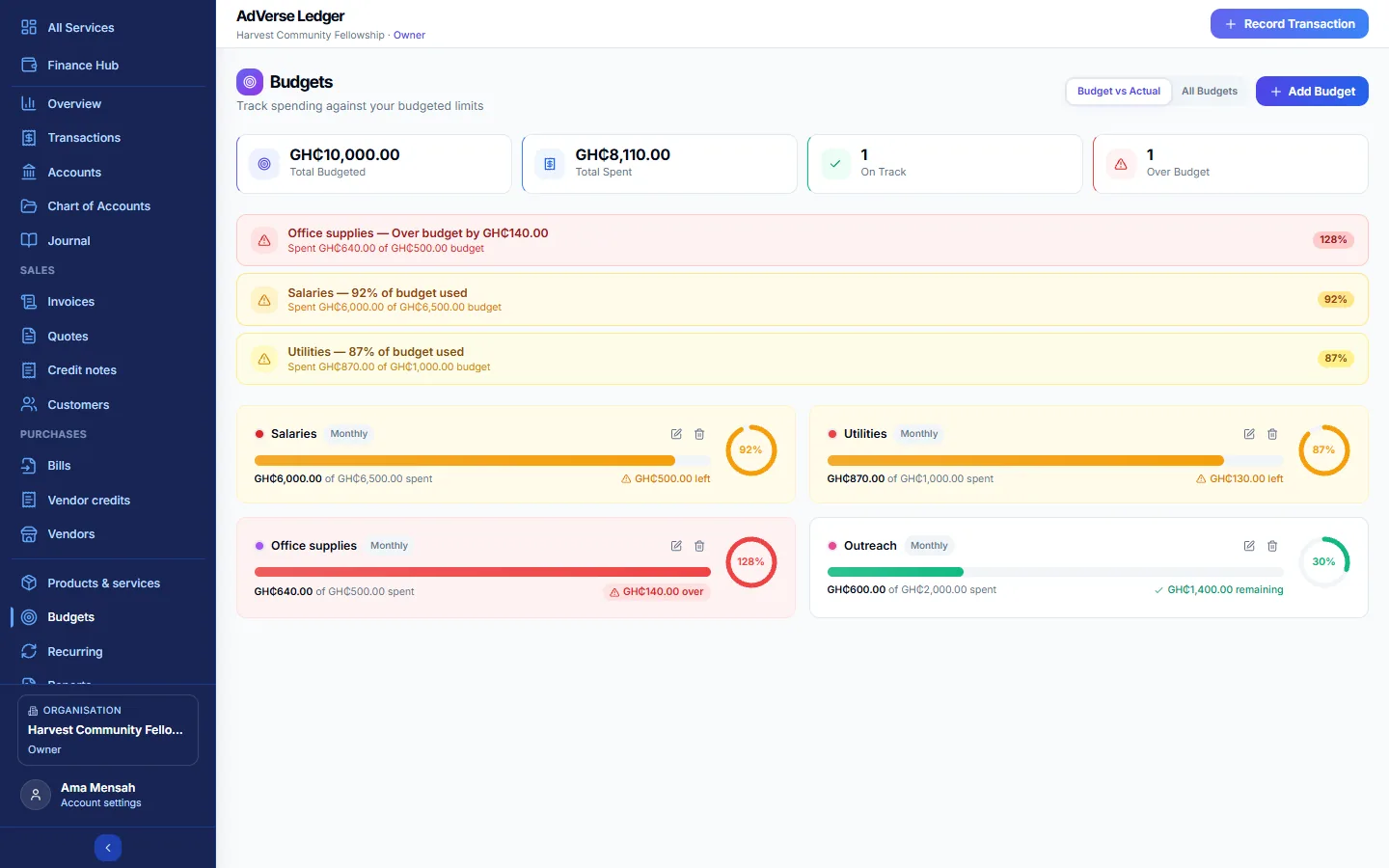
- Select + Add Budget (Owner, Admin or Treasurer).
- Choose the Category, the Amount, the Period (Monthly, Quarterly or Annual) and the Start Date.
- Select Create.
Budget vs Actual shows a card per budget: green under 80% used, amber from 80%, red when over. Alerts appear for budgets at 75% or more. All Budgets lists every budget in a table.
This screen and the Overview's Budget Health show every budget running this month, including a quarterly or annual one that started earlier. Each is measured over its own period so far, so an annual budget from January compares against spending since January. For any other period, use Reports › Budget vs Actual.
10Recurring
Templates for regular income or expenses, such as rent, salaries or dues, that are recorded automatically on schedule.
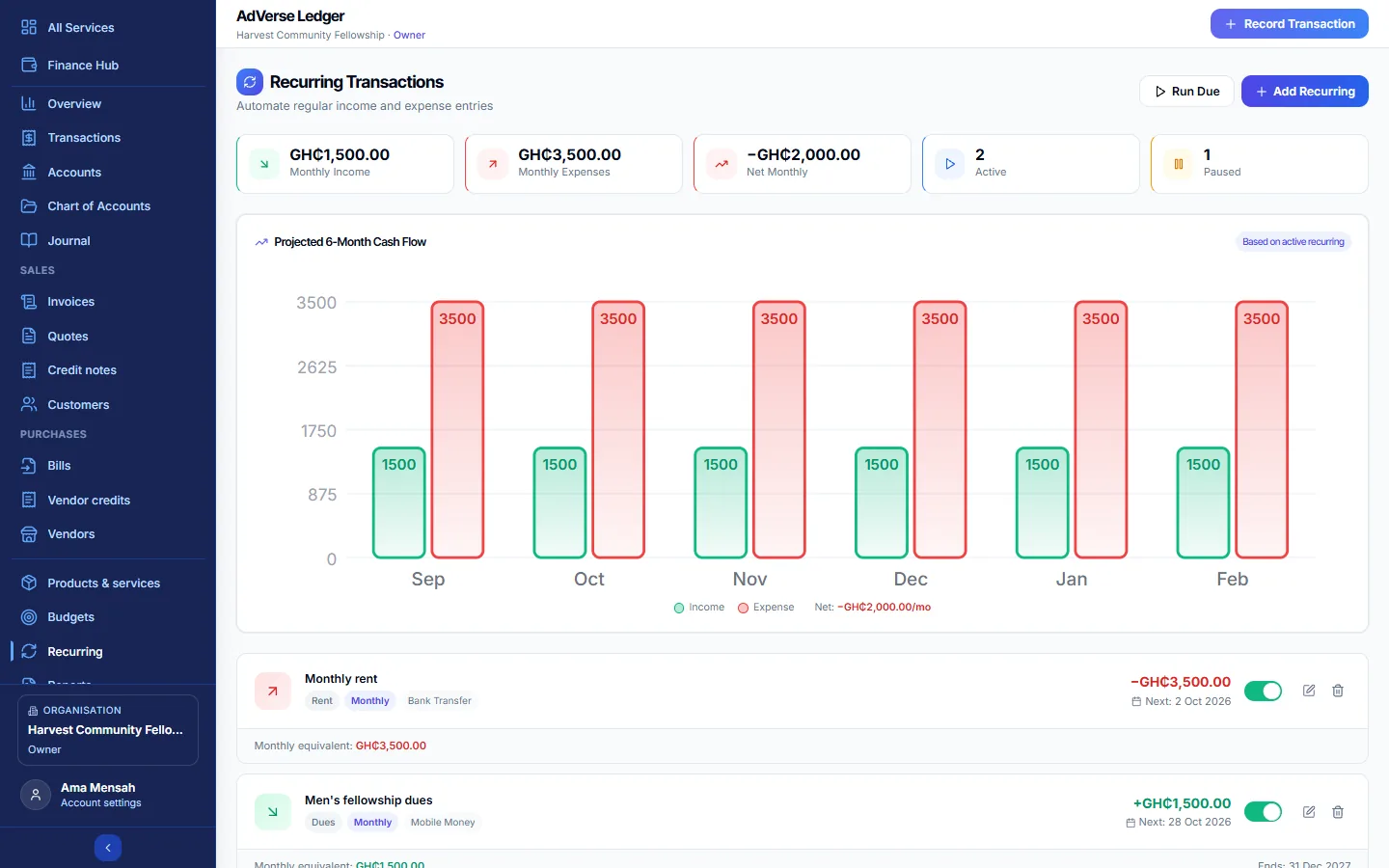
- Select + Add Recurring.
- Choose Income or Expense, the Category and the Amount.
- Choose the Frequency (Daily, Weekly, Bi-weekly, Monthly, Quarterly or Annually) and the Next Run date.
- Add a Description and Method, then Create.
- Each day the Ledger records whatever is due, catching up missed dates, and never records the same date twice. Run Due (Owner or Admin) records everything due right now.
- Use the switch on a card to pause or resume a template.
- Entries dated in a locked period wait until it is unlocked. The approval limit applies.
- Recurring entries are not linked to a money account. Deleting a template keeps the entries already recorded.
11Reports
Financial statements and analyses for any period.
Choosing and exporting
- Pick the period: This Month, This Quarter, This Year (the default; calendar year), Last Year or Custom. The Balance Sheet and Aging are "as of" the end of the period.
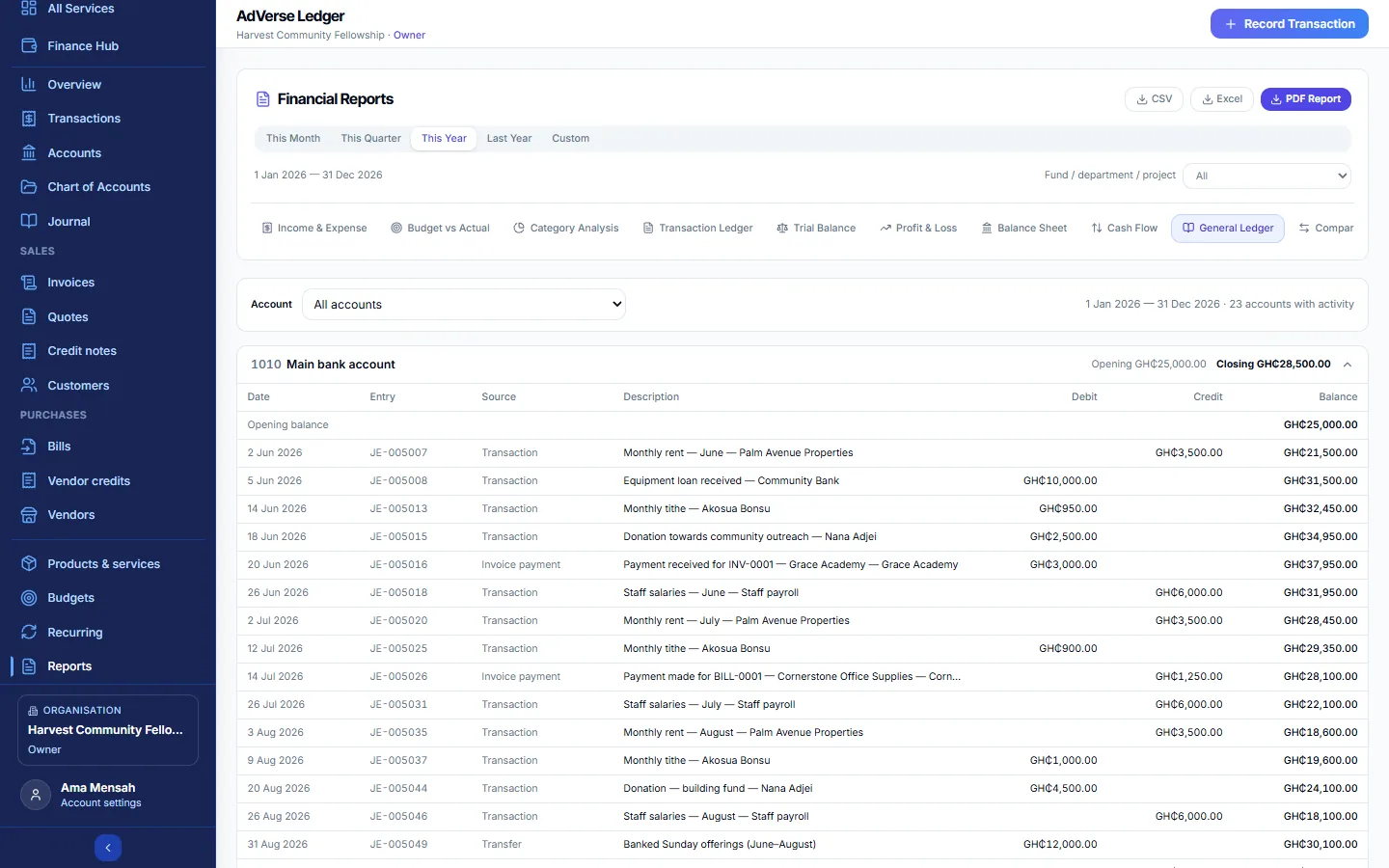
- If you use funds or departments, the statements (Trial Balance, Profit & Loss, Balance Sheet, Cash Flow, General Ledger) can be run for one of them.
- Export with CSV, Excel or PDF Report. Files carry your organisation's name and logo, the currency and the period, and are marked unaudited.
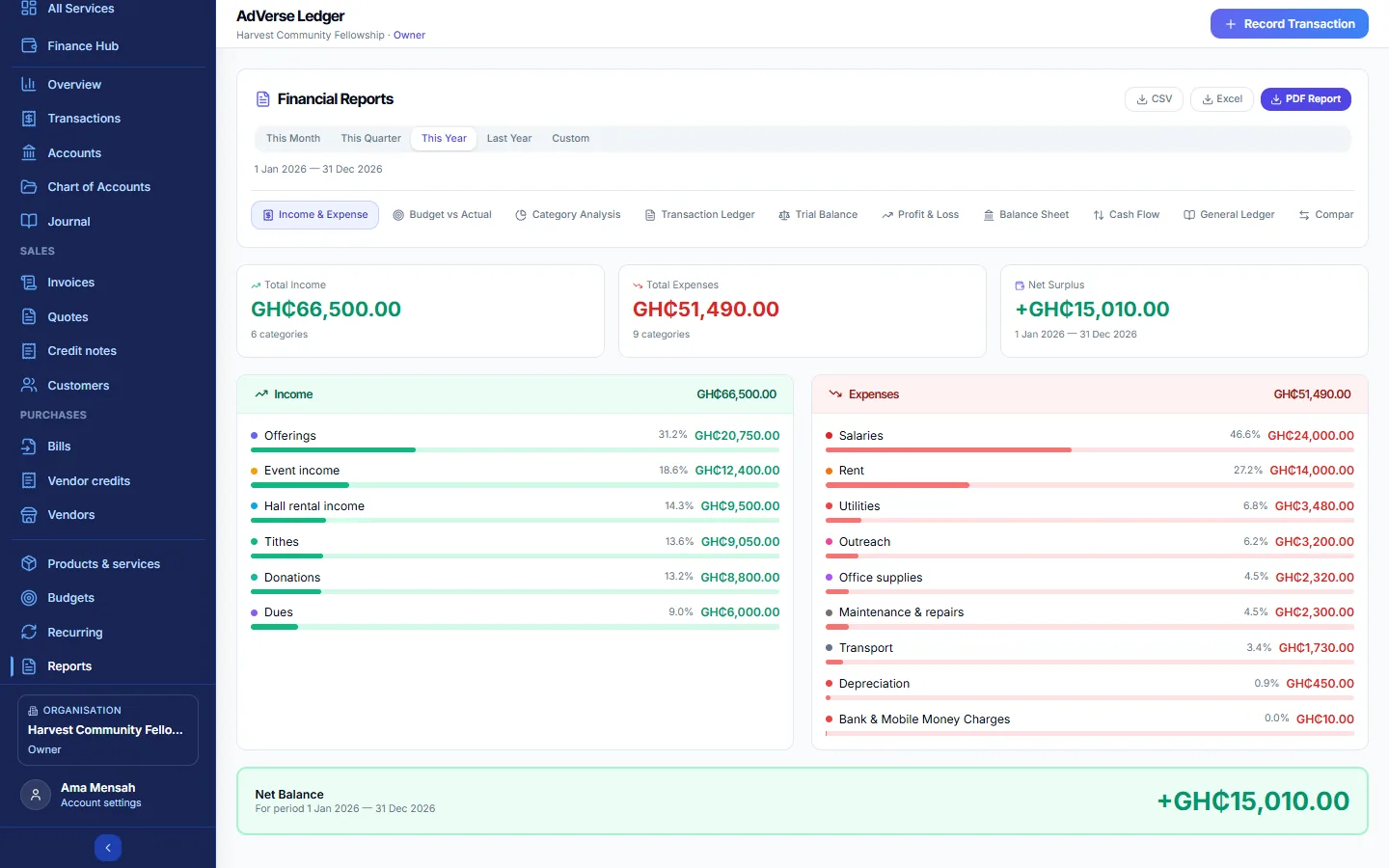
| Report | What it tells you |
|---|---|
| Income & Expense | Income and expenses by category for the period, with the net surplus or deficit. |
| Budget vs Actual | Budgets starting in the period against actual activity: budget, actual, variance (negative means overspent) and progress. |
| Category Analysis | Ring charts of income and expenses by category, and a table of each category's transactions, total and share. |
| Transaction Ledger | Every transaction in the period, numbered, with income as credits and expenses as debits. |
| Trial Balance | Every account's debit or credit balance at the period end. Debits must equal credits; the badge says Balanced or Not balanced. |
| Profit & Loss | Income, cost of sales, gross profit, expenses and net surplus. Accrual counts invoices and bills when issued; Cash counts money when it moves. |
| Balance Sheet | What you own, owe and hold as funds at the period end. Assets always equal liabilities plus equity. |
| Cash Flow | How cash changed and why. Indirect starts from the surplus; Direct lists money received and paid by category. Opening cash plus net change equals closing cash. |
| General Ledger | Every journal line for each account (or one account), with opening and closing balances. |
| Comparative | This period against the previous period, the same period last year, or dates you choose, category by category. |
| Contributions | Income by payer or donor name, with count, total and share. Use it for giving statements. |
| By Currency | Income, expense and net per currency, converted to your base currency. |
| Tax Summary | Tax charged on sales and paid on purchases per tax rate, and totals per tax category. |
| Aging | What customers owe you (Receivable) or you owe vendors (Payable), split into current, 1–30, 31–60, 61–90 and over 90 days. |
| Year-End Summary | Totals, a monthly trend, the top income and expense categories and key counts for the year. |
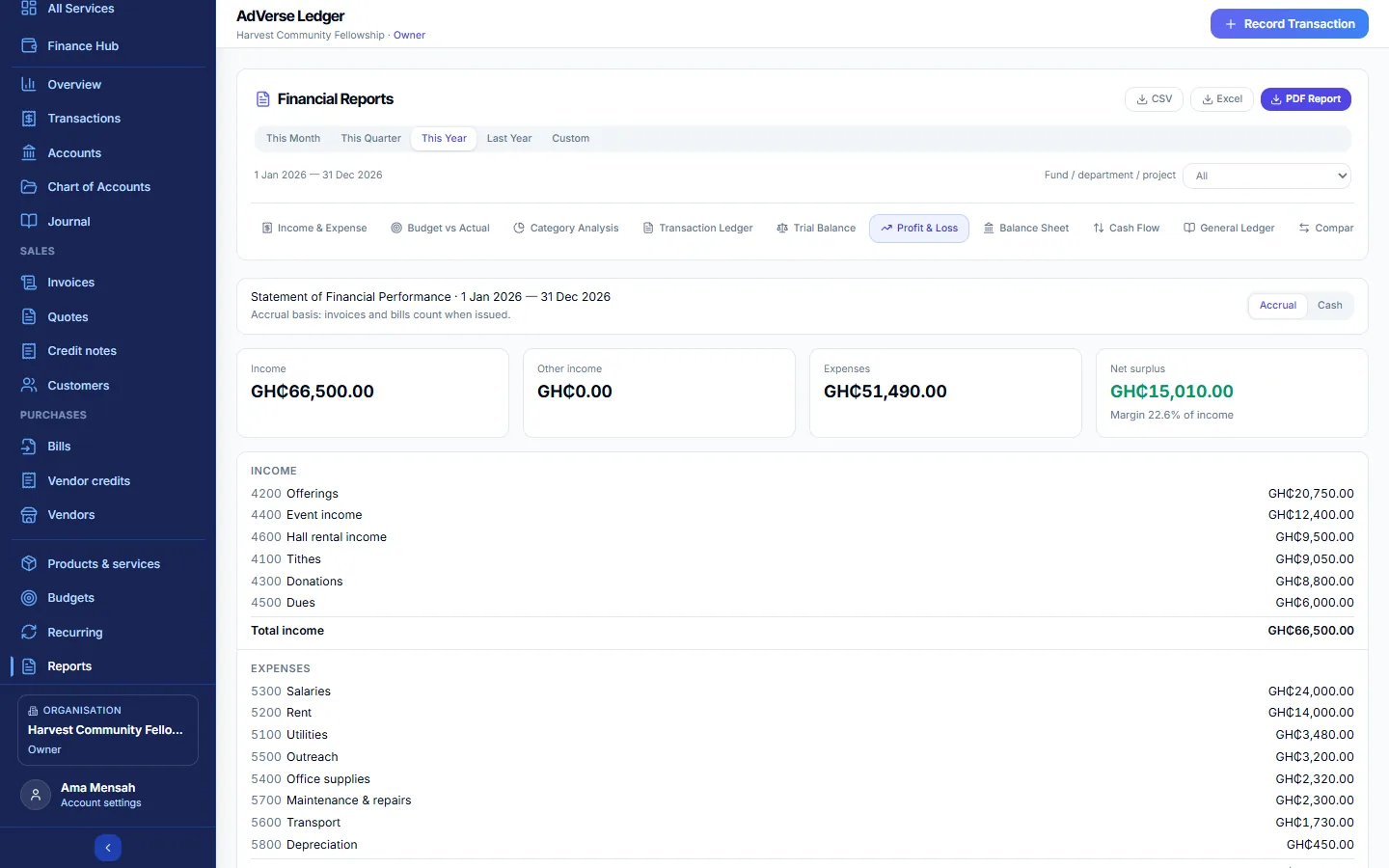
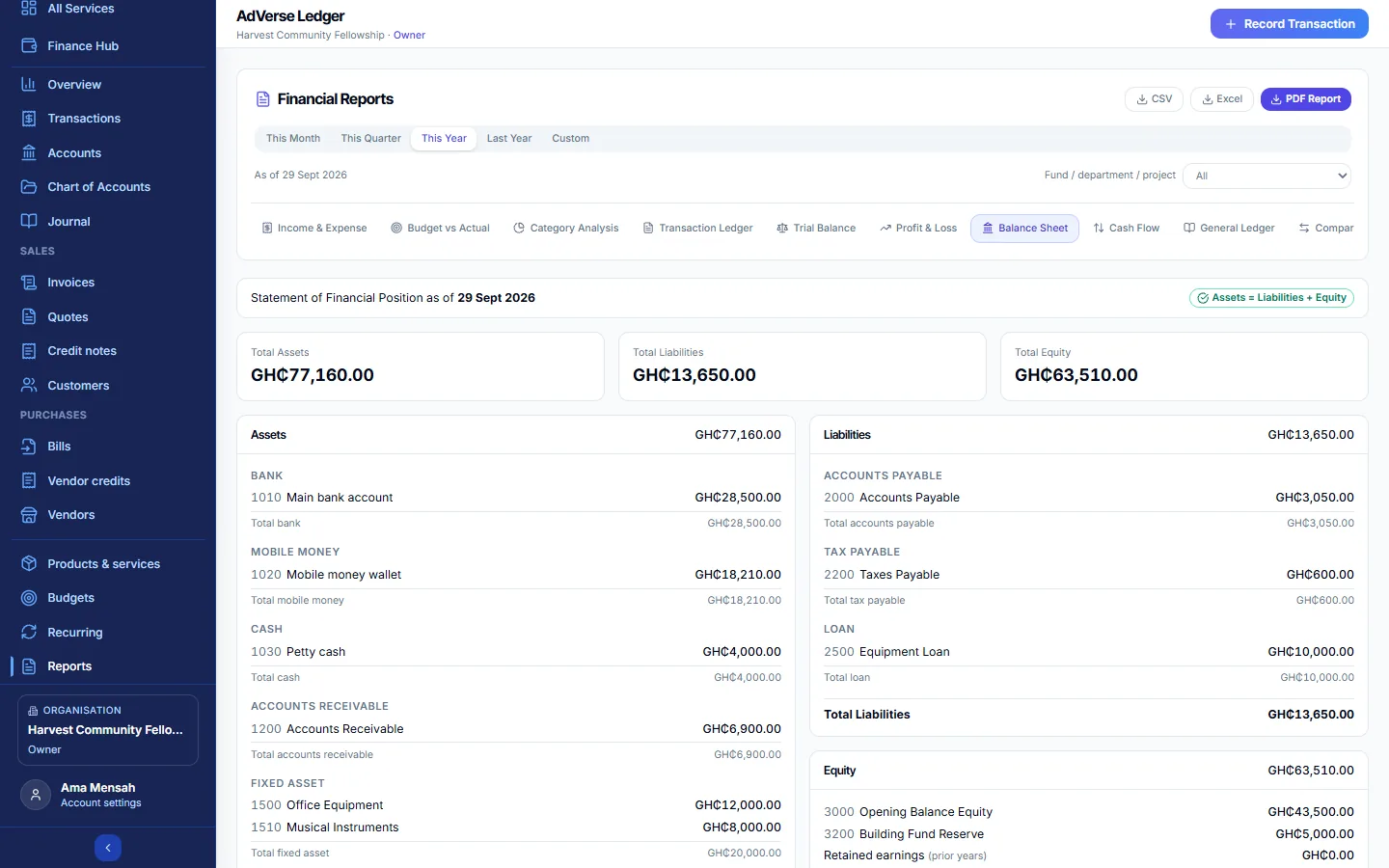
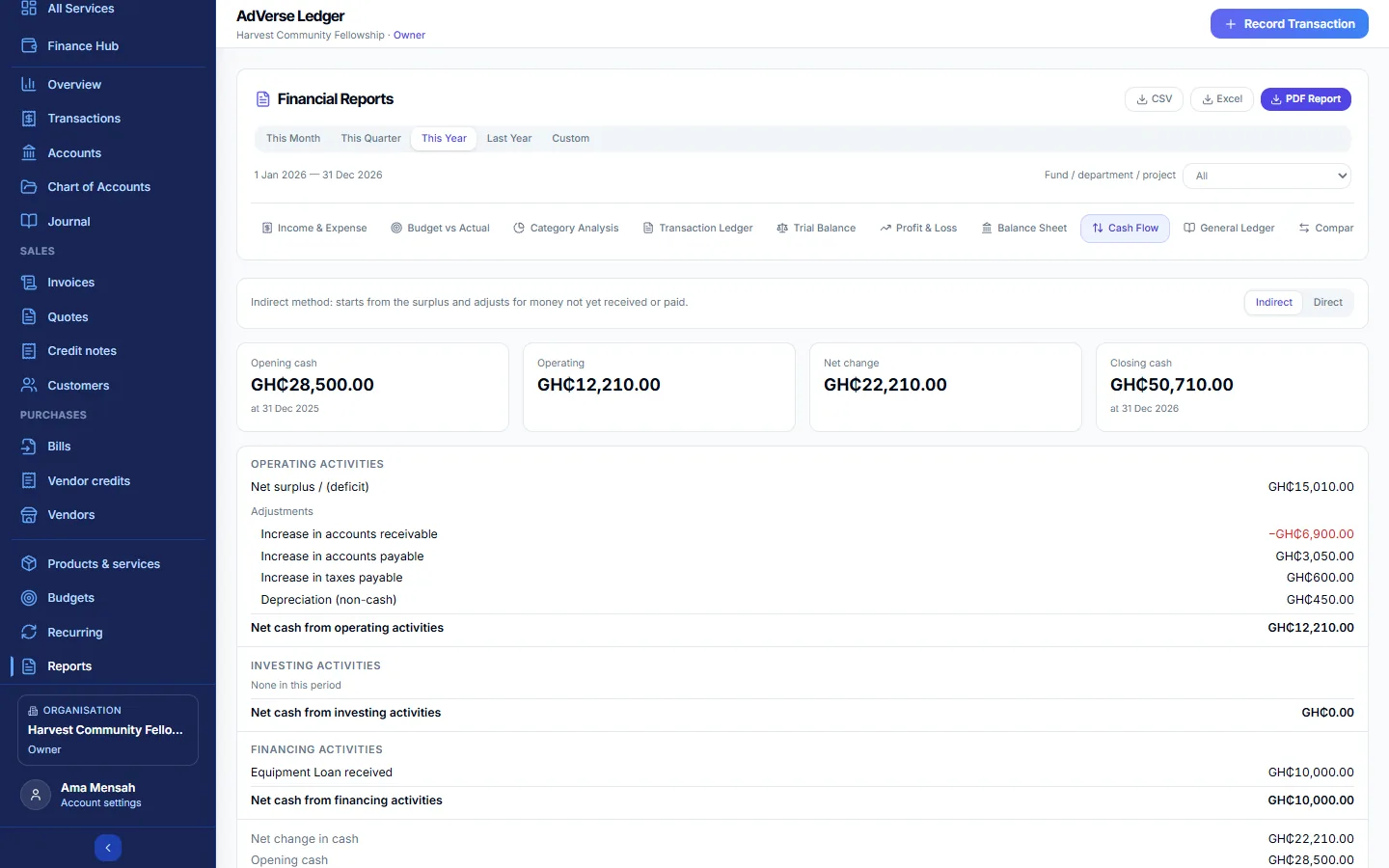
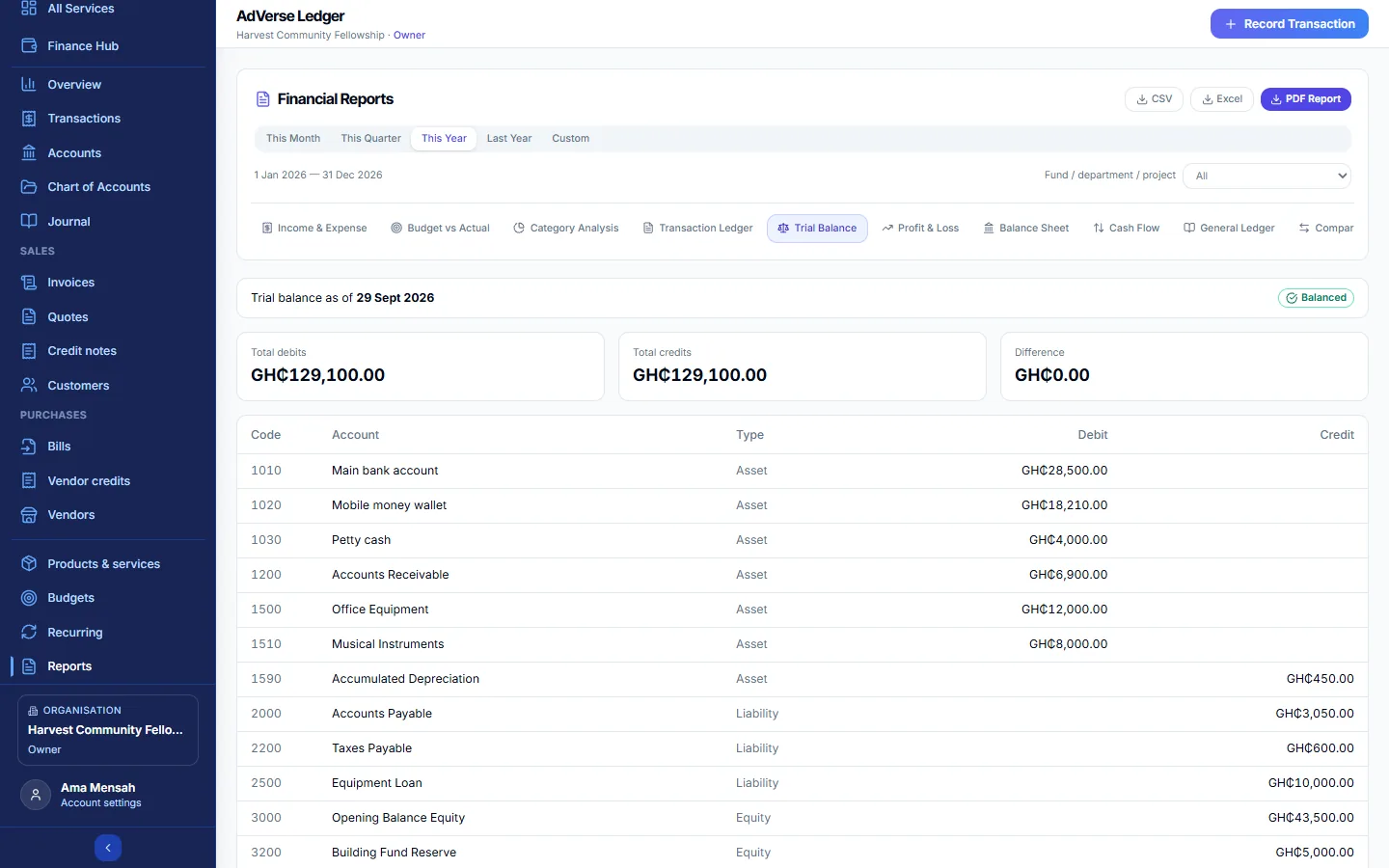
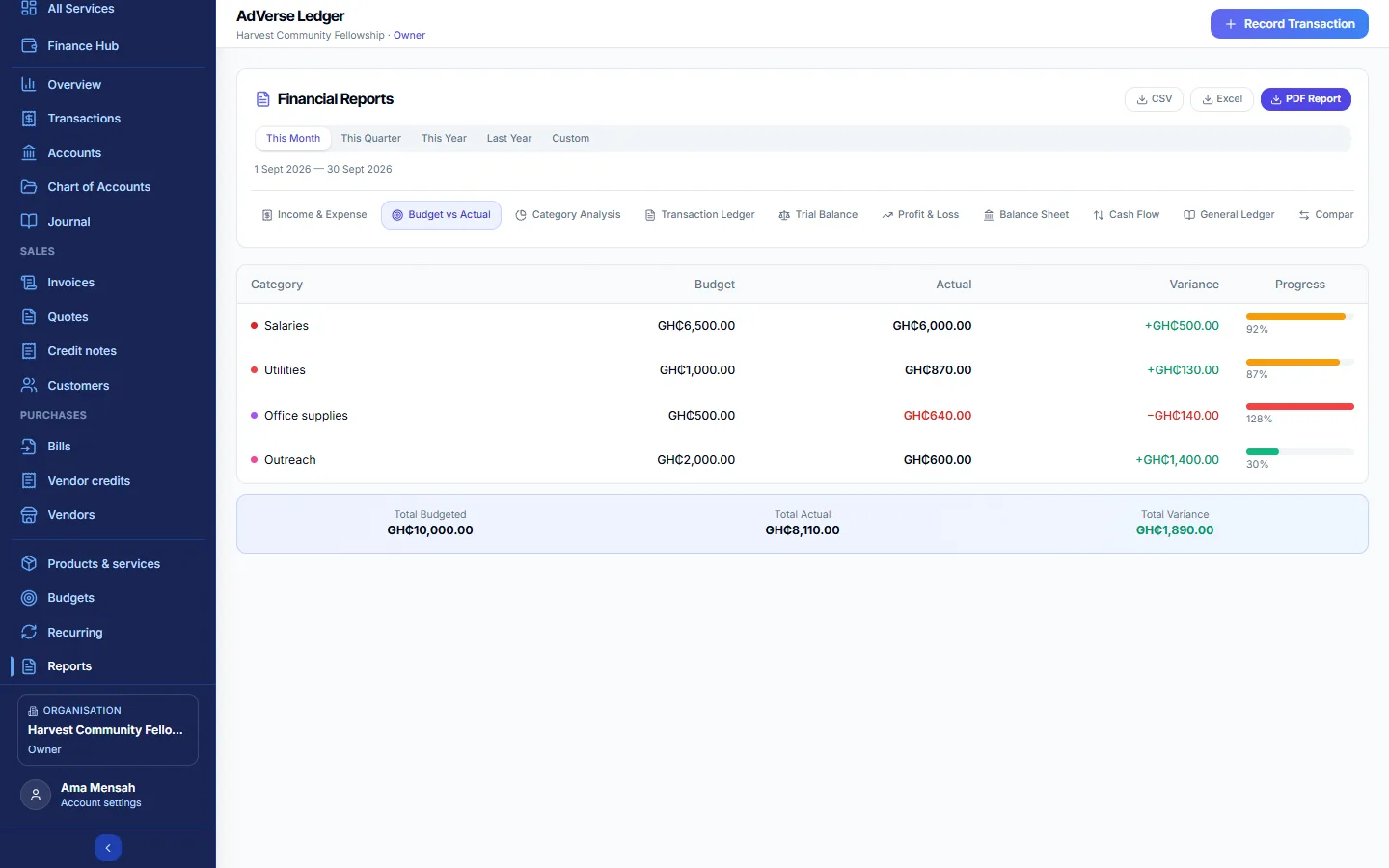
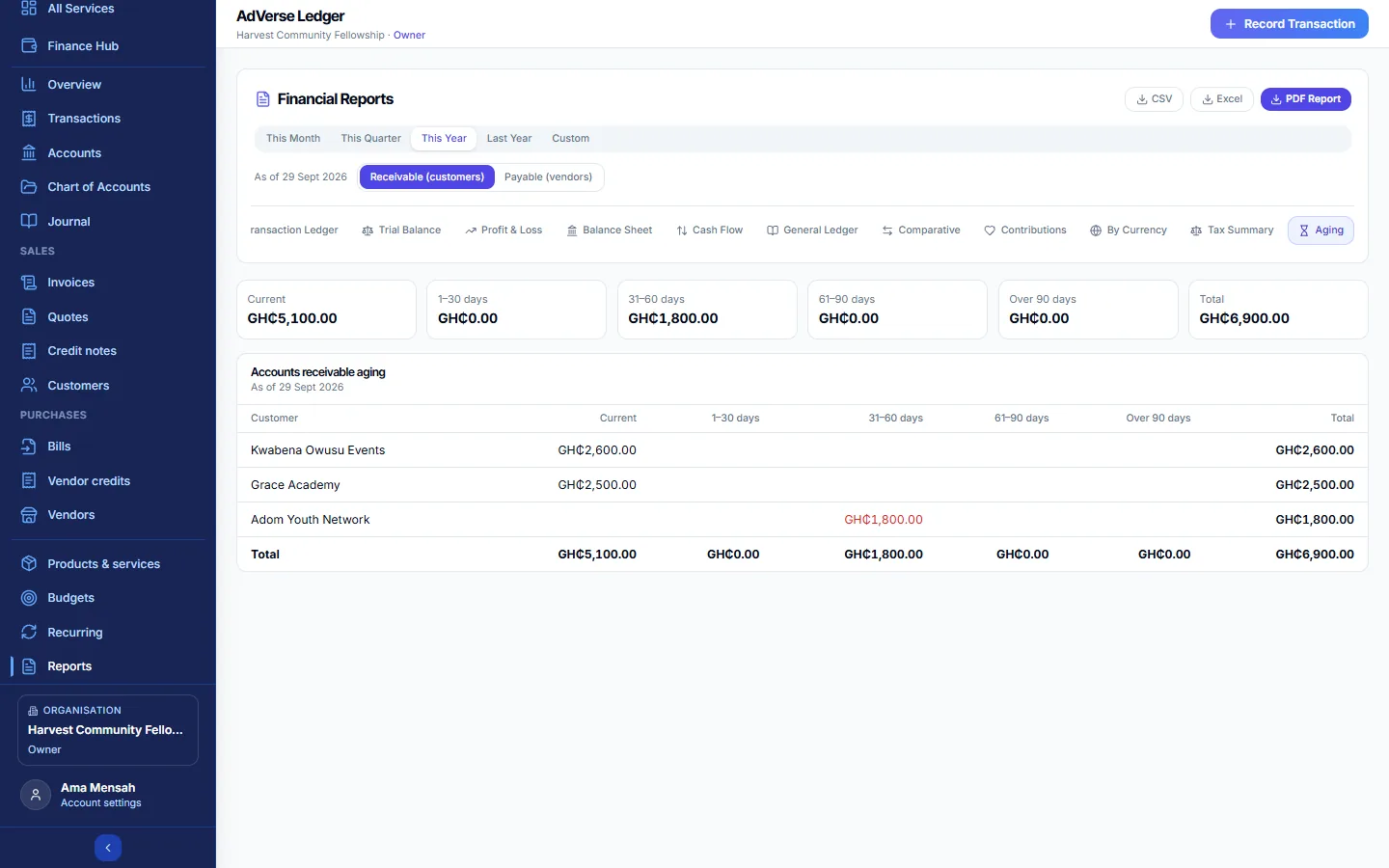
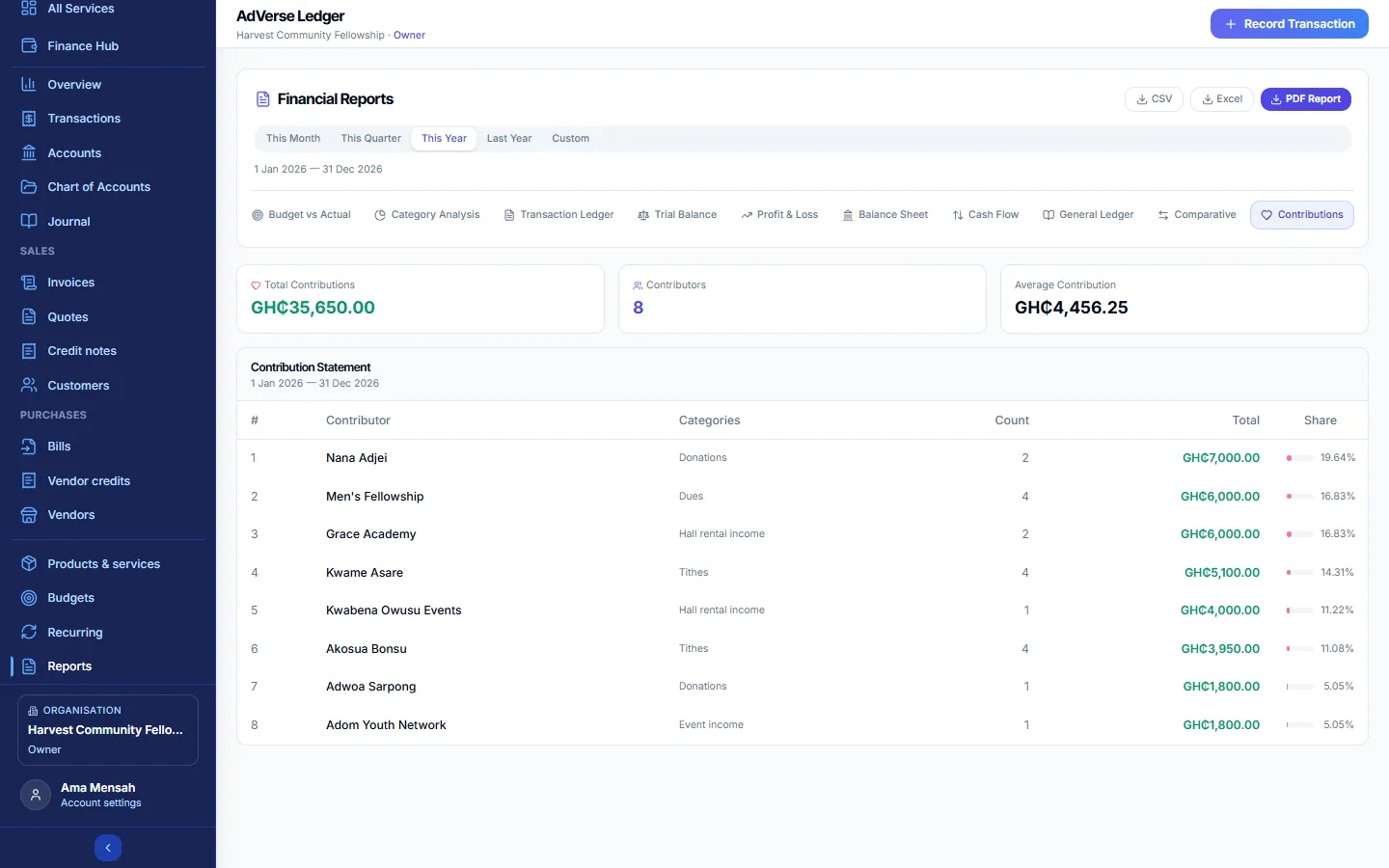
Run the integrity check on the Journal. The Trial Balance, Balance Sheet and Cash Flow all point you there when their checks fail.
12Members
Owner and Admin manage; Treasurers and Auditors can view. Who can open this organisation's Ledger, and what each person can do.
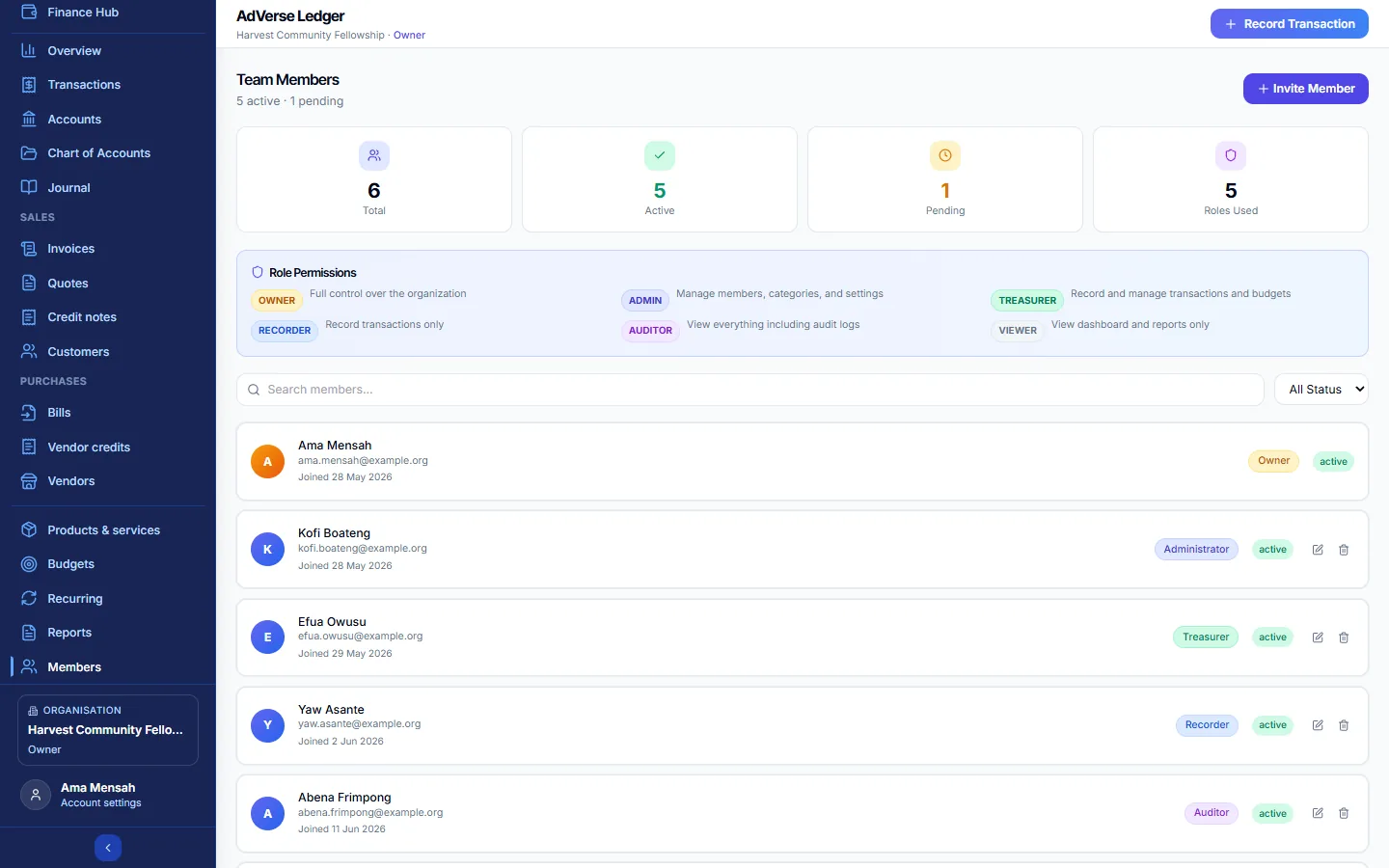
Invite someone
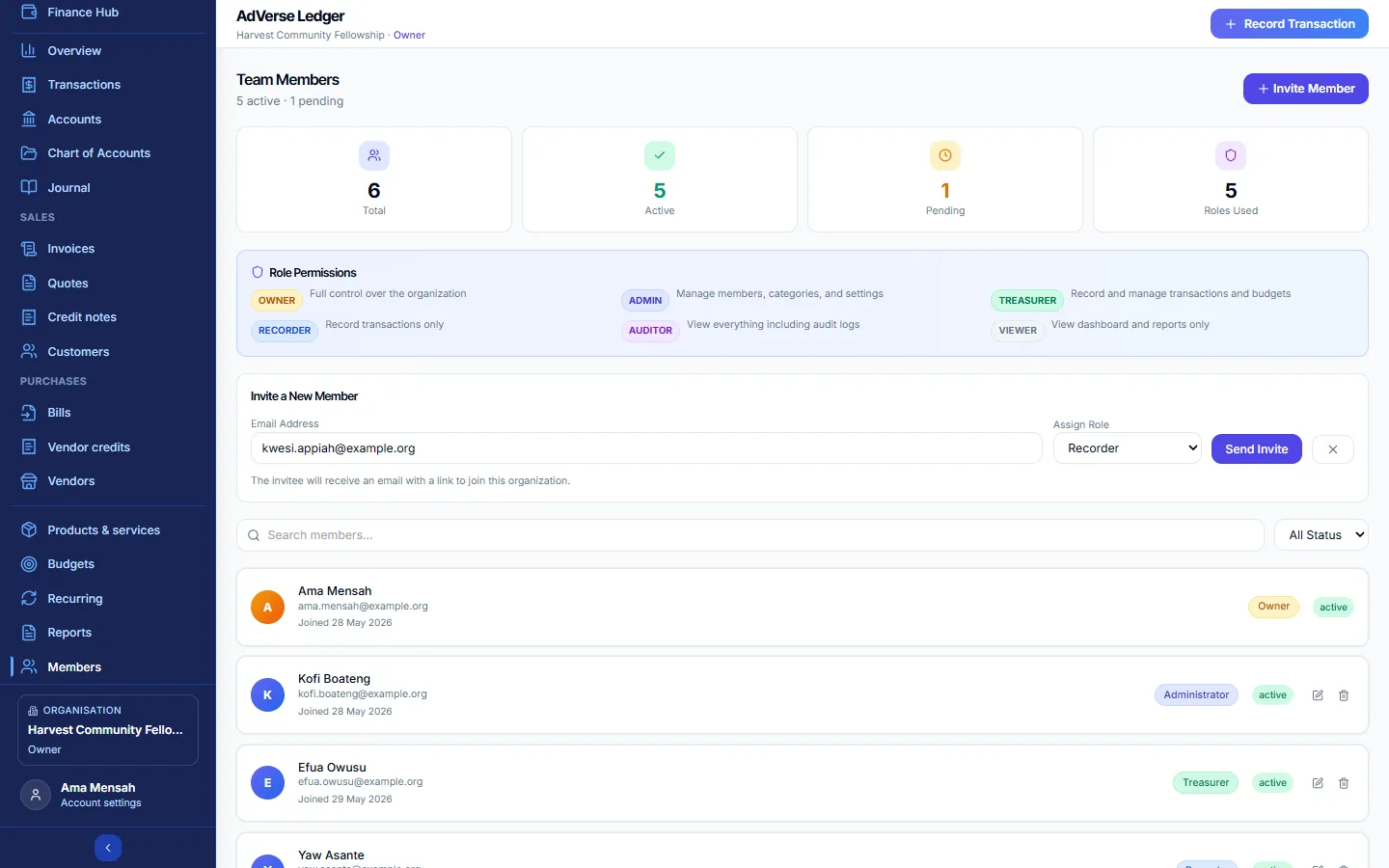
- Select + Invite Member.
- Enter their Email Address and choose a role under Assign Role: Administrator, Treasurer, Recorder, Auditor or Viewer.
- Select Send Invite. They receive an email with a link. You can also Copy Link and send it yourself.
- The link in the email lets the person join as a guest: they set a Guest Workspace password and confirm a 6-digit code sent to their email. They do not need a full AdVerse account.
- The copied link is for people who already have an AdVerse account and want to join with it.
- Either way, they must use the email address you invited.
Change a role or remove someone
Use the role list on a member's card to change their role (it saves straight away), Copy invite link for a pending invitation, or remove the member. The Owner's role cannot be changed and the Owner cannot be removed.
13Contacts
A simple directory of donors, vendors, members and others, with how much each has contributed and been paid. It is the same contact list used by Customers and Vendors, seen from the giving side.
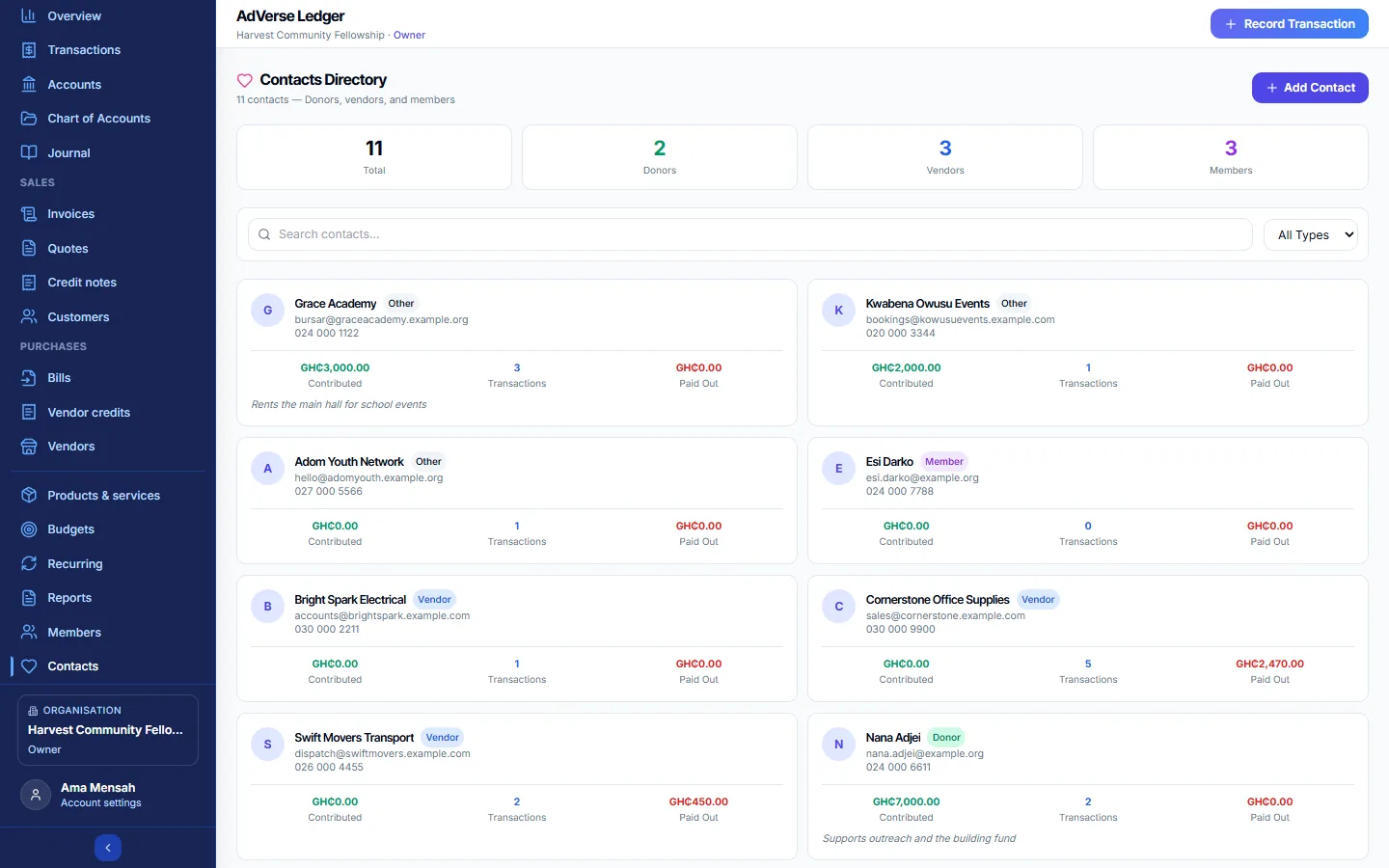
Select + Add Contact, enter the Name, Email, Phone, Type (Donor, Vendor, Member or Other) and Notes, then Create. Filter by type or search by name.
14Audit Log
Owner, Admin and Auditor. A record of who did what and when, which cannot be edited.
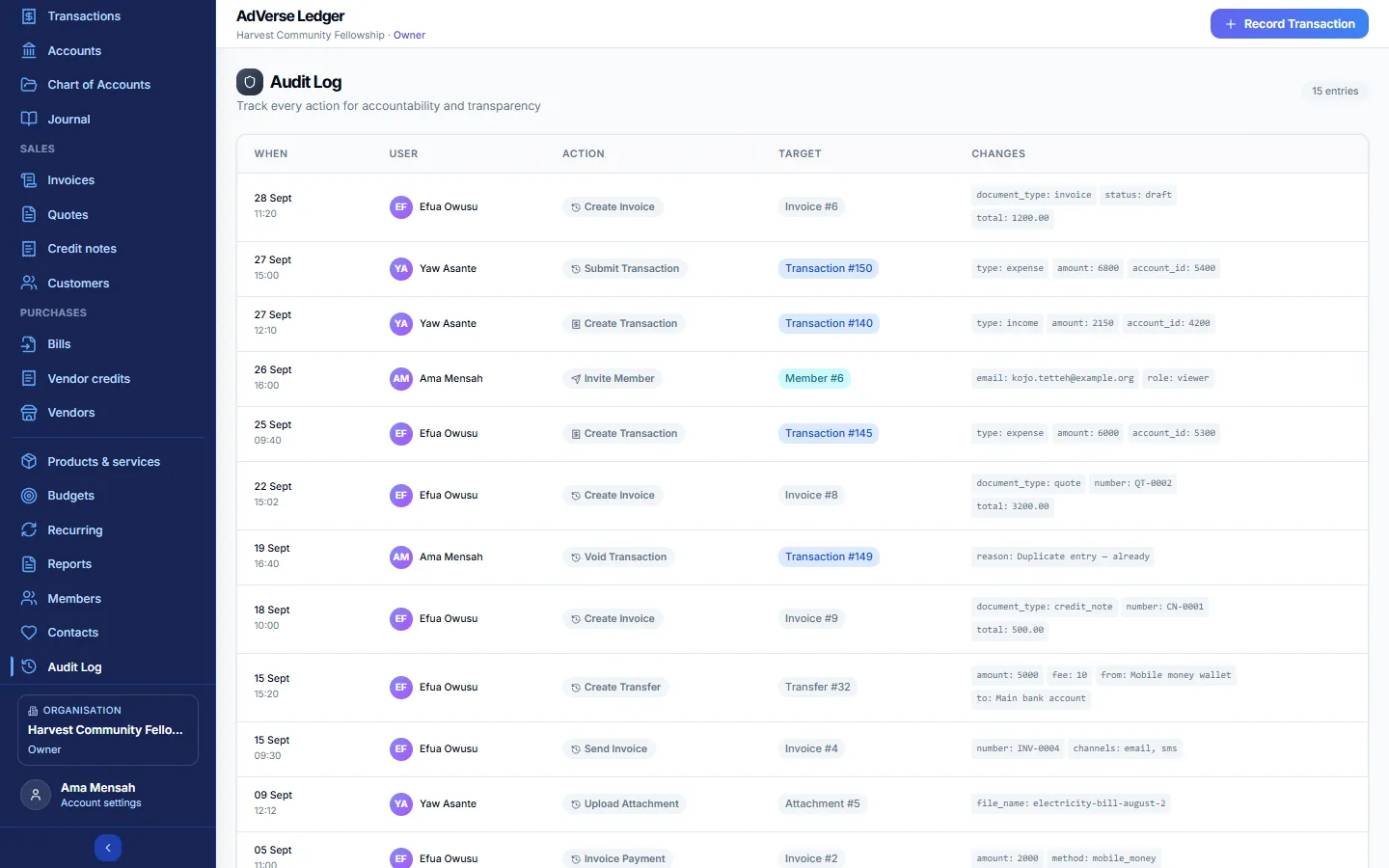
Each line shows When, the User, the Action (for example "void transaction" or "update org"), the Target and the Changes. Recording, editing and voiding, approvals, attachments, accounts, transfers, budgets, recurring templates, members, settings, locked periods, opening balances, journal entries, documents, payments, credits, sending, reminders, reconciliations and exports are all logged.
15Settings
Owner and Admin. Treasurers see only Tax rates. Changes apply as soon as you select Save Changes.
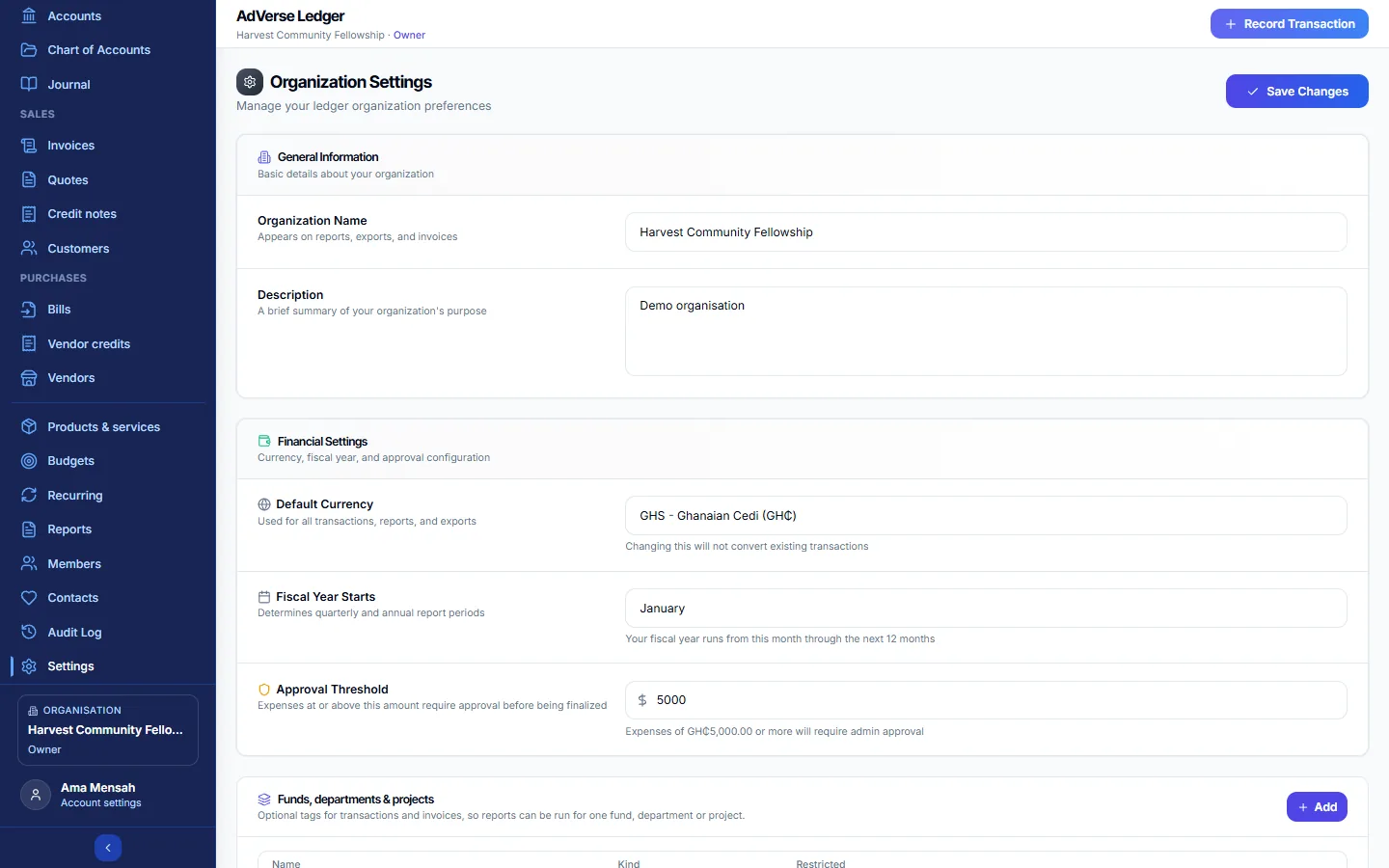
General and financial
- Organization Name and Description.
- Default Currency: used for all transactions, reports and exports. Changing it does not convert existing records.
- Fiscal Year Starts: the first month of your financial year. It drives the year-end close and the "This fiscal year" range. (The report presets This Year and Last Year are calendar years.)
- Approval Threshold: expenses at or above this amount need approval. Leave it blank to turn approvals off. See Approve large expenses.
Funds, departments & projects
Optional tags so you can report money for one fund, department or project. Select + Add, enter a Name (for example "Building Fund"), choose the Kind and tick Restricted if donors gave it for a set purpose. Tags that were used are archived rather than deleted.
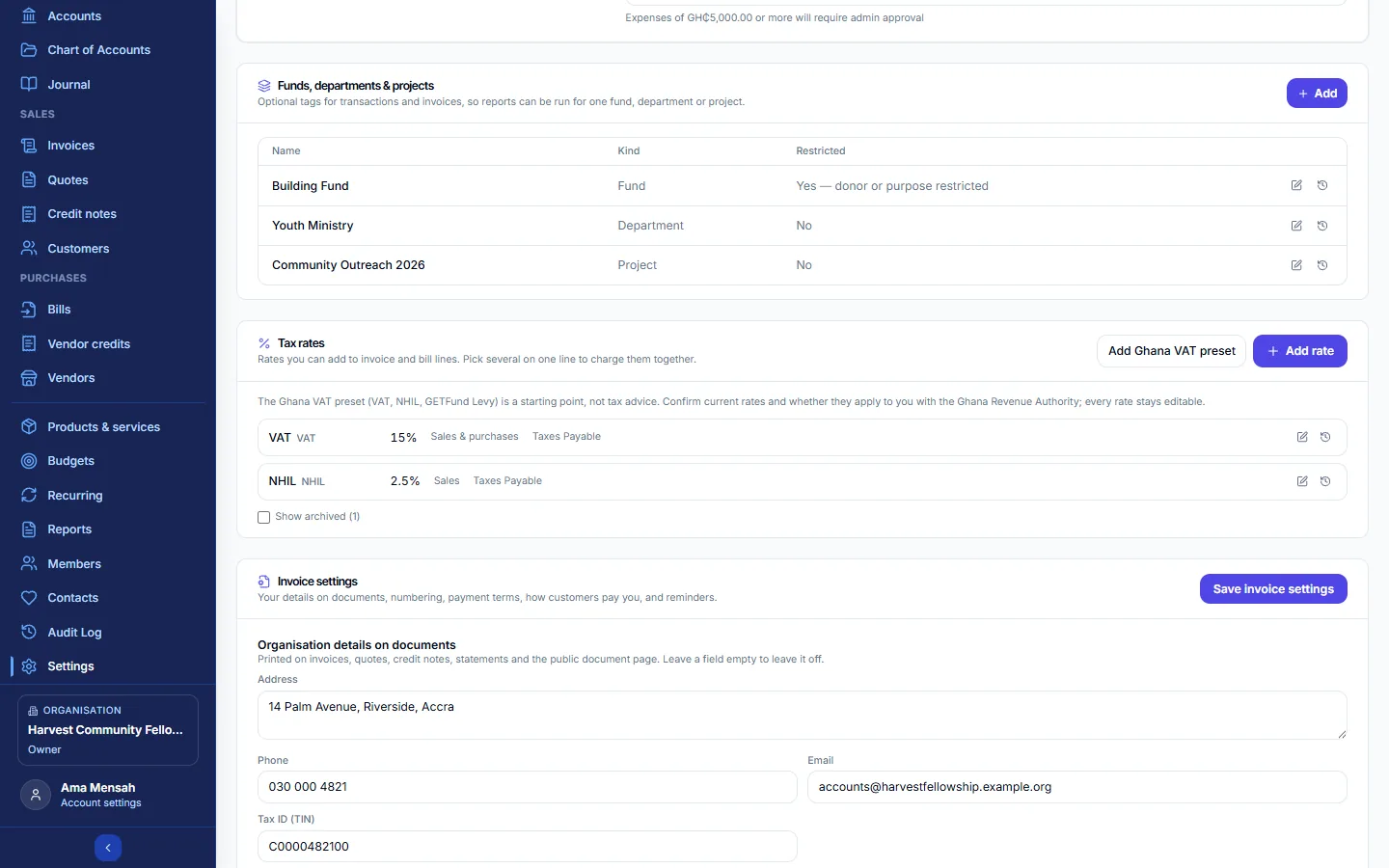
Tax rates
Rates you can add to invoice and bill lines; several can be charged on one line. Select + Add rate and enter the Name, Rate %, Code, what it Applies to (sales, purchases or both) and the liability account it is owed to; tick Compound if it is charged on top of the line's other taxes. Add Ghana VAT preset adds VAT 15%, NHIL 2.5% and GETFund Levy 2.5% as a starting point. Confirm current rates with the Ghana Revenue Authority or your tax adviser.
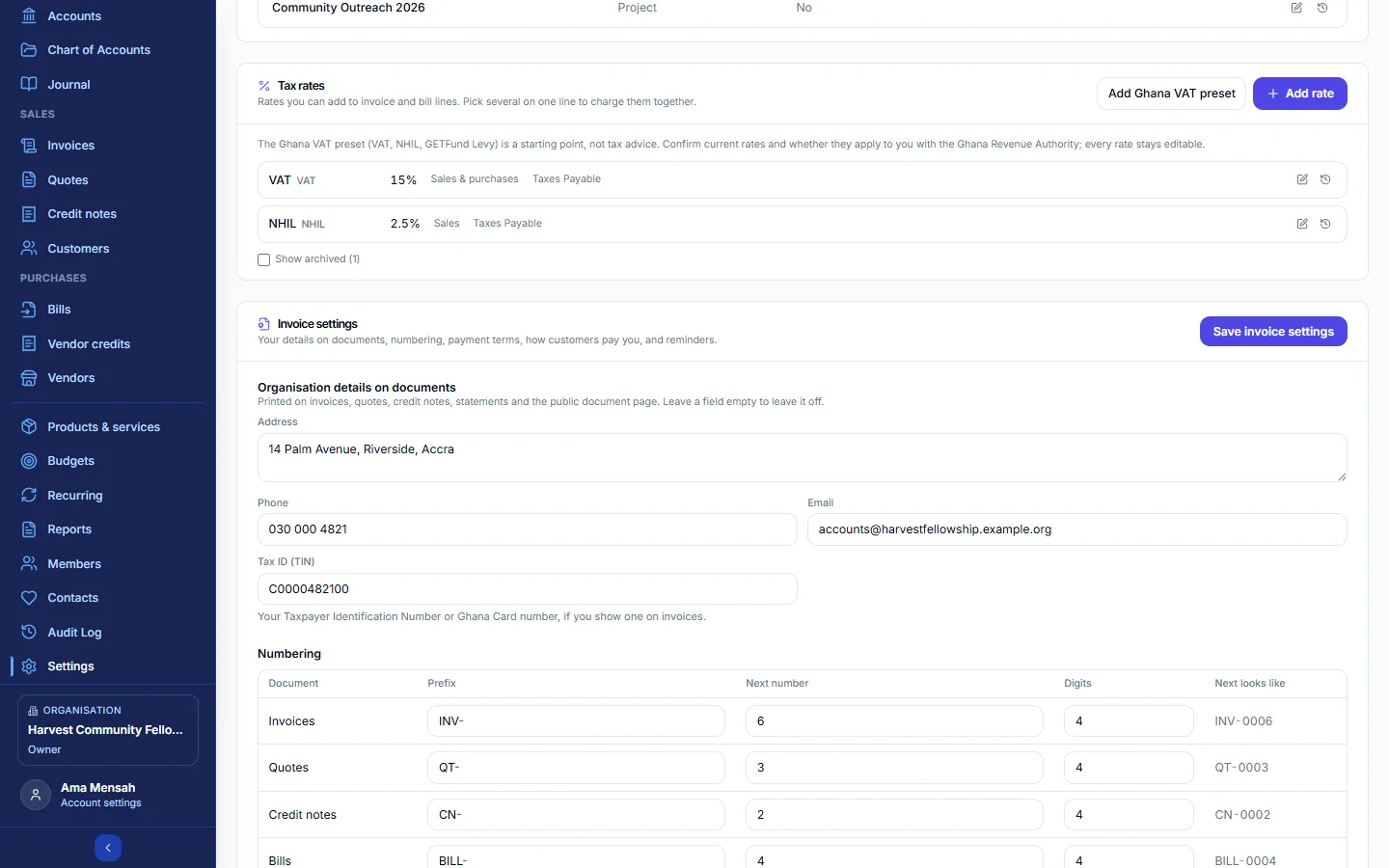
Invoice settings
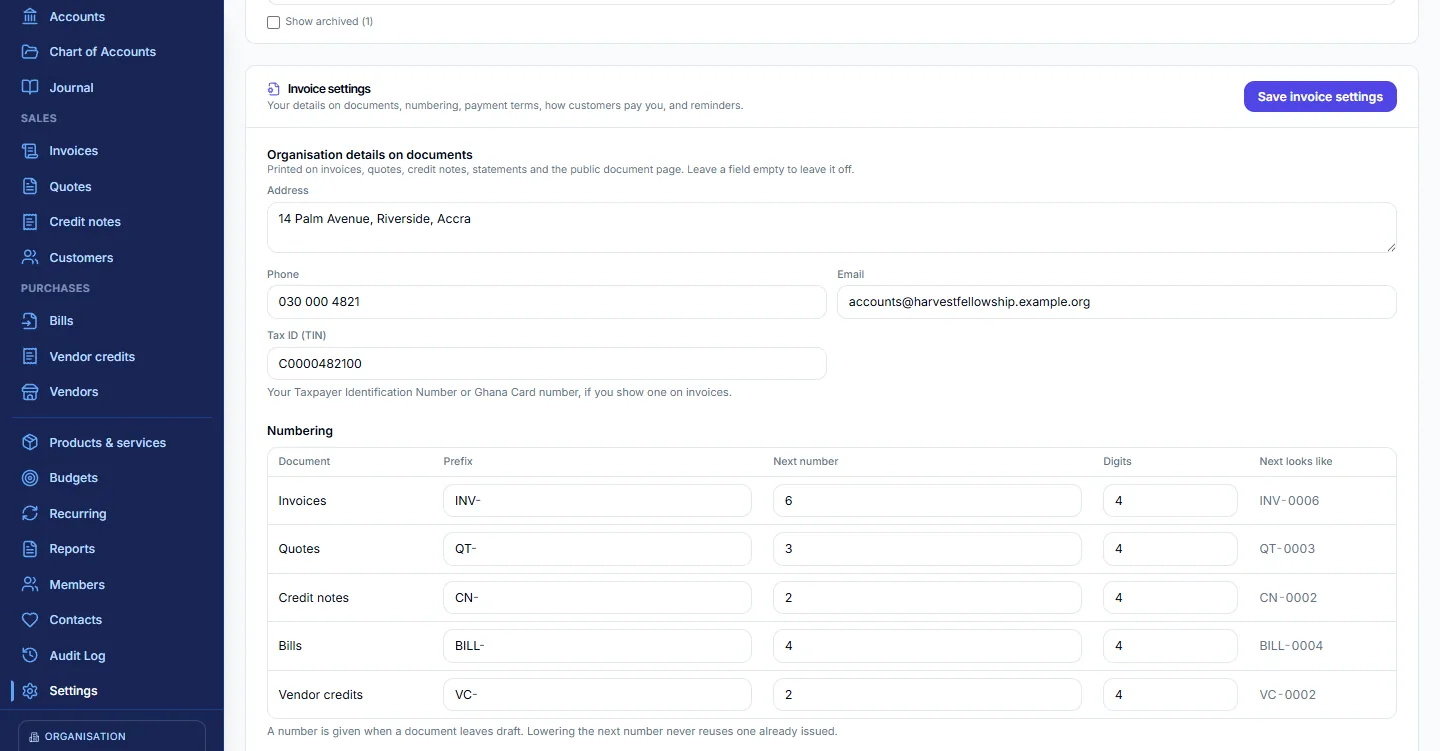
- Organisation details on documents: address, phone, email and tax ID, printed on invoices, quotes, credit notes, statements and the public page.
- Numbering: the prefix, next number and digits for each document type. A number is given when a document leaves draft, and an issued number is never reused.
- Default payment terms (days): used when a contact has none.
- Online payments go into: the account online payments are recorded to. Pay online only appears for customers when the organisation owner has connected their own online payment account.
- Payment instructions: shown on invoices and the public page, for example your bank details and your mobile money number and name.
- Send payment reminders automatically: by email, SMS or both, a set number of days before and after the due date, up to a maximum per invoice. SMS is charged to the organisation owner's SMS wallet.
Invoice settings have their own Save invoice settings button.
Lock a period
Locking stops anyone changing anything dated inside a closed period: no recording, editing, voiding, payments, issuing documents or journal entries. Enter a Period Start, Period End and optional Notes (for example "Q2 2026 closed"), then Lock. Unlock reopens it.
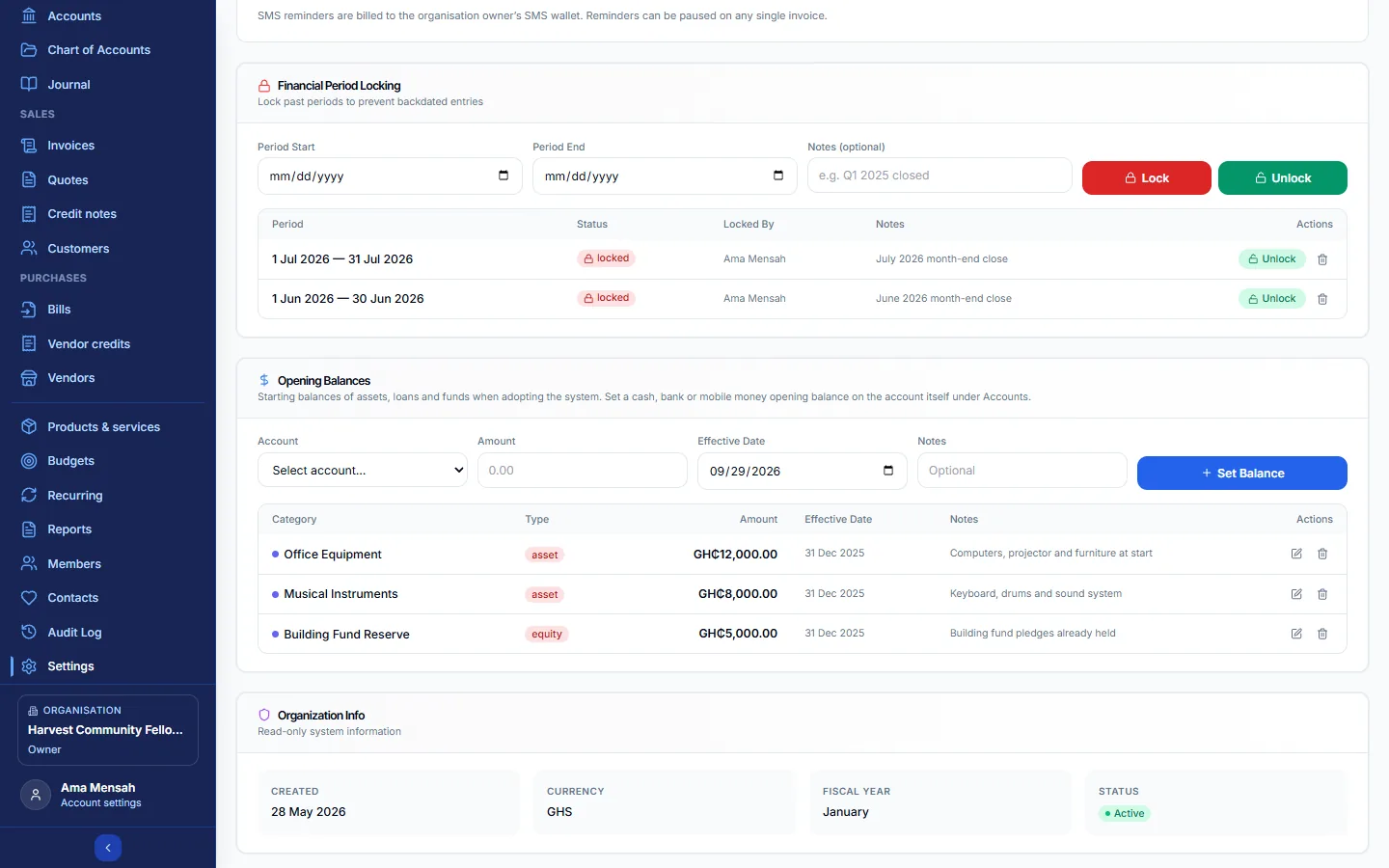
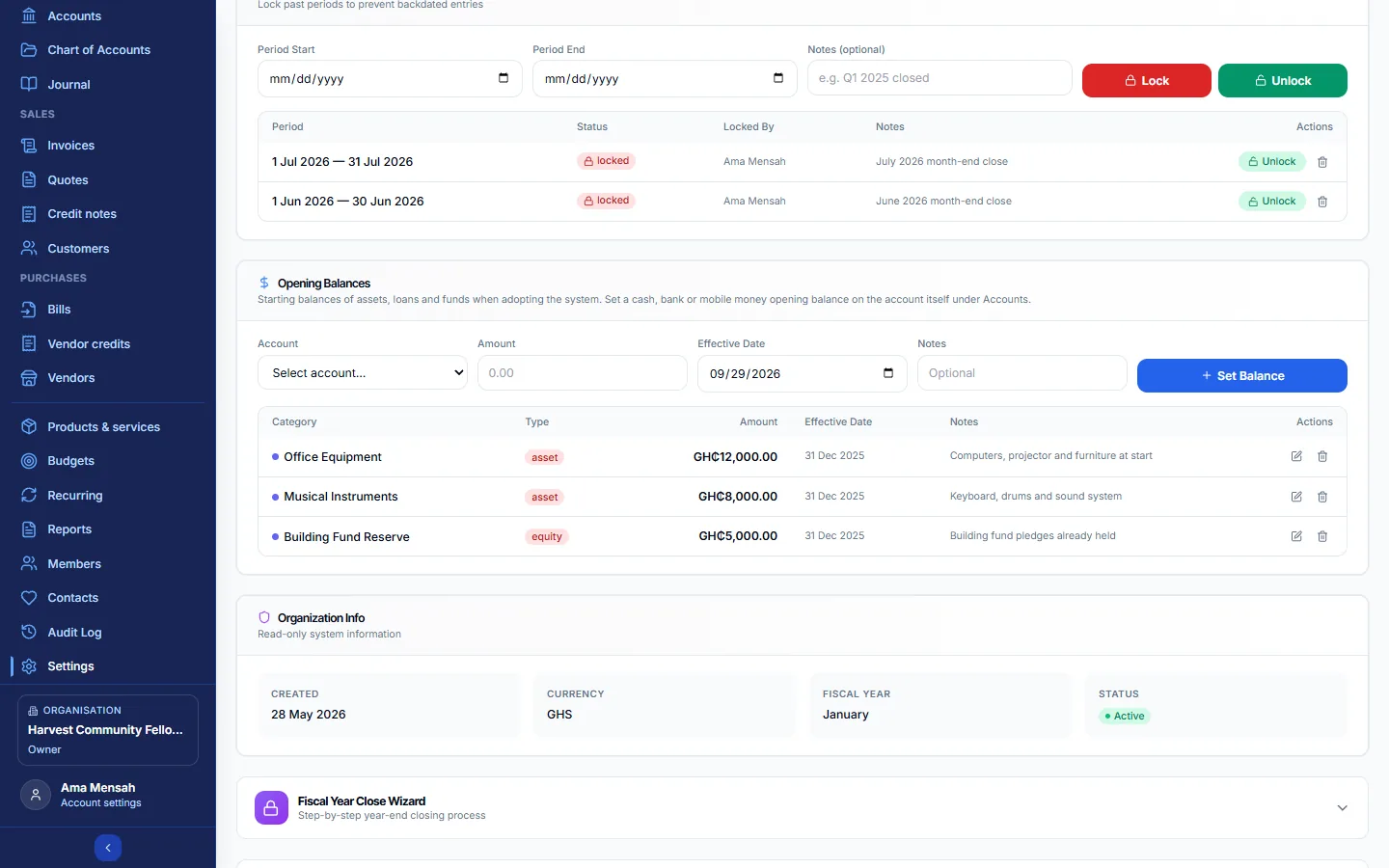
Opening balances
Starting balances for assets, loans and funds when you begin using the Ledger (for example equipment you own or a loan you owe). Choose the Account, the Amount and the Effective Date, then Set Balance. Cash, bank and mobile money balances are set on the account itself under Accounts. Income and expense categories never take an opening balance.
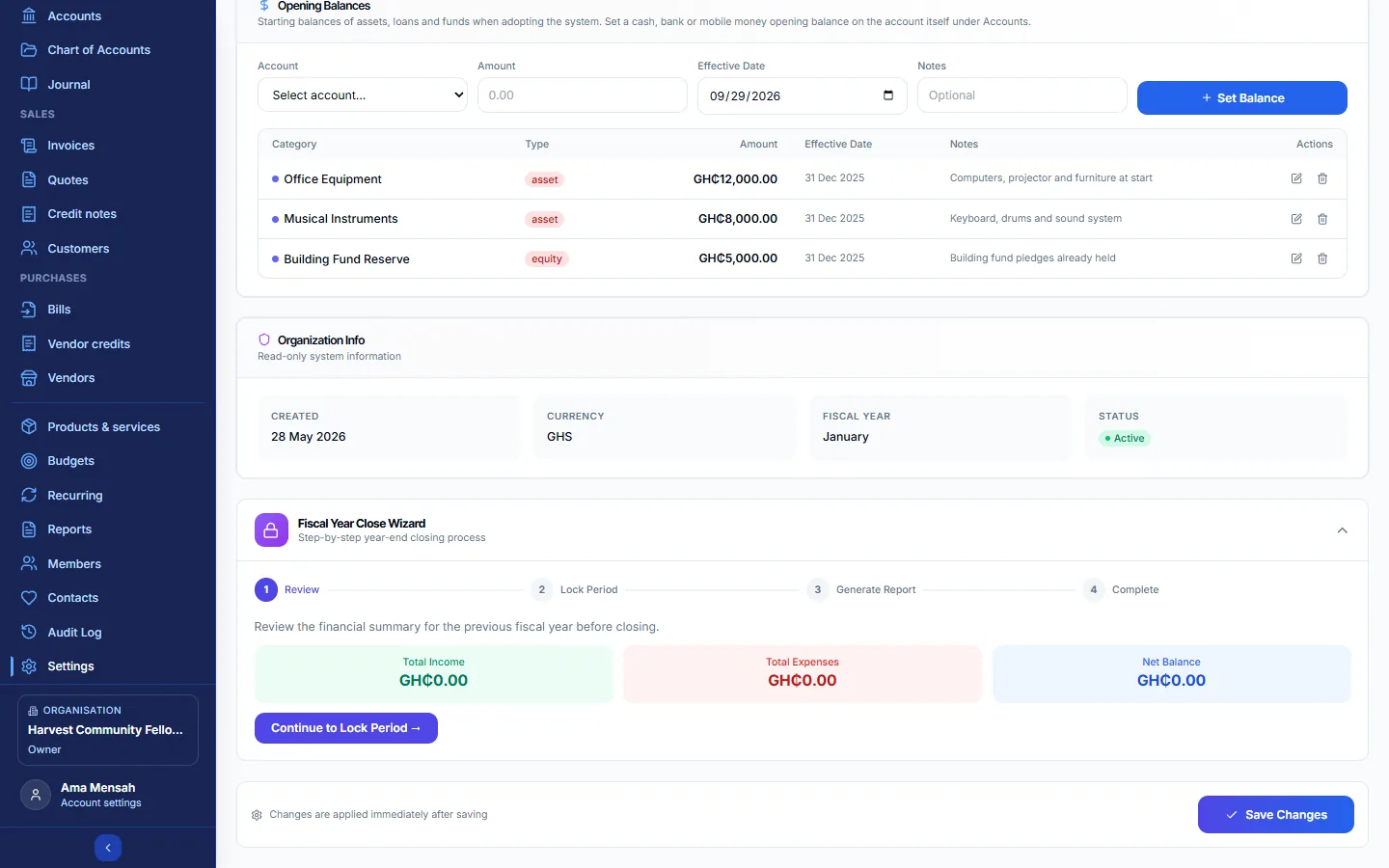
Close the financial year
The Fiscal Year Close Wizard walks you through Review (last year's income, expenses and net), Lock Period (locks the whole year), Generate Report (produce your year-end statements from Reports) and Complete. Last year's surplus rolls into retained earnings automatically; no closing entries are needed.
Roles and permissions
Give each person the smallest role that lets them do their job. The Owner is whoever created the organisation.
| Role | In short |
|---|---|
| Owner | Full control over the organisation. |
| Admin | Manages members, categories and settings; can do everything the Owner can except change or remove the Owner. |
| Treasurer | Records and manages transactions, documents, accounts and budgets. |
| Recorder | Records transactions only. |
| Auditor | Views everything, including the Journal, members and the audit log; changes nothing. |
| Viewer | Views the dashboard, records and reports only. |
| Can… | Owner | Admin | Treasurer | Recorder | Auditor | Viewer |
|---|---|---|---|---|---|---|
| View data and reports, download PDFs | ✓ | ✓ | ✓ | ✓ | ✓ | ✓ |
| Record transactions, import CSV, upload attachments | ✓ | ✓ | ✓ | ✓ | – | – |
| Add customers, vendors and contacts | ✓ | ✓ | ✓ | ✓ | – | – |
| Edit transactions, delete attachments | ✓ | ✓ | ✓ | – | – | – |
| Approve or reject expenses (not your own) | ✓ | ✓ | ✓ | – | view | – |
| Manage accounts, transfers, reconciliation, chart of accounts | ✓ | ✓ | ✓ | – | – | – |
| Invoices, quotes, credits and bills: create, send, pay, void | ✓ | ✓ | ✓ | – | – | – |
| Items, tax rates, budgets, recurring templates | ✓ | ✓ | ✓ | – | – | – |
| Journal: view | ✓ | ✓ | ✓ | – | ✓ | – |
| Journal: post and void manual entries | ✓ | ✓ | ✓ | – | – | – |
| Void transactions; delete accounts, drafts, payments and applied credits; archive contacts, items and tax rates; Run Due and delete recurring templates | ✓ | ✓ | – | – | – | – |
| Settings, invoice settings, locked periods, opening balances, year-end close | ✓ | ✓ | tax rates | – | – | – |
| Invite members, change roles, remove members | ✓ | ✓ | – | – | – | – |
| See the members list | ✓ | ✓ | ✓ | – | ✓ | – |
| See the audit log; run the journal integrity check | ✓ | ✓ | – | – | ✓ | – |
Invited guests have exactly the rights of the role they were given.
How the books work
One book, two views
You record in plain terms (income, expense, category), and the Ledger also writes every record into a balanced double-entry journal behind the scenes. The Journal, Trial Balance, Balance Sheet, Profit & Loss, Cash Flow, General Ledger and account registers read that journal. You only post journal entries yourself for adjustments.
Categories, money accounts and transfers
- Categories say what the money was for (Tithes, Rent). Money accounts say where it is held (the bank, the wallet).
- Moving money between your own accounts is a transfer, never income or an expense.
- Choosing an asset, loan or fund as a category (a loan received, equipment bought) records money in or out without touching income, expenses or the surplus.
Accrual and cash
Invoices and bills count when they are issued (accrual). The payment only moves the money into or out of an account. The Profit & Loss report has a Cash view if you want to see income and expenses when money actually moved.
Currency
Reports are in the organisation's default currency. Transactions recorded on screen use that currency. A money account can hold another currency, fixed when it is created, and a transfer between currencies needs an exchange rate. Invoices and bills must be in the default currency for now.
What cannot be undone
- Voiding keeps the record and reverses its effect; there is no un-void.
- Deleting a draft document, an attachment, a budget, a locked period, an opening balance or a recurring template is permanent.
- Issued document numbers are never reused.
Locked periods and reconciled items
Nothing dated in a locked period can be changed. Reconciled items keep their amount, date and account until they are unticked.
Messages and fixes
The messages you are most likely to meet, and what to do.
| You see | Why, and what to do |
|---|---|
| "The date … is in a locked financial period. Unlock the period to make this change." | The date falls in a locked period. An Owner or Admin can unlock it in Settings, or use a date in an open period. |
| "Unreconcile this item before changing it." | The item is ticked in a reconciliation. Untick it in a later reconciliation first. |
| "You can't approve your own request." | Another Owner, Admin or Treasurer must approve it. |
| "… is a money account. Record a transfer to move money between accounts." | Cash, bank and wallet accounts cannot be categories. Use Transfer. |
| "Transaction type (income) does not match the category type (expense)" | Switch the Income/Expense toggle, or pick a category of the right type. |
| "This invoice is fully paid, so it can no longer be edited. Remove a payment or credit first." | Remove the payment (Owner or Admin) if it was wrong, then edit. |
| "Remove its payments first." | A document with payments or credits cannot be voided until they are removed. |
| "Payment exceeds the outstanding balance of …" | Enter no more than the balance due. |
| "Send the invoice or mark it as sent before sharing its link." | Drafts cannot be shared. Issue it first. |
| "… has no email address or phone number for the reminder channels." | Add an email or phone number to the customer. |
| "User is already a member or has a pending invite" | They are already in the organisation, or an invitation is waiting. Use Copy invite link to resend it. |
| "This invitation was sent to a different email address." | Sign in with the invited email address, or ask for a new invitation. |
| "AdVerse PRO subscription required to access this service." | The organisation owner's plan does not include the Ledger or has lapsed. The owner needs to renew it. |
| "Insufficient permissions…" | Your role cannot do this. Ask an Owner or Admin. |
| A report shows Not balanced or Does not reconcile | Run the integrity check on the Journal and contact AdVerse support if problems remain. |
Glossary
- Account
- A line in the chart of accounts: an income or expense category, or something owned (asset), owed (liability) or held as a fund (equity).
- Money account
- A place money is actually held: a cash box, bank account, mobile money wallet or card.
- Category
- An income or expense account that says what money was for.
- Transfer
- Money moved between two of your own money accounts. Not income or an expense.
- Journal entry
- A balanced set of debits and credits. Every record posts one automatically.
- Debit / credit
- The two sides of every journal entry; they always add up to the same amount.
- Accounts receivable
- What customers owe you on issued invoices.
- Accounts payable
- What you owe vendors on approved bills.
- Undeposited funds
- A holding account for money received but not assigned to a bank, cash or wallet account.
- Opening balance
- What an account held on the day you started using the Ledger.
- Reconciliation
- Ticking off records against a bank or mobile money statement until they agree.
- Locked period
- A closed date range that nobody can change.
- Approval threshold
- The expense amount at or above which a record needs someone else's approval.
- Fund / department / project
- An optional tag for reporting money separately; a restricted fund was given for a set purpose.
- Accrual
- Counting income and expenses when invoices and bills are issued rather than when they are paid.
- Retained earnings
- The accumulated surplus from earlier years, carried forward automatically.